-min.avif)
.avif)
.png)
Claude Code is really getting out of developers' hands and into the hands of the common man who wants to build apps and earn money. In less than 10 minutes, you can get a clean app that works perfectly, a database to store the data, and a payment gateway to sell the app on App Store/Play Store.
Vibe coding is basically building software by describing what you want rather than stressing over syntax. You talk to an AI like you would to a teammate, saying things like “I want a simple app that does X” or “make this faster and cleaner,” and it just starts writing the code for you.
The idea is you stay in the flow. You focus on the intent, the feel, the outcome. Not the brackets, not the boilerplate. You try stuff, tweak the vibe, react to what the AI gives back, and keep iterating, kind of like jamming with a very fast developer who never gets tired.
It is less about being a hardcore programmer and more about thinking clearly. If you can explain what you want in plain language, you can ship things way faster. You are guiding, nudging, correcting. The AI does the heavy lifting while you keep the vision.
In this tutorial, we will show you how to vibe code an AI voice notetaker app using Claude Code. We will use Vibecode.dev platform. It uses Claude Opus and Sonnet models - the same model used by Claude Code.
By the end of this tutorial, you’ll be able to:
- Access Vibecodeapp and start a new project
- Create mockup screens for the app
- Use Claude Opus 4.5 to vibe code the app
- Review and suggest edits
Let’s get started!
Step 1 - Access Vibecodeapp and start a new project
For this tutorial, we will use vibecode.app. It’s a vibe-coding app that uses the Claude Opus and Sonnet models to generate code. It’s similar to Claude Code, but with a focus on developing apps rather than general work.
Access Vibecodeapp and create a new account.
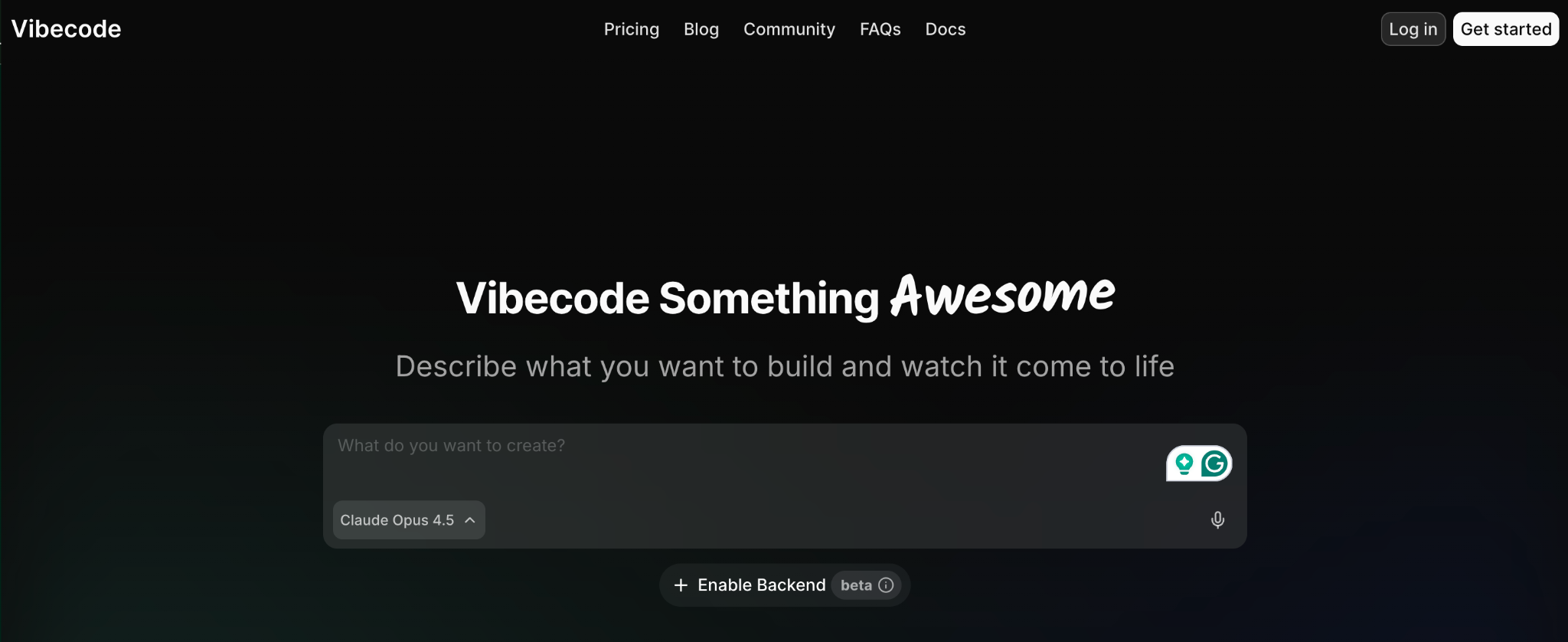
After logging in, you will be able to access the screen to create a new project.
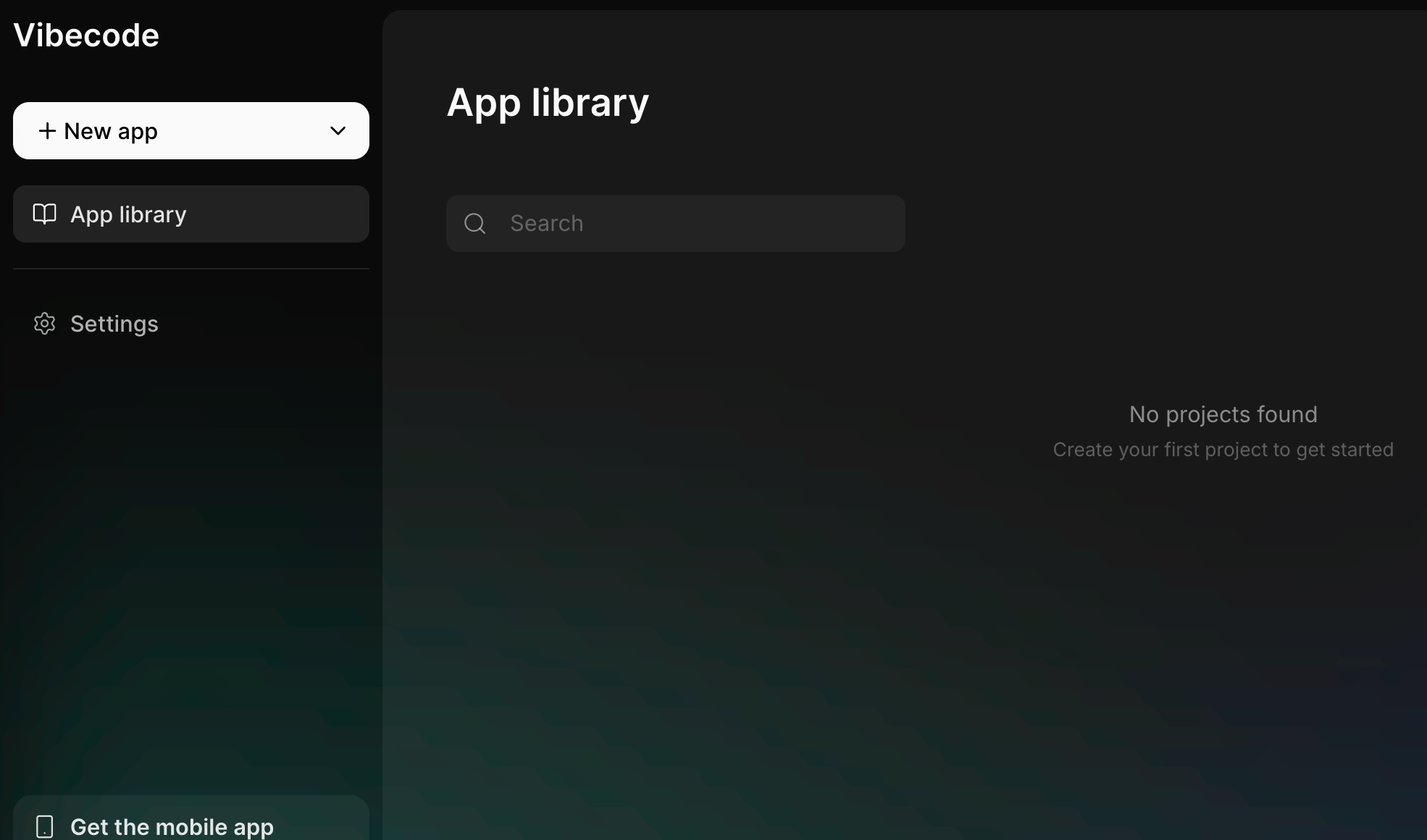
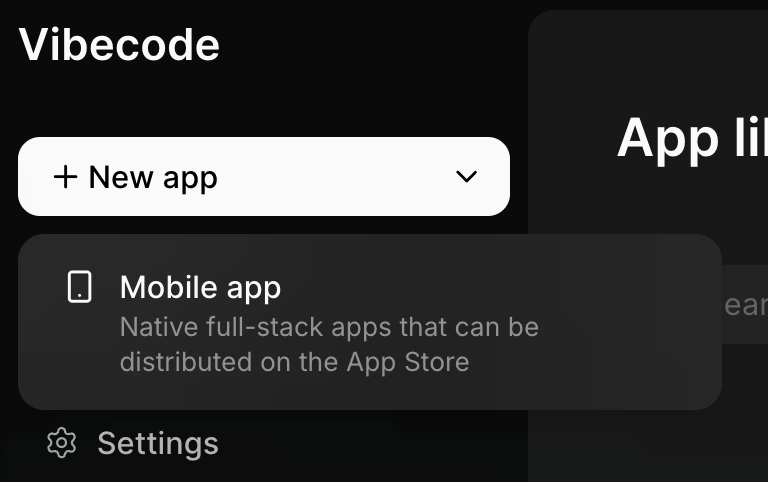
Click ‘New app,’ and select ‘Mobile app.’
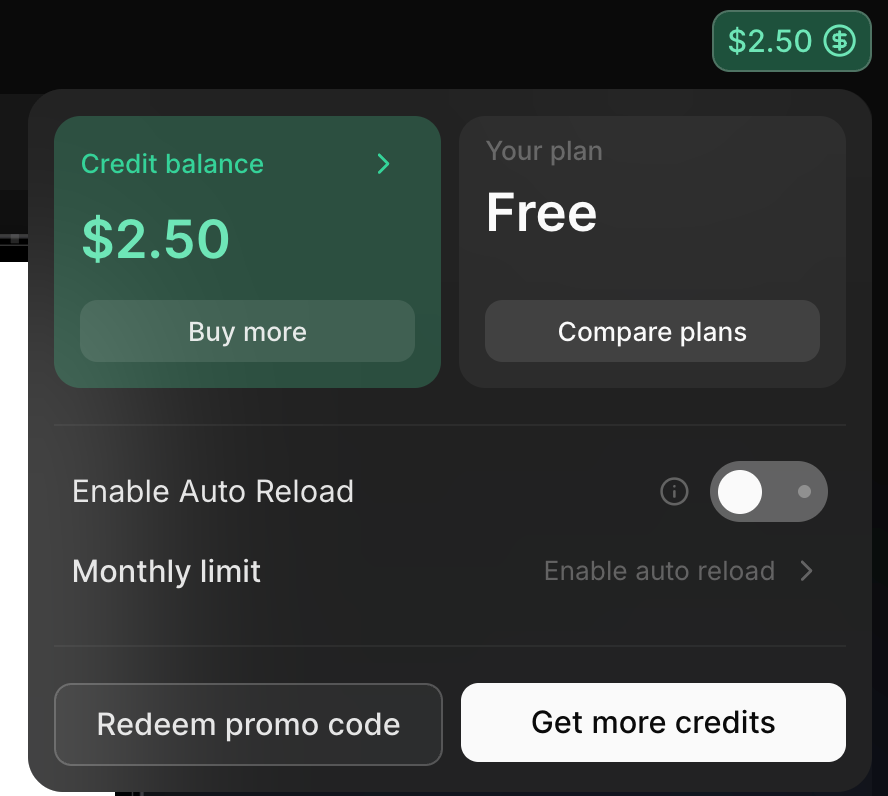
Vibecode offers a generous free preview, allowing you to create an app with free credits. It gives you a $2.50 free credit balance to get started. You can access the premium Claude Opus 4.5 model and build any app with just prompts. No API keys required. How cool is that? A big shout-out to vibecodeapp.com
The stage is set. Let’s create some screens to serve as references for the AI notetaker app.
Step 2 - Create mockup screens for the app
We need mockup screens to help Vibecodeapp understand the context and design the app in a way that is consistent with the app design principles used by Apple App Store. Go to the app store and find an app similar to the one you’re building, then copy its screenshots.
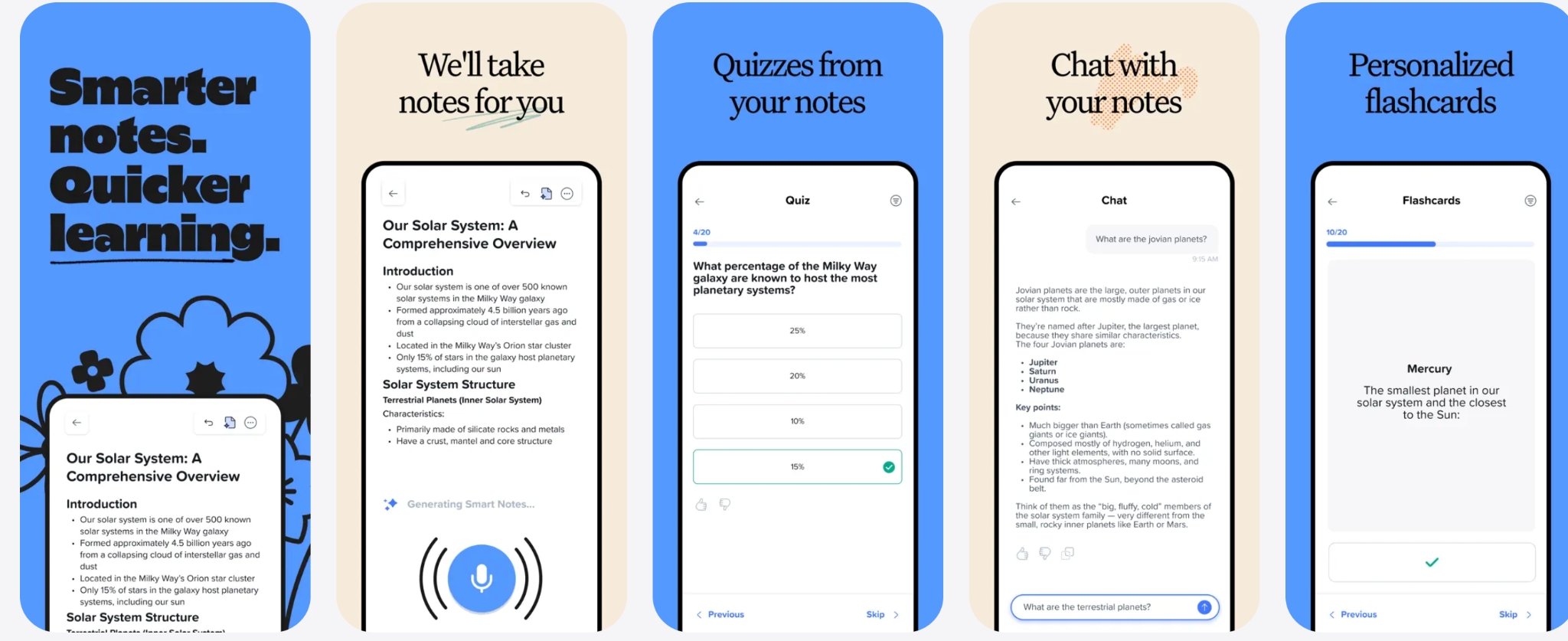
Copy the screenshots and save them on your computer. Go back to the vibecodeapp screen. Upload the saved screenshot of the mockup screens.
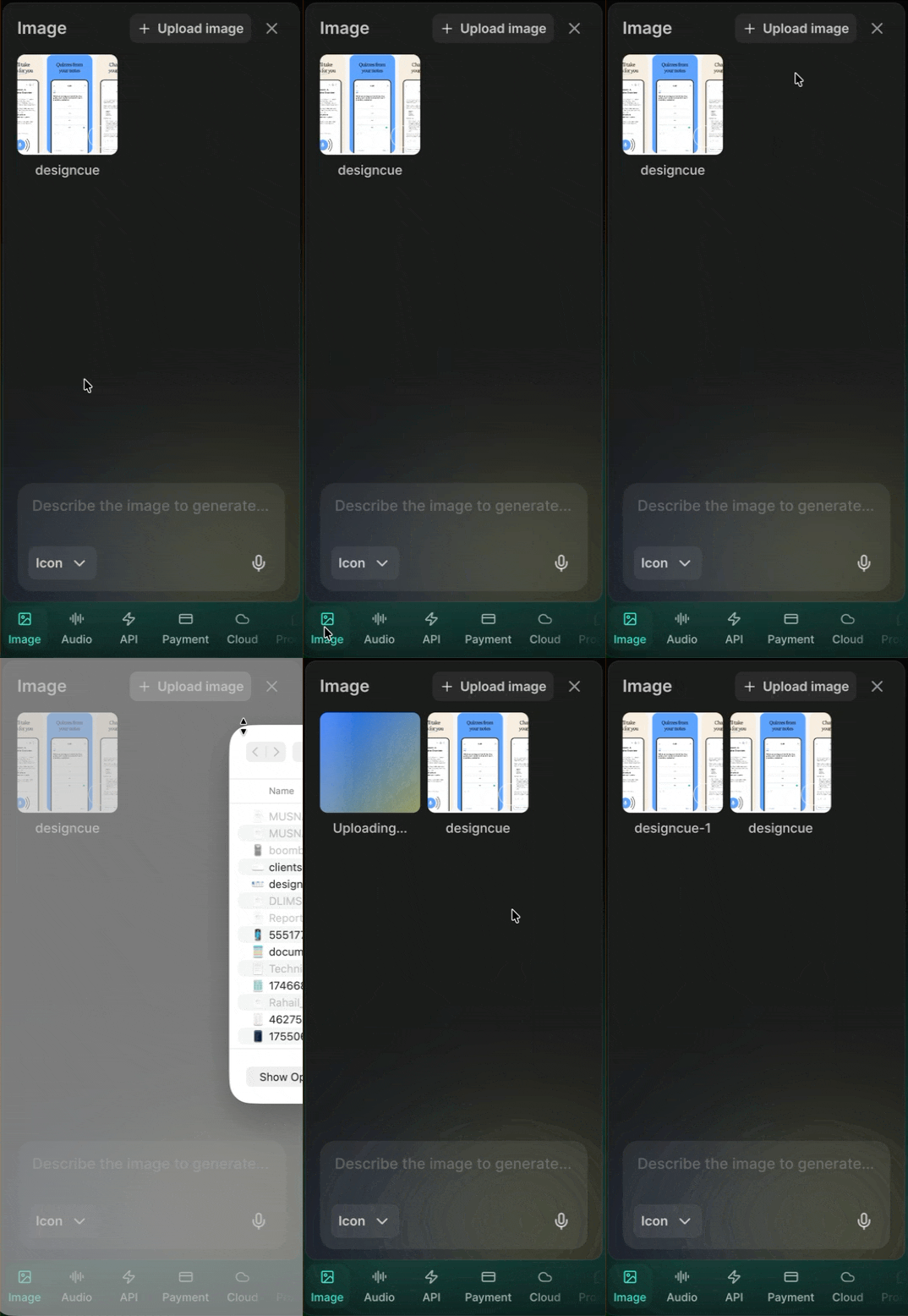
Step 3 - Use Claude Opus 4.5 to vibe code the app.
Write a detailed yet straightforward prompt explaining the app you want to build. Use the following as inspiration for your own prompt.
Select the image you want to use with the prompt.
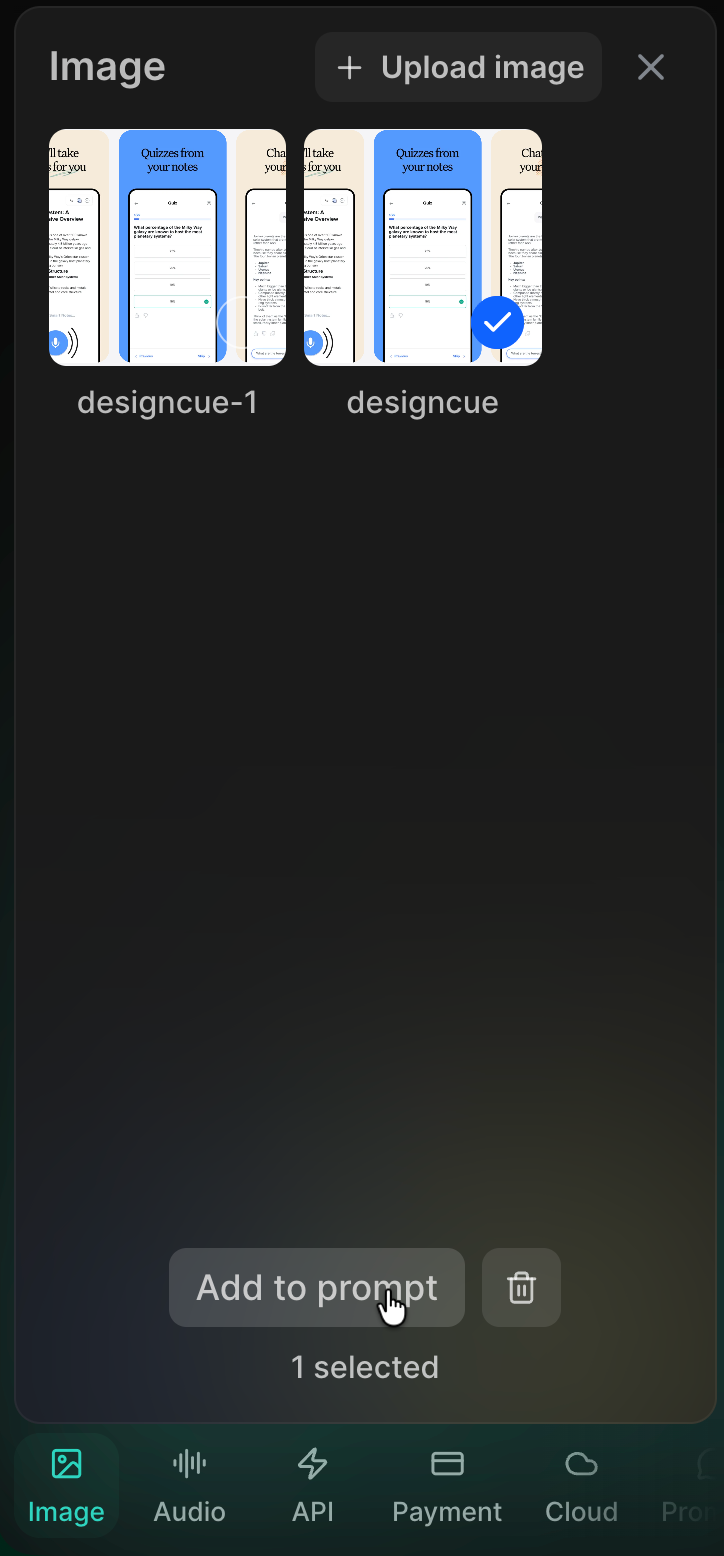
Prompt:
Create an AI notetaker app that follows the design idea attached to this conversation. The notetaker app should have a record button and a display screen to show the recorded conversations. It should also be able to record online meetings.
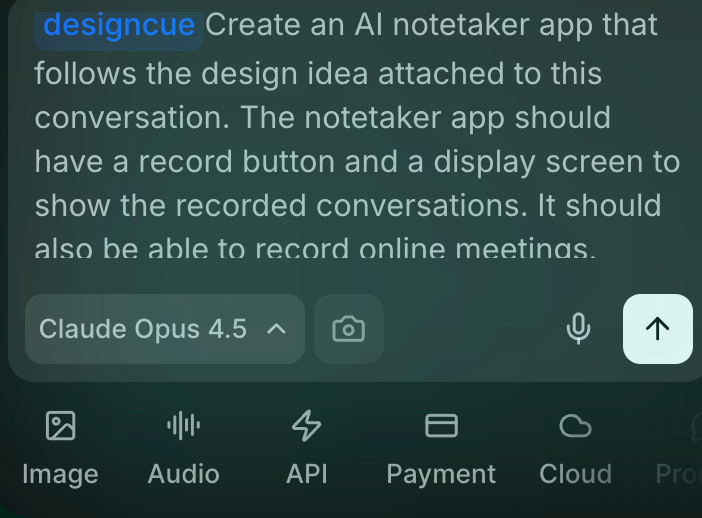
Note: Make sure Claude OPUS 4.5 is selected as the model for your prompt.
Another note: You can also use the voice dictation feature to dictate the prompt to vibecodeapp.
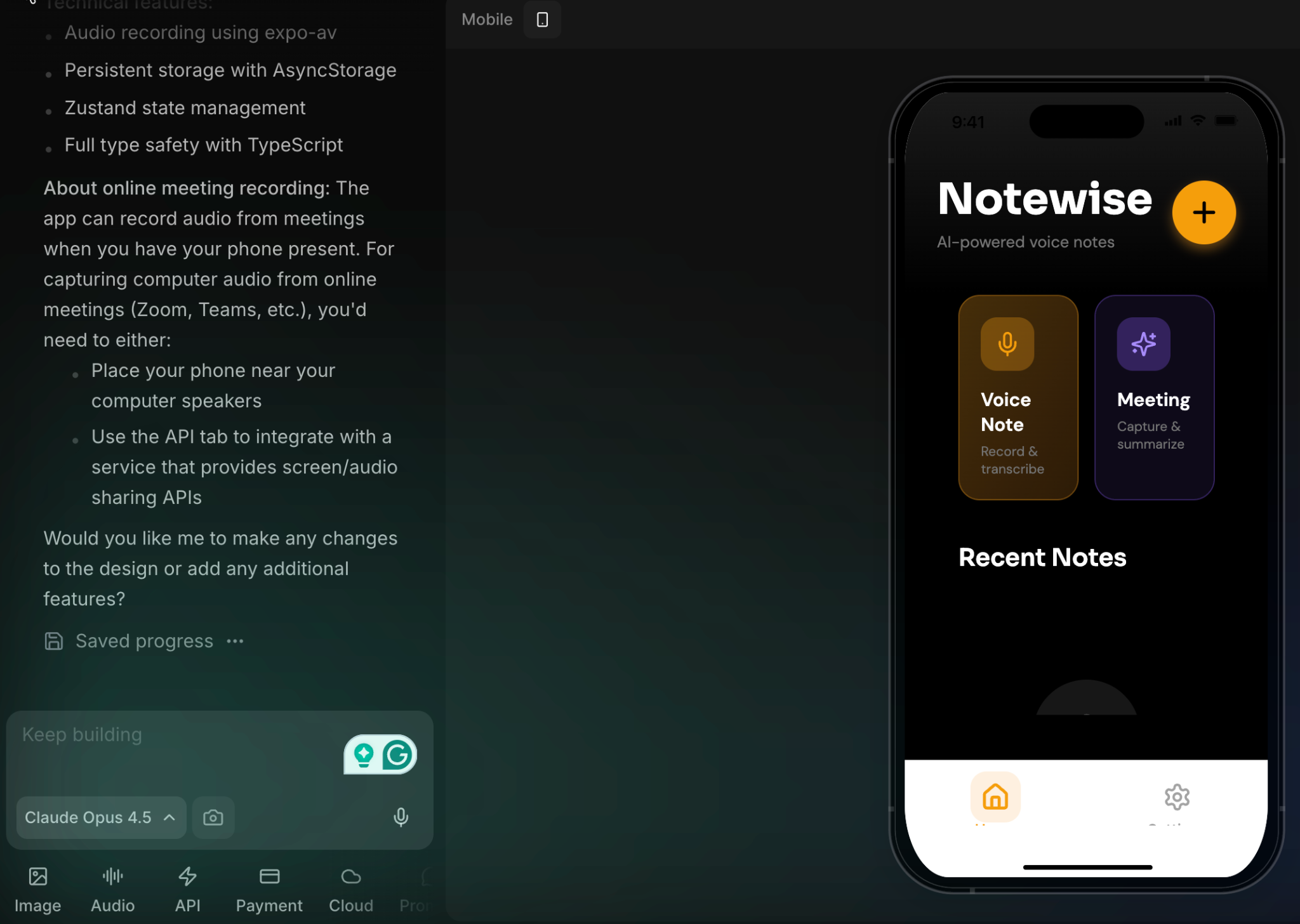
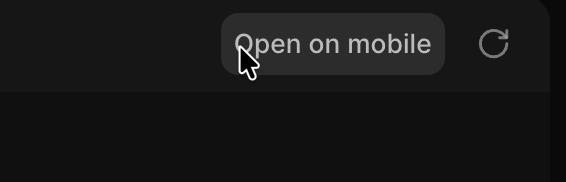
The app looks very good. It is a functional app, you can test it on your mobile phone by clicking the ‘Open on mobile’ link at the top left of the display screen.
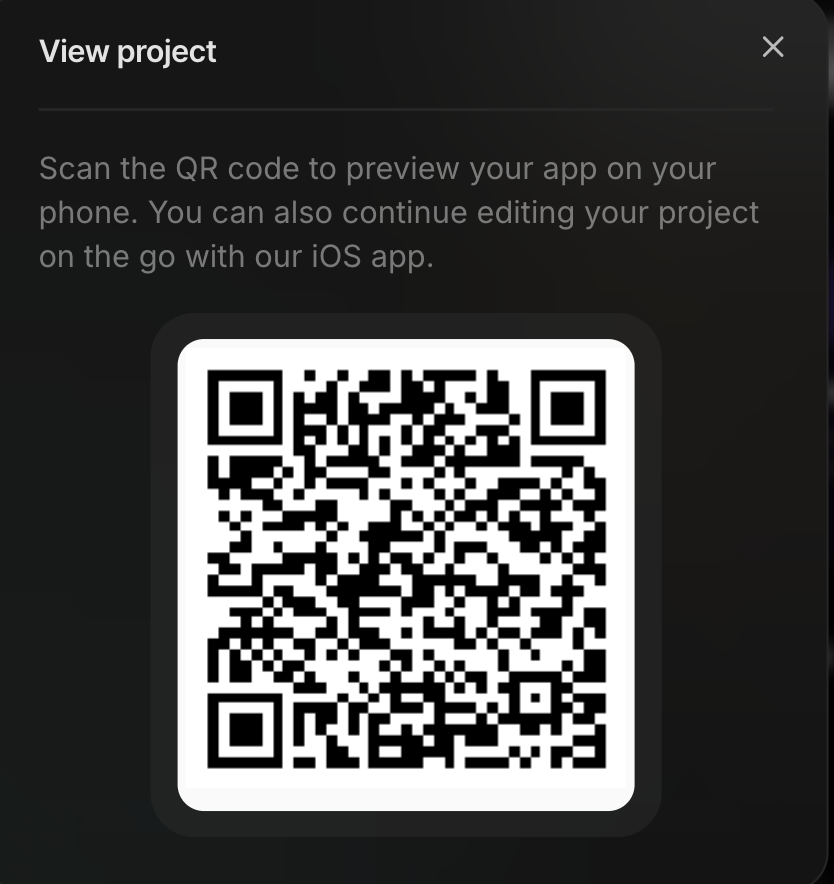
Scan the QR code to view your app on your mobile phone.
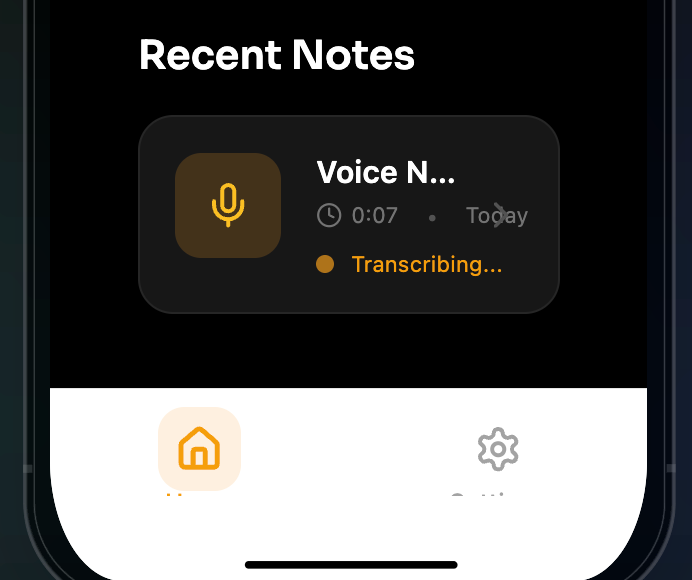
Next, prompt Vibecodeapp to add a database in the backend for the audio files.
Prompt:
Create a database to store the audio files in the app.
Step 4 - Review and suggest edits
Review the code by clicking the code icon at the top of the screen. Download the code or open it in Cursor or VS Code.
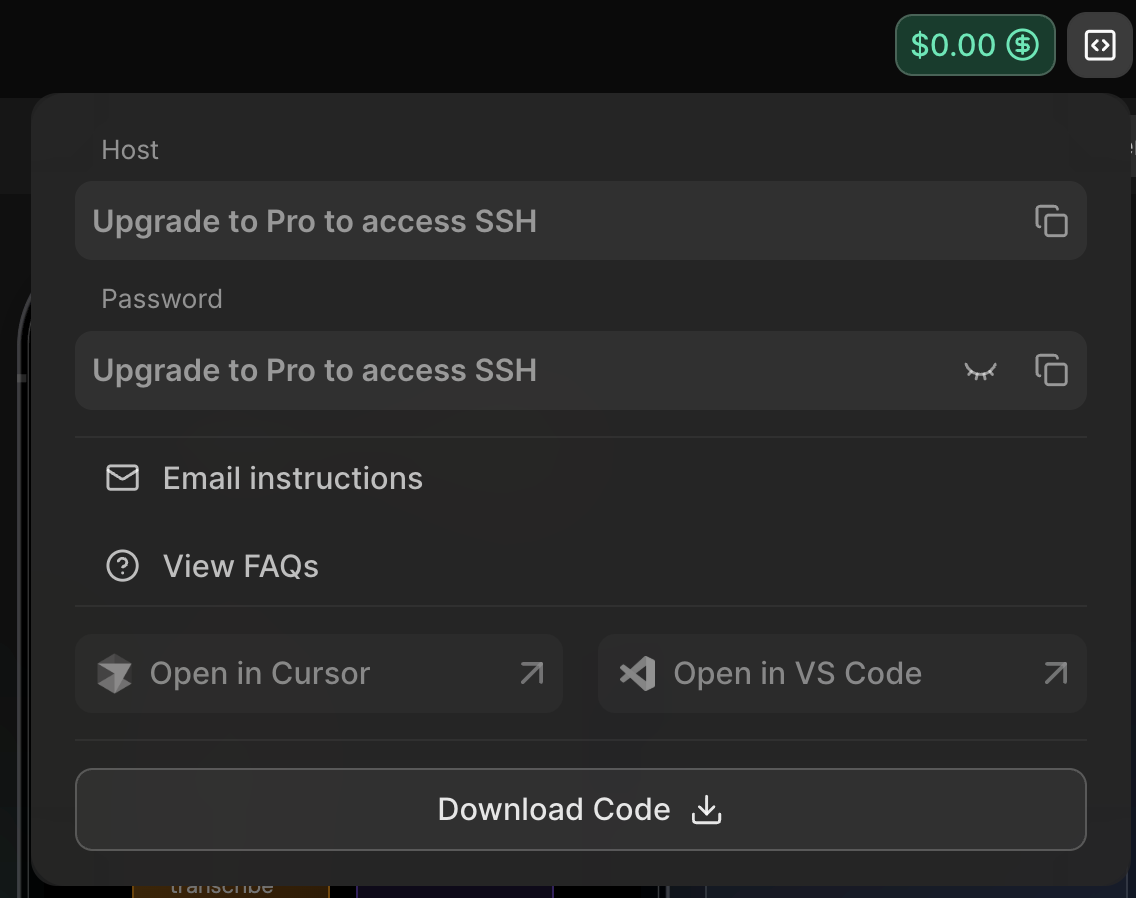
If you want to suggest changes, you need more credits. For $20/month, you get $20 credits which is enough to build and test applications.
To deploy your app on Apple App Store, click ‘Deploy.’
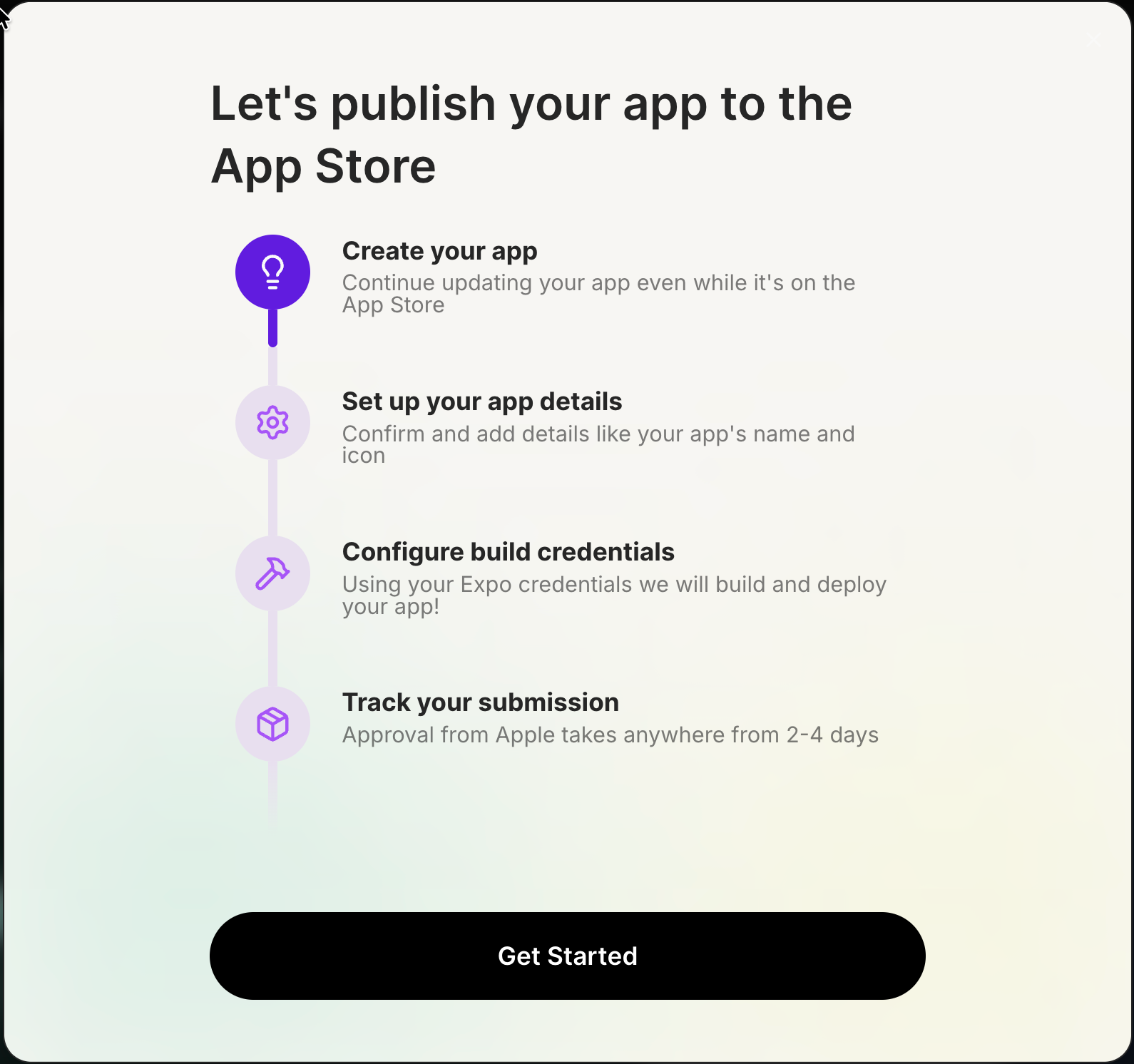
Click Get Started to start deploying the app. You will need a verified Apple developer account and an Apple App Store account.
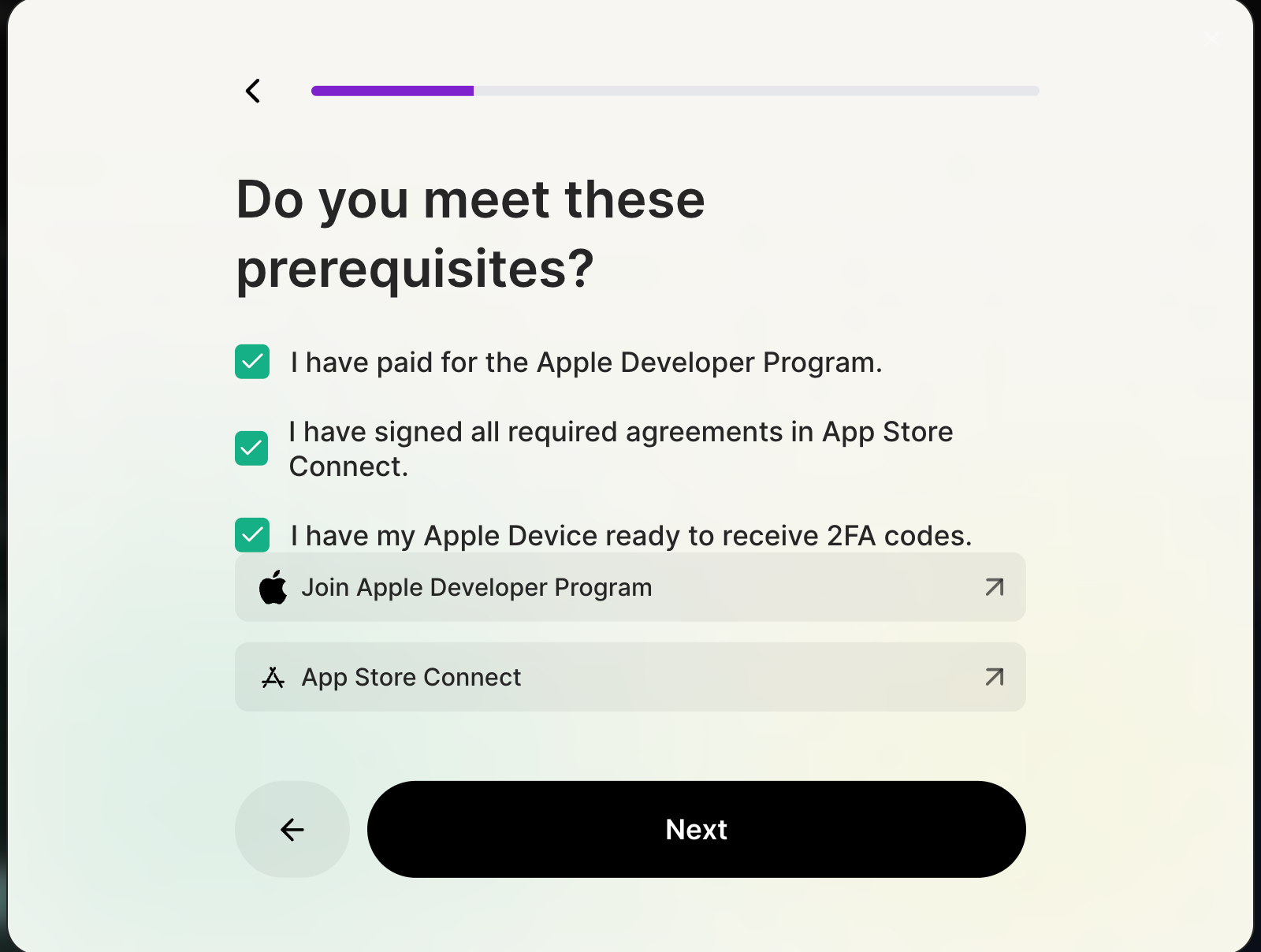
That’s it for this tutorial, vibecoders! You’ve seen how Claude Opus 4.5 can turn loose ideas into working code fast, without overthinking the process. The real value comes from experimenting, breaking things, and iterating in real time, so keep pushing, keep shipping, and trust the flow. Vibe coding is about momentum, not perfection.
.avif)
.png)

.png)