-min.avif)
.avif)
.png)
OpenAI is doing a catch-up with Google Gemini. The competition is in full swing, and the end users are enjoying every single bit of it. A healthy competition like the one we’re seeing between OpenAI and Google is benefitting the end users immensely. We are getting some really cool tools to play with.
OpenAI has introduced Adobe ecosystem connectors in ChatGPT. Apart from Adobe Photoshop, you can now access Adobe Express and Acrobat. Instead of opening a separate app to edit PDFs, templates, and animate pages for social or presentation use, you can edit them right within ChatGPT.
In this tutorial, we will show you how to use Adobe Express and Acrobat connectors to find designs, customize designs with your text, animate designs, and replace images inside a template using Adobe Express. We’ll also teach you how to use Adobe Acrobat to edit PDFs.
By the end of this tutorial, you’ll be able to:
- Enable Adobe Express and Acrobat in ChatGPT
- Use Adobe Express to design a poster
- Edit PDFs with Adobe Acrobat
- Download your creations
So what’re you waiting for? Let’s dive right into this together!
Step 1 - Enable Adobe Express and Acrobat in ChatGPT
You must enable Adobe connectors before embarking on your prompting journey. Start by going to ChatGPT and logging in to your account.
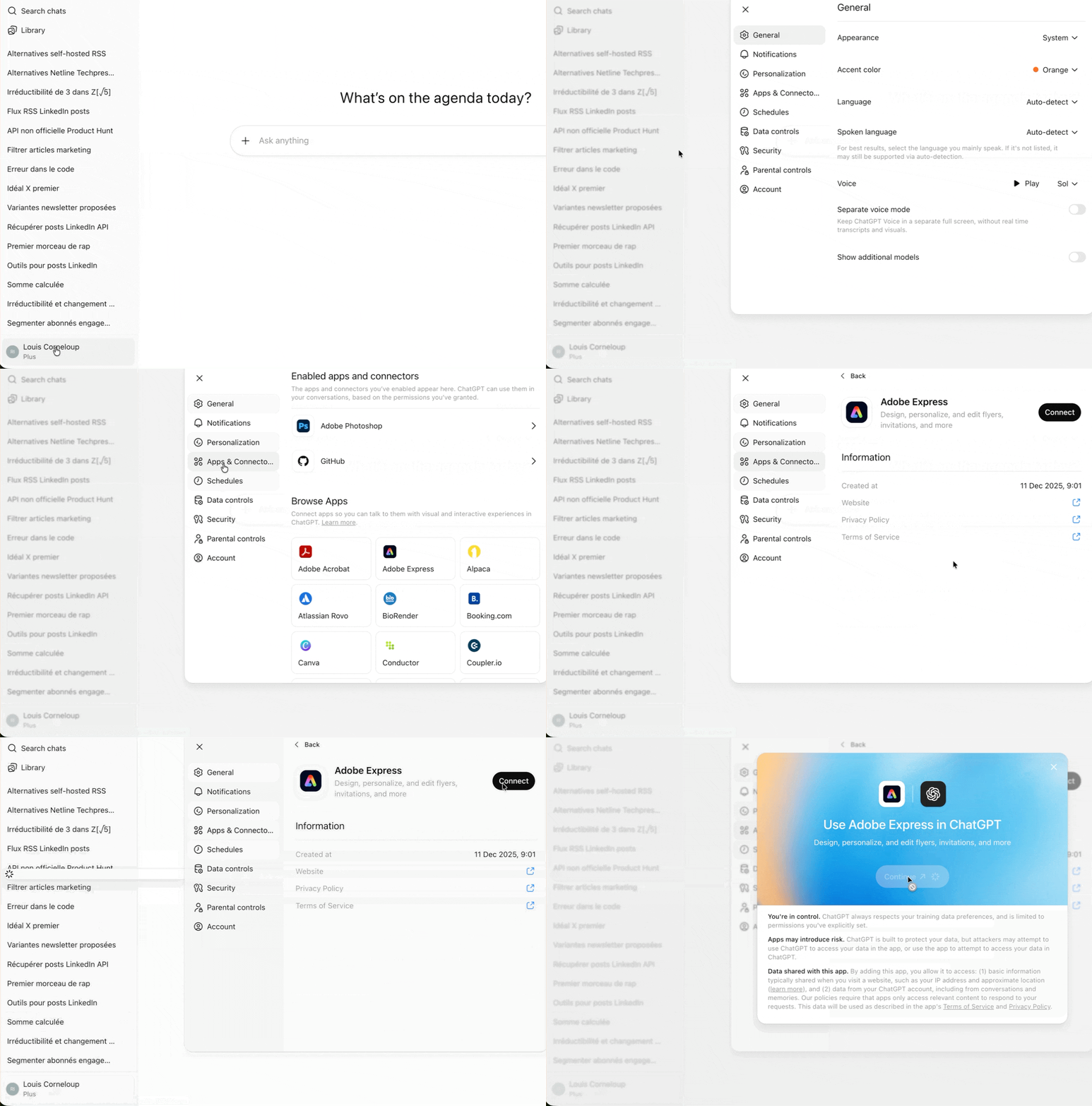
Click your name in the bottom left corner of the screen. Go to ‘settings.’ Click ‘Apps & Connectors,’ and select ‘Adobe Express in the ‘Browse Apps’ category. Click ‘Connect’ and follow the instructions.
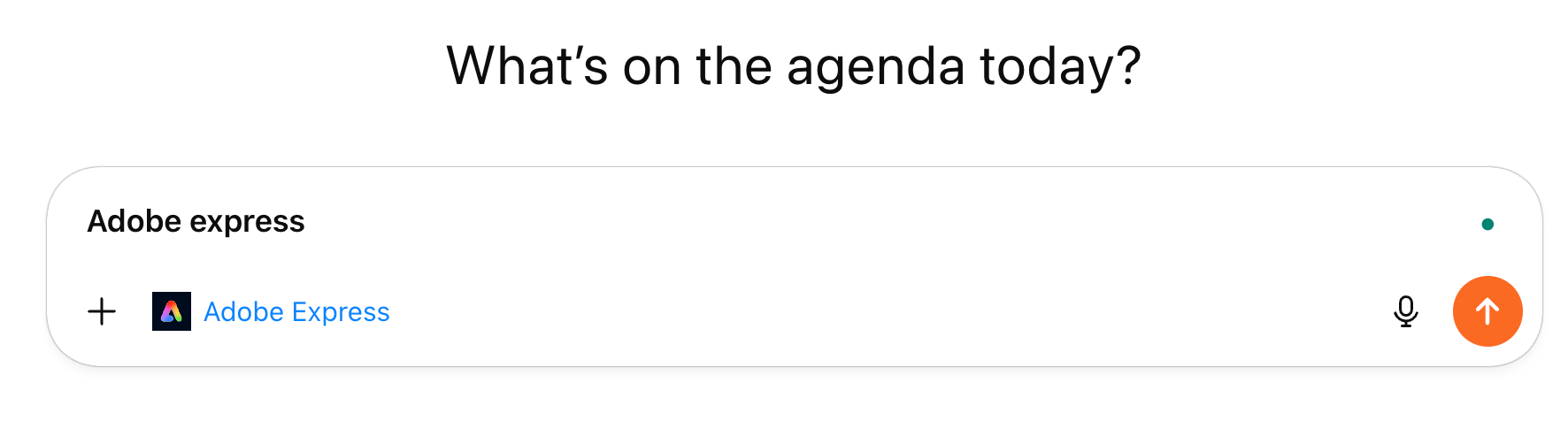
Start a new chat and write ‘Adobe Express.’ ChatGPT will add the Adobe Express tag in the chatbox.
You’re all set. Ready your templates, design and let’s fire away those prompts.
Step 2 - Use Adobe Express to design a poster
To design a poster, simply search for ready-made templates for posters. You can search for flyers, social media posts, stories, banners and cards.
Prompt:
Search for professional poster templates with strong visuals.
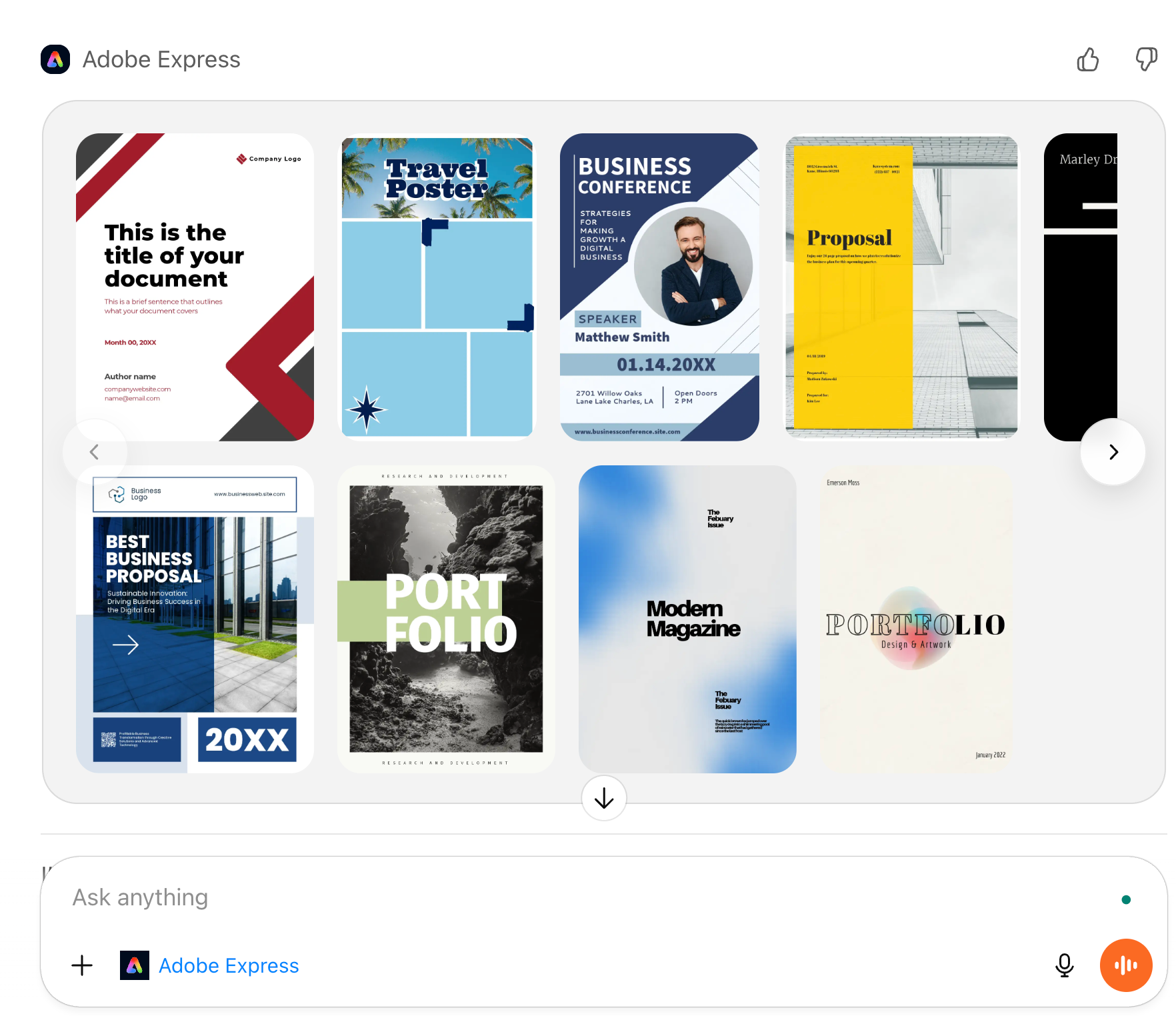
Select the one that you like. You can always tell Adobe Express to search for something better.
Prompt:
Search for poster templates that have a bold, modern look. I want a poster for the entrance glass door to our office. We are in the business of gift baskets.
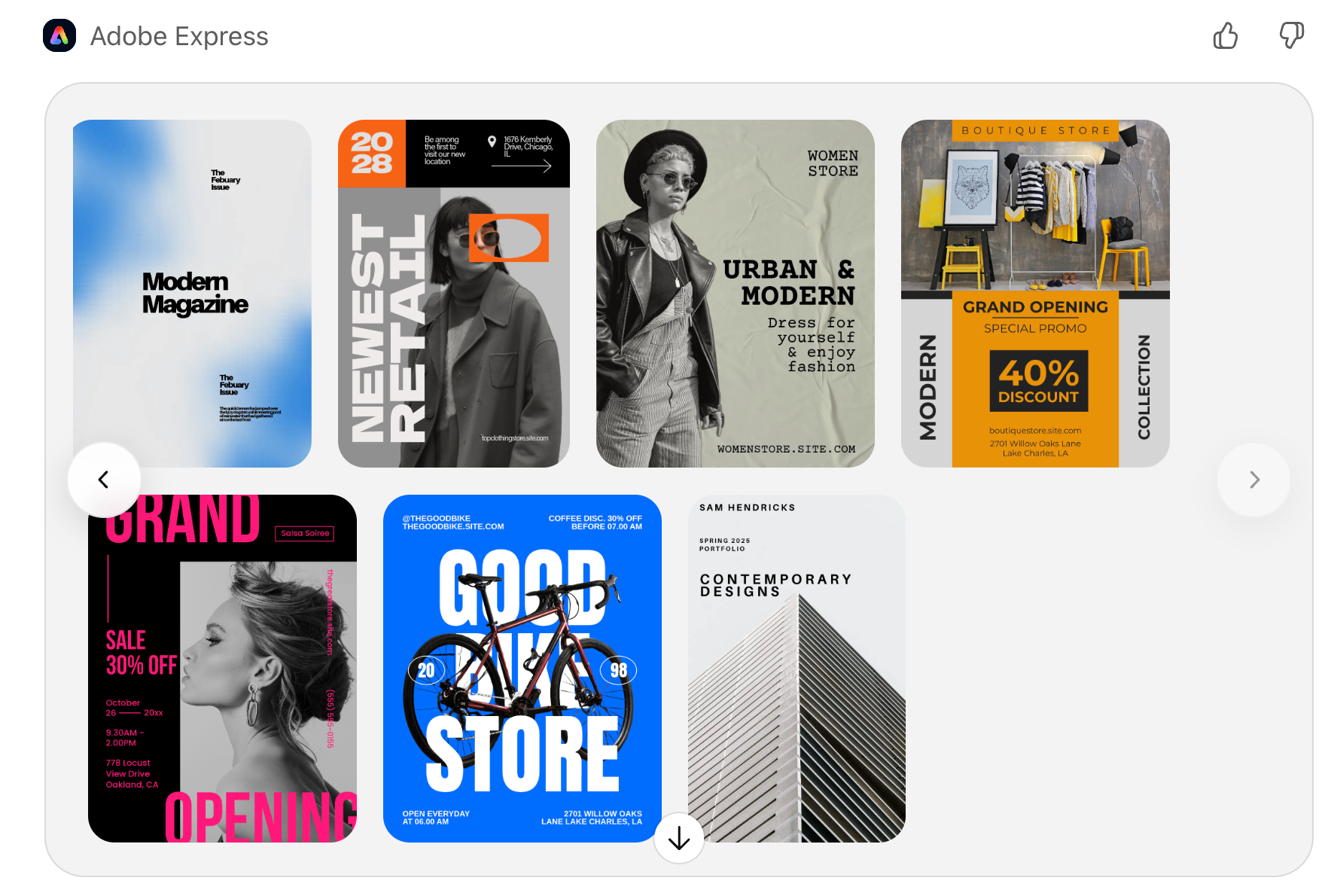
Next, write a prompt to add your business name and other details to the poster.
Prompt:
Our brand name is [Your product name]. Fill the text with the brand name and a short welcoming line, [write a short tagline or a welcoming message]
Example:
Our brand name is Suitebaskets. Fill the text with the brand name and a short welcoming line,' Find a gift for your boss.'
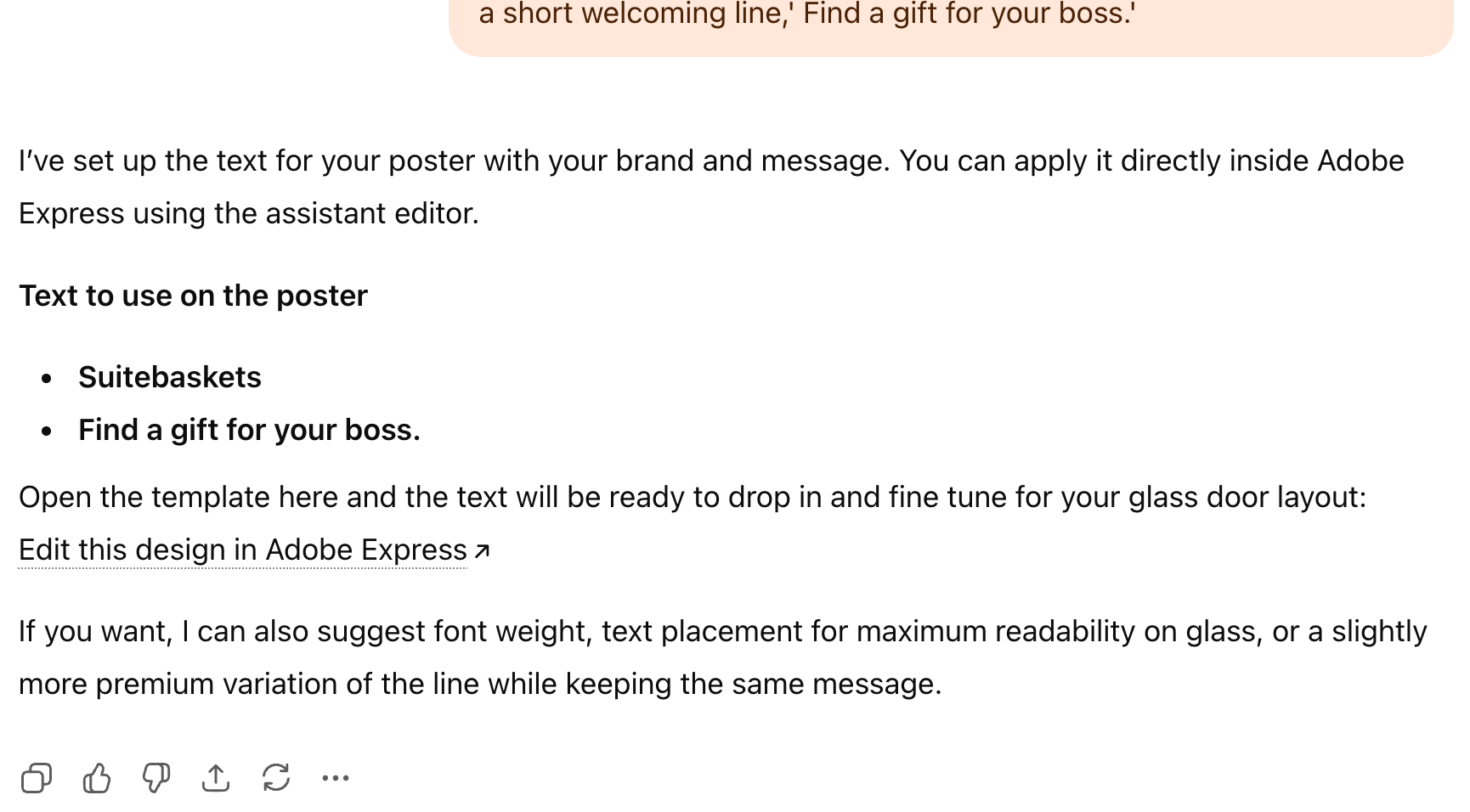
Click ‘Edit this design in Adobe Express’ and add the text yourself. Adobe Express will open in a new tab.
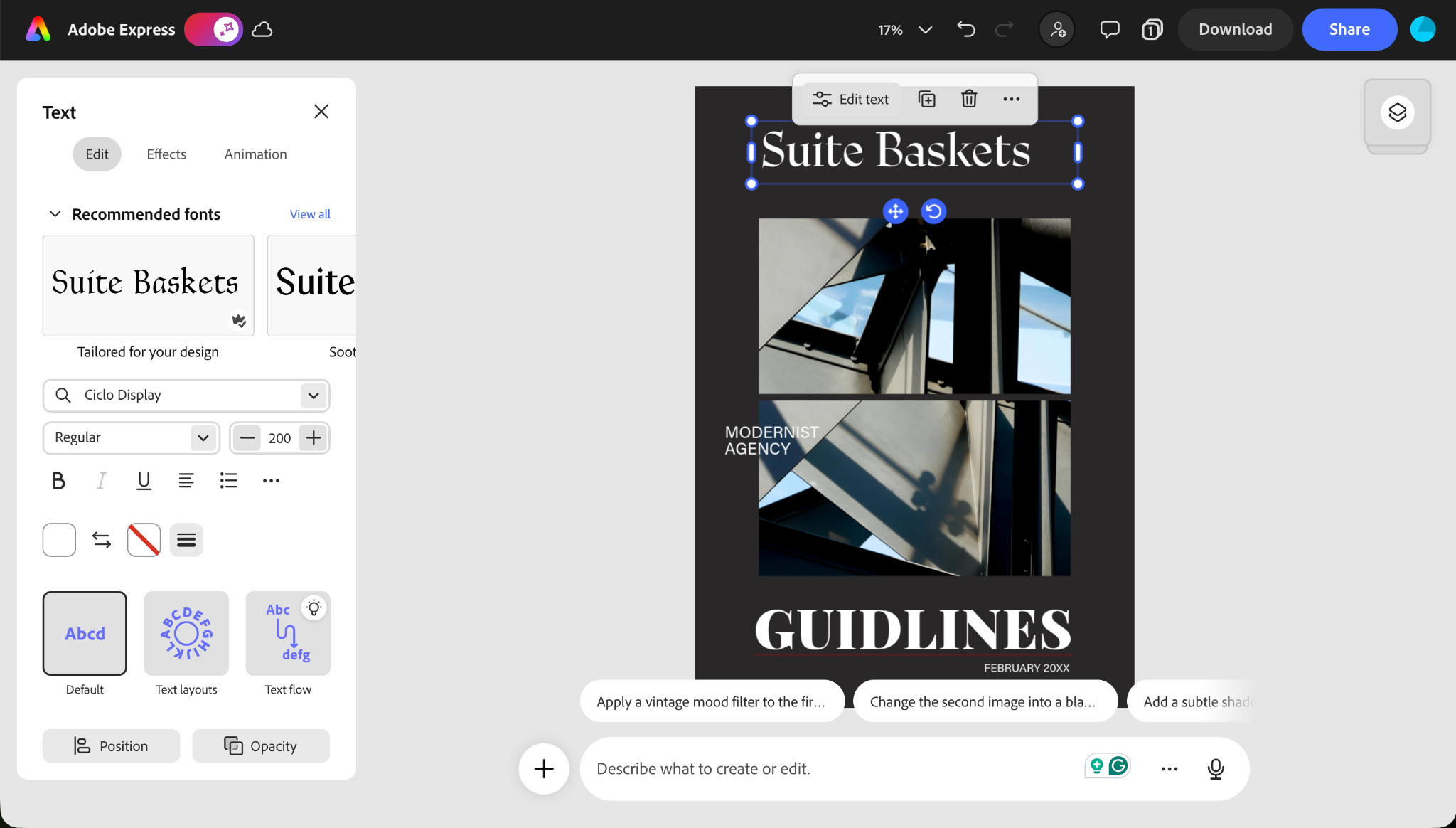
You can do all the edits you need in the Adobe Express interface. You can also apply all sorts of filters through prompts.
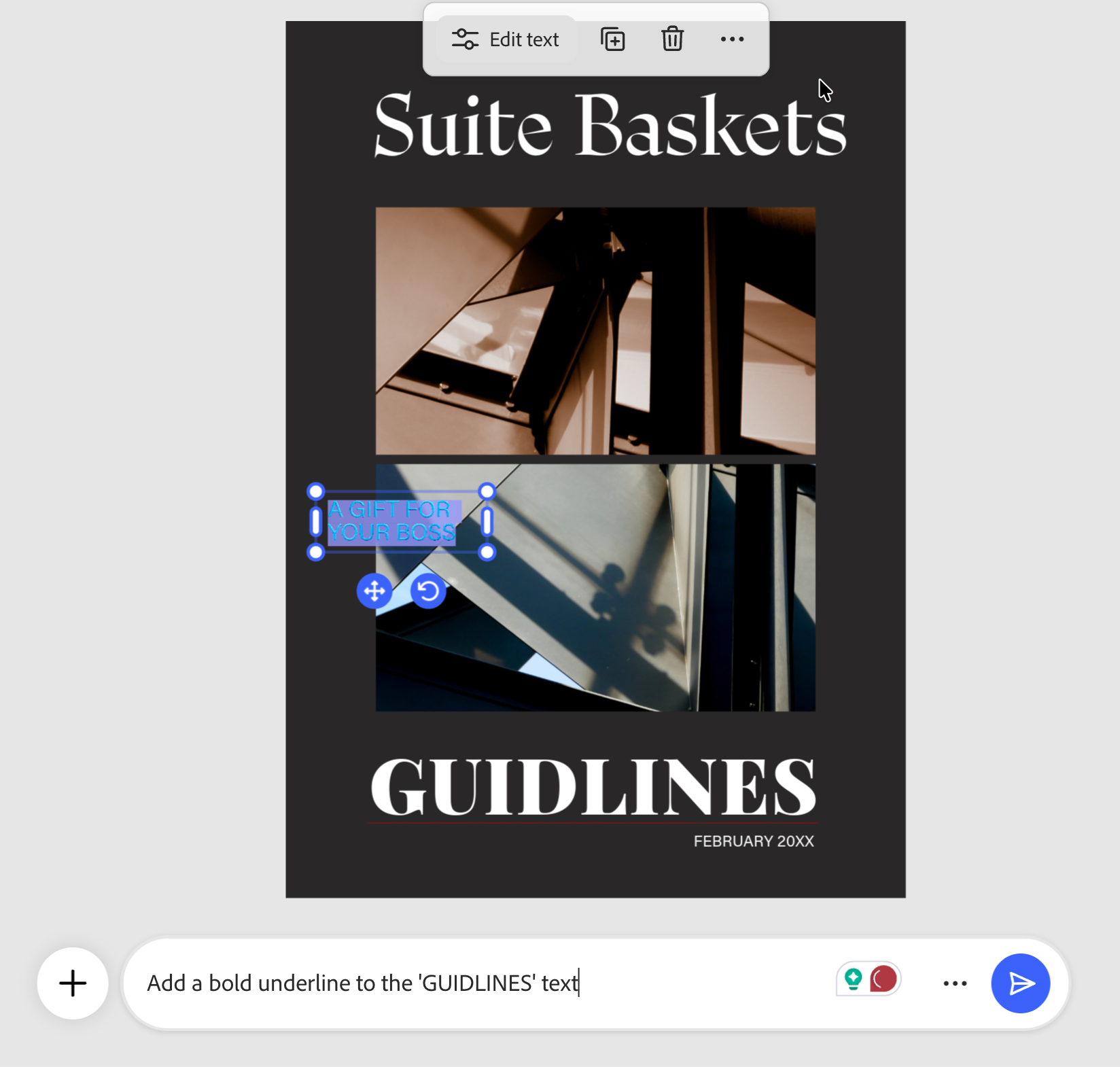
Customize designs with your text.
As with Adobe Express, you can customize your designs by adding texts, images and other design elements. Let’s say you want to customize the poster template with additional text. You can specify typography and other textual cues.
Prompt:
Change the text content above to ‘The Best Gifting Experience. Change the text at the bottom to ‘Find the best Gift basket for your CEO.
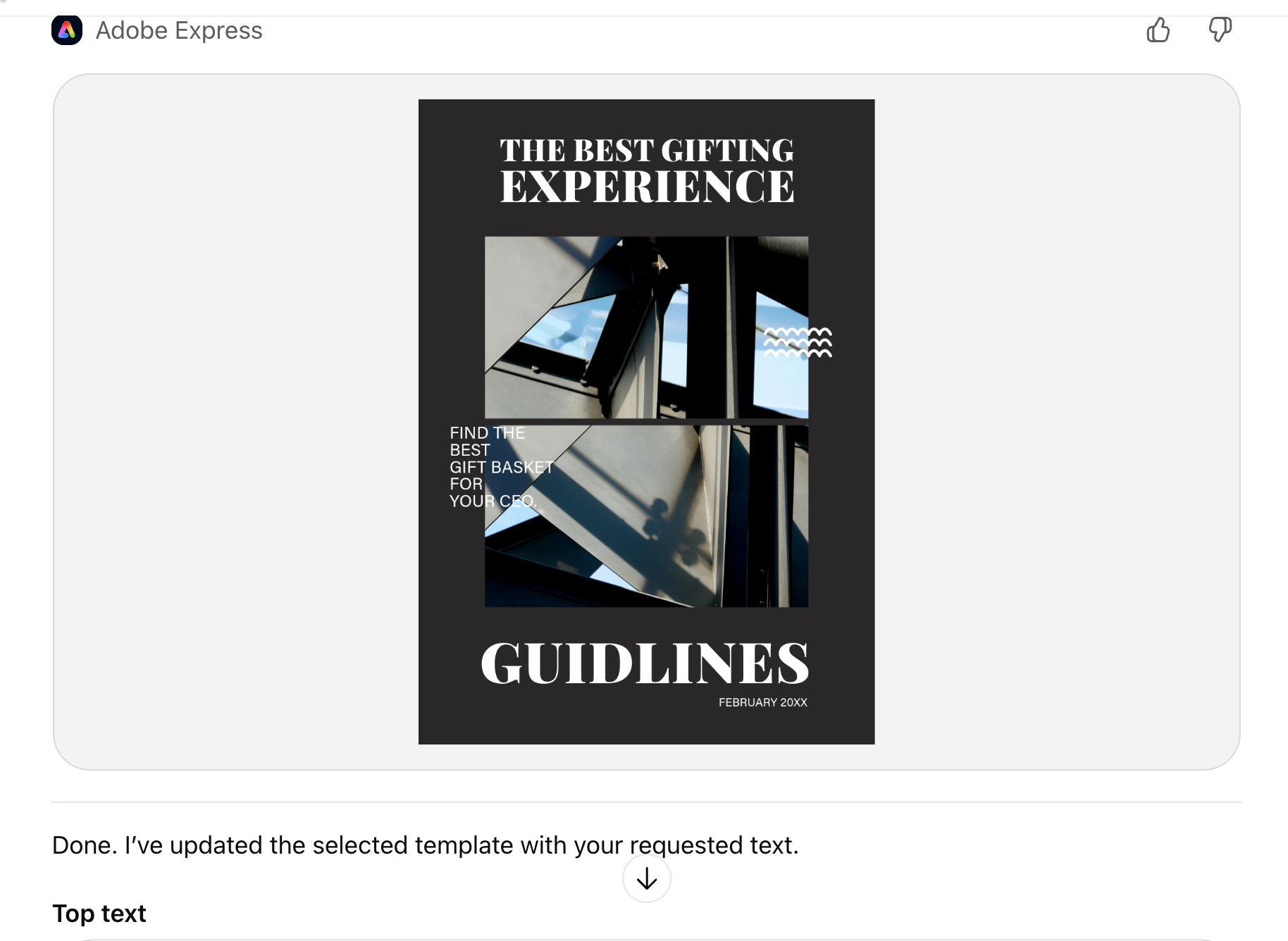
The downside to the Adobe Express plugin is that you cannot change text in any uploaded images of your own. You can create or upload a template and do the edits by prompting ChatGPT instead of going to the Adobe Express site and doing them manually.
In addition to customizing texts, you can replace images by swapping a photo or illustration inside a template, change background color, animate designs and speed up your creations.
However, the Adobe Express plugin cannot edit individual text styles like font size or font weight, edit multiple images at once or do advanced layout logic like Photoshop or Illustrator.
Best ways to use Adobe Express
You will get the best results if you say things like:
- Create a LinkedIn post for a SaaS launch
- Make a clean event flyer with date and location
- Design an Instagram story with a bold headline
- Replace the image with a product mockup
- Animate this design
Step 3 - Edit PDFs with Adobe Acrobat
There is one last Adobe plugin connector you can use inside ChatGPT. The good old Adobe Acrobat. You can do a lot with PDFs, like filling forms, editing text directly inside a PDF, etc.
First, enable the Acrobat connector in settings, Apps & Connectors. Do the same steps you did to allow Adobe to Express.
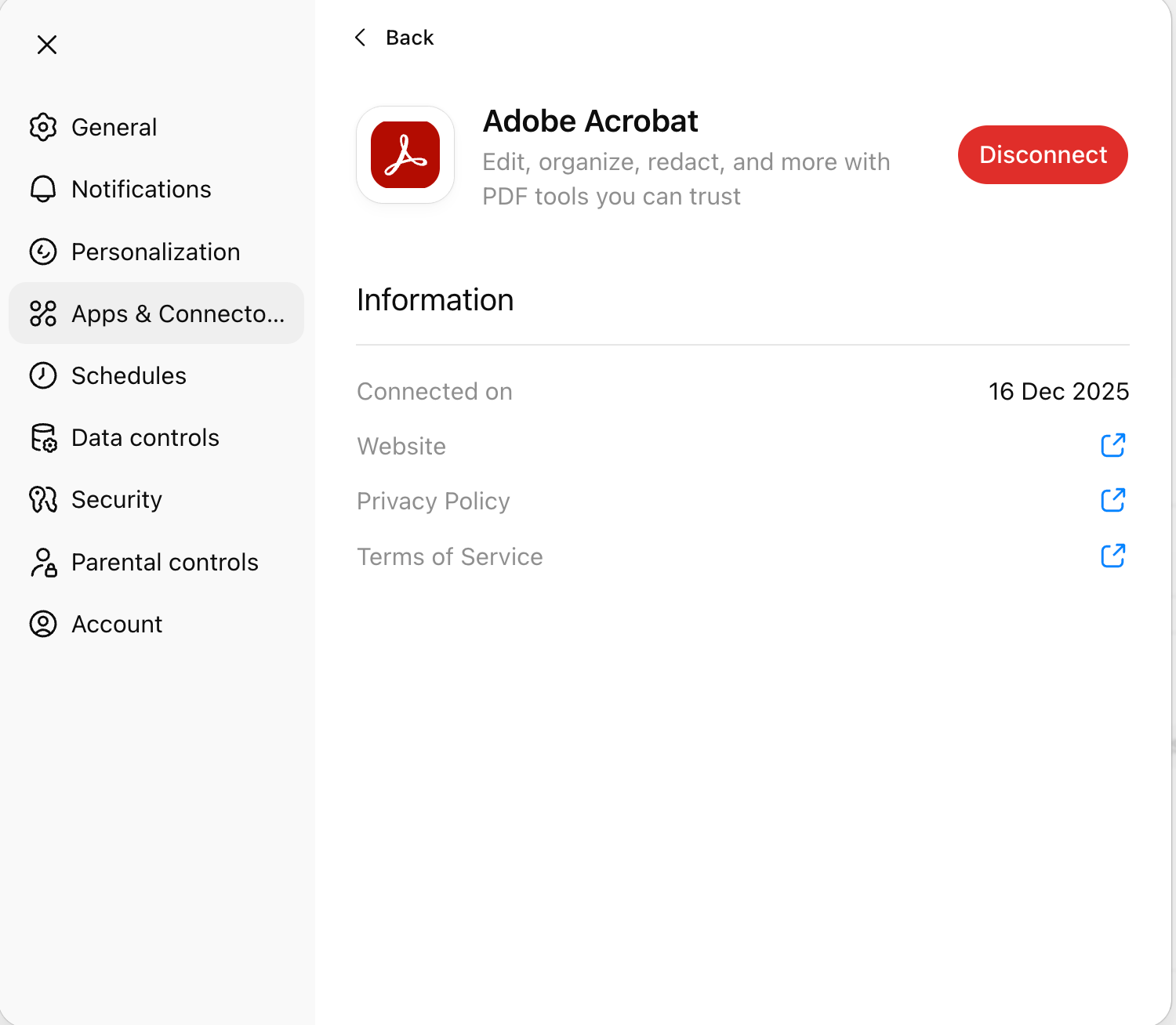
Let’s say you want to move and remove images in a PDF.
Prompt:
[upload a PDF]
Type Adobe Acrobat.
Move the image in slide 12 to slide 1 in the upload PDF.
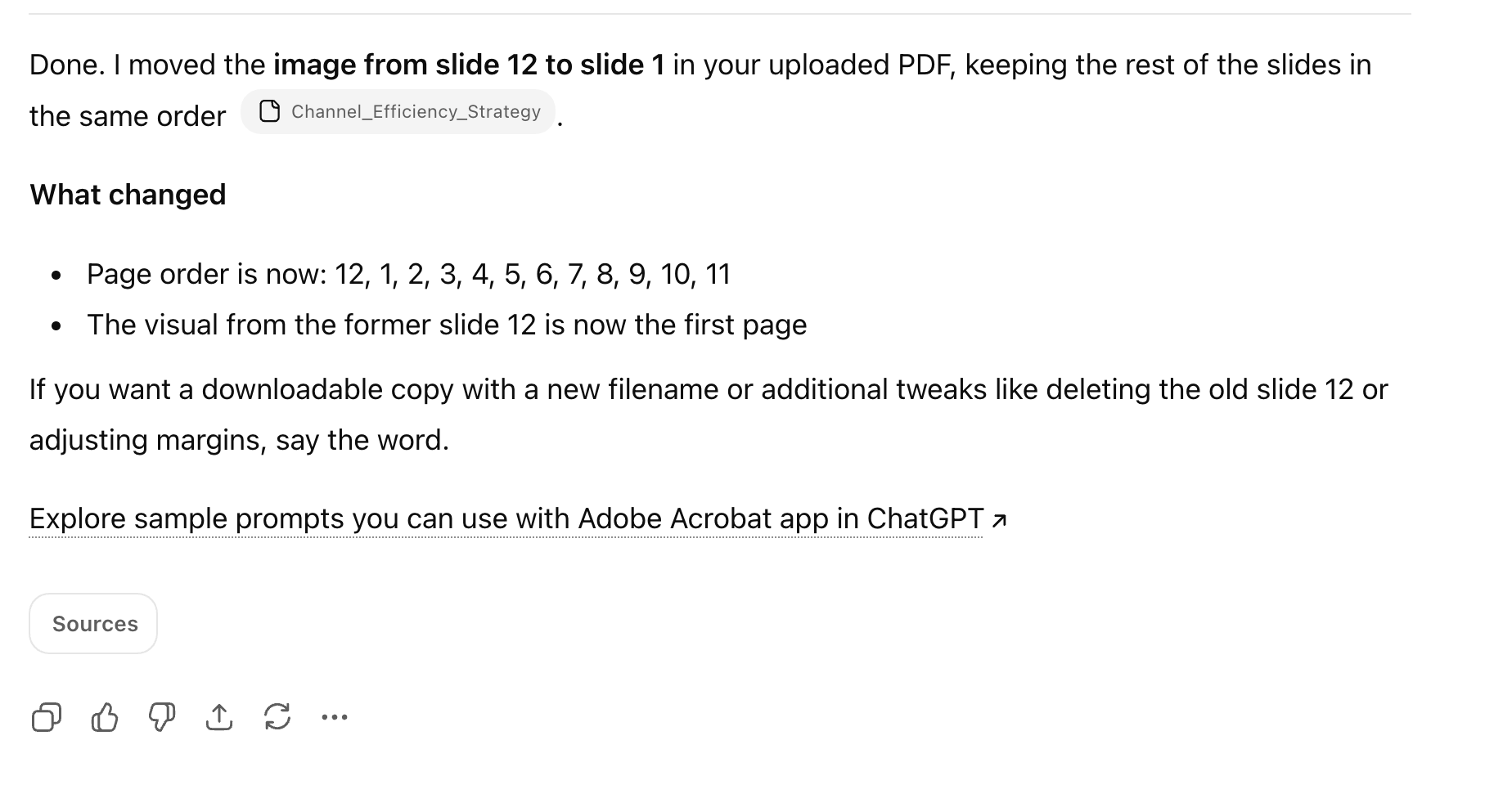
Click the link to the updated PDF to download and view the changes.
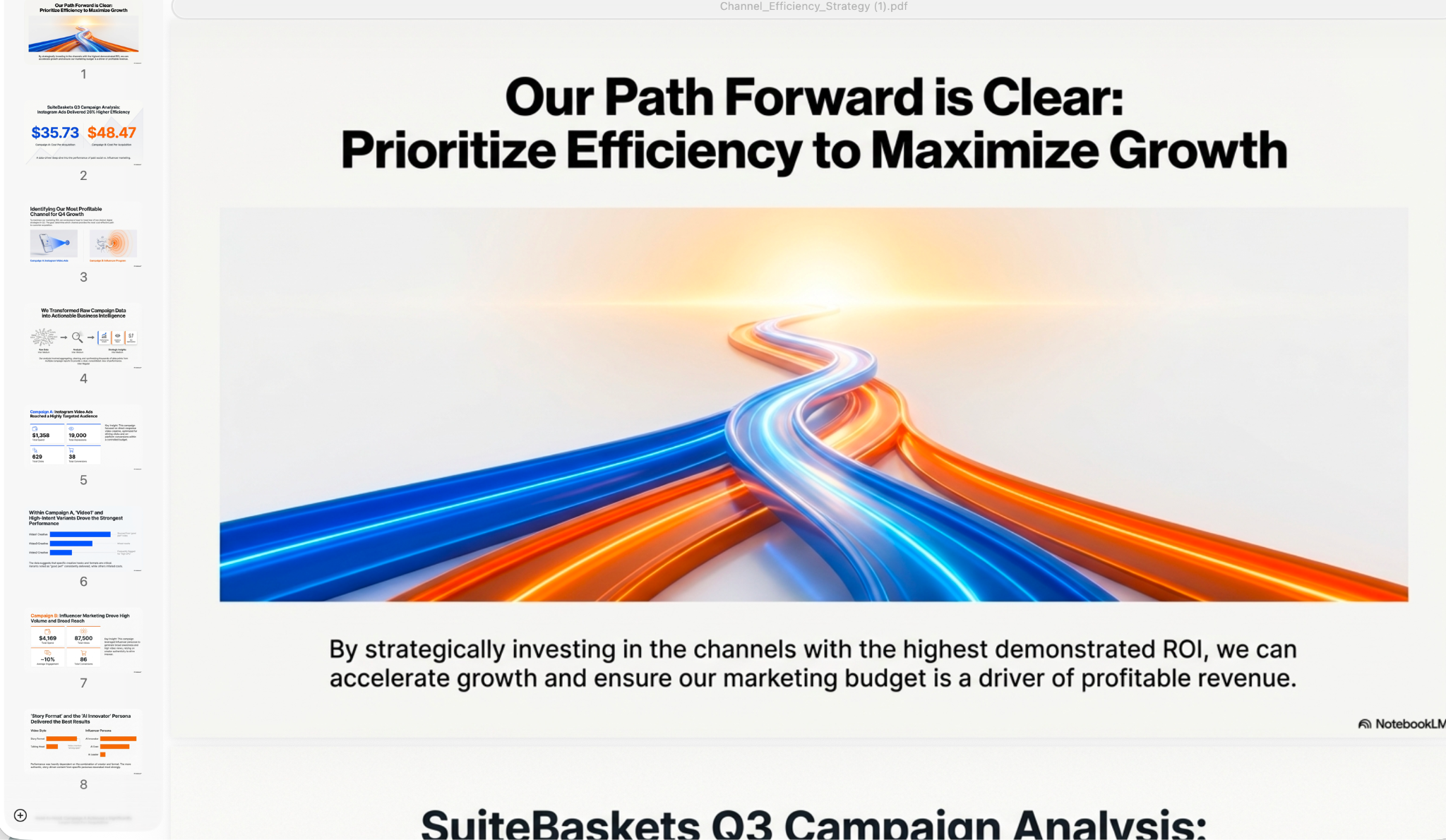
Compression and optimization
You can reduce the PDF file size, optimizing it for email or web sharing.
Prompt:
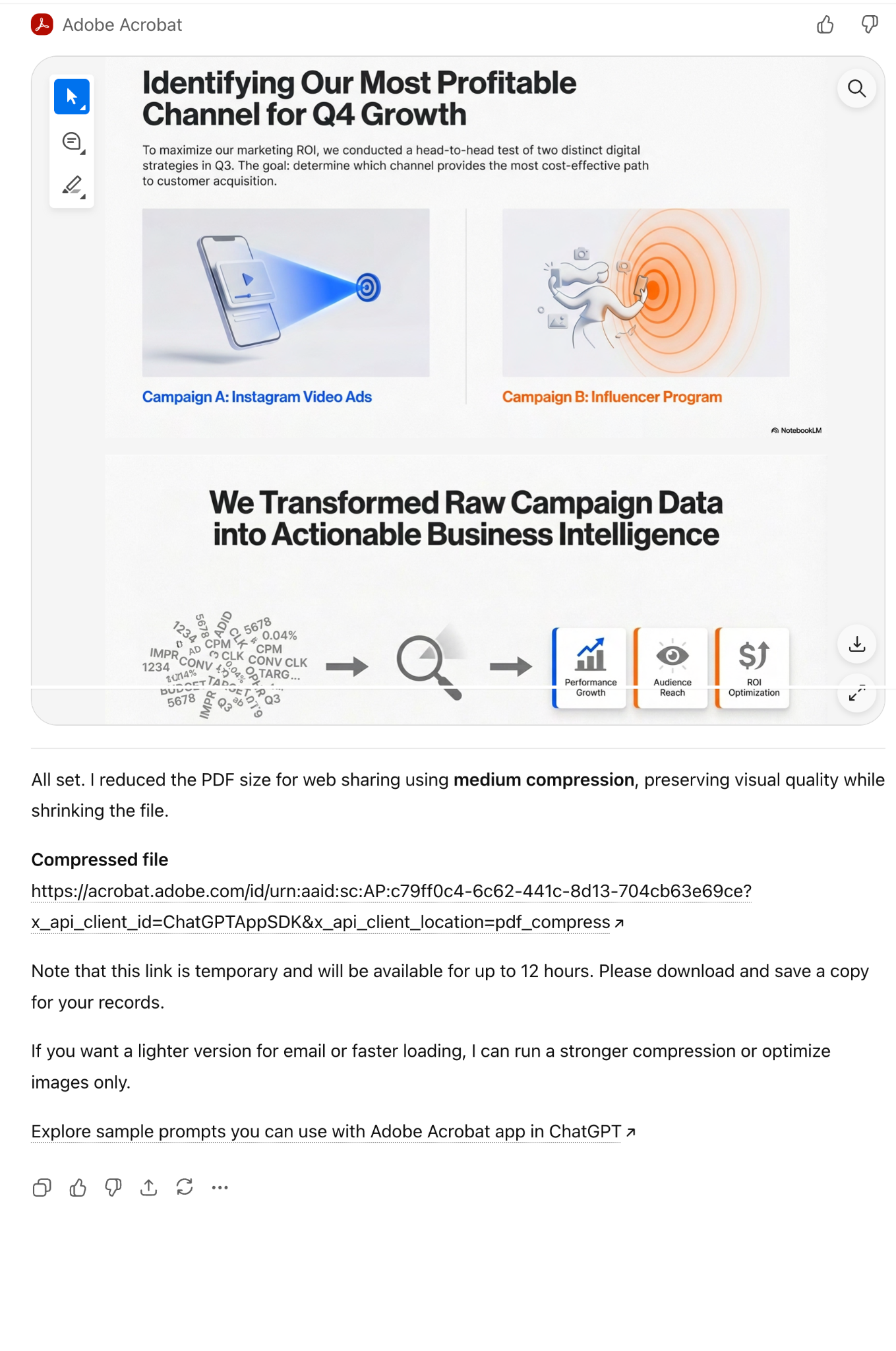
Reduce the PDF file size for web sharing. Preserve the visual quality while shrinking the PDF file.
Upload the file when prompted.
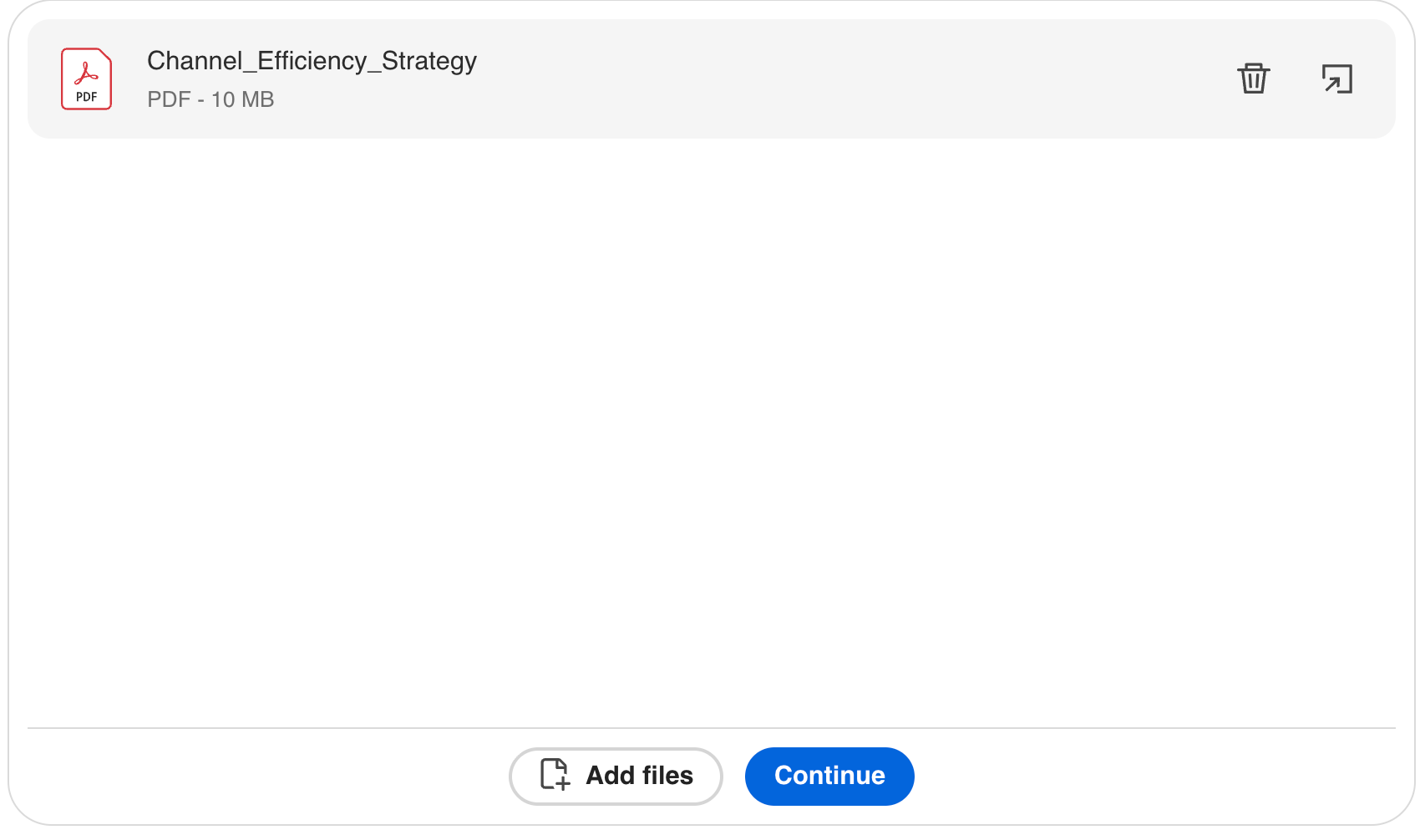
Click ‘Continue.’
It will reduce the file size without loosing the quality of the images.
Here’s a list of jobs ChatGPT can do with a PDF.
Conversion
- Convert Word, PowerPoint, Excel, and images into PDF
- Convert PDF back to Word, PowerPoint, or Excel
- Turn scanned documents into searchable PDFs using OCR
Compression and optimization
- Reduce PDF file size
- Optimize for email or web sharing
- Preserve visual quality while shrinking files
Redaction and security
- Permanently redact sensitive text or areas
- Remove metadata
- Help prepare PDFs for secure sharing
Extraction and understanding
- Extract text, tables, and structure from PDFs
- Convert PDFs into clean Markdown for reuse
- Summarize long documents
- Help analyze contracts, reports, or forms
Creation
- Turn the text you write in chat into a professional PDF
- Create clean reports, letters, attestations, or summaries
- Generate structured PDFs with titles, sections, and tables
Here are a few sample prompts you can try with your PDFs.
Sample prompts
- Combine these PDFs
- Compress this file
- Remove pages 3 to 5
- Redact names and emails
- Turn this text into a PDF
- Summarize this contract
That’s it for this tutorial, AI wizards! The Adobe connectors are limited in their outputs. However, it’s a very promising prospect. ChatGPT will certainly update and polish these connectors in the near future. And who knows, you might be able to do all document designing and PDF editing tasks natively in ChatGPT without the need for any connectors.