-min.avif)
.avif)
Marketers are always after high-performing ad creatives to replicate success and promote their products or services. Most of the time, they end up chasing whatever is trending and hope it will work for their brand. The process is full of mistakes because it relies on guesswork, scattered research, and a constant race to keep up. What should feel strategic often turns into a frustrating hunt where real insights are hard to find and even harder to act on.
But as always, there’s an AI service that might solve this problem. Gumloop is an amazing tool that analyzes any content with AI. You can quickly analyze and ideate any content or ad creative ideas without fail. The workflow is quick, and the results are trustworthy.
In this tutorial, we’ll show you how to use Gumloop to analyze high-performing ad creatives. The content analyzer figures out Facebook ads and gives you a solid rundown of what makes it so popular. You will learn how to access Gumloop, create a new flow in Gumloop, set up your Google sheet, connect your Google Sheets account, and test your new flow.
By the end of this tutorial, you’ll be able to:
- Access Gumloop
- Create a new flow and start analyzing ad creatives
- Set up your Google Sheets account
- Test your new flow
- Automate your flow
Let’s get started right away!
Step 1 - Access Gumloop
Basically, Gumloop is an AI automation platform. It allows you to build, run, and scale custom workflows with drag-and-drop functionality. What this means is you can use your workflows on a daily basis. All you have to do is trigger them.
To start analyzing ad creatives, access Gumloop and log in to an account.
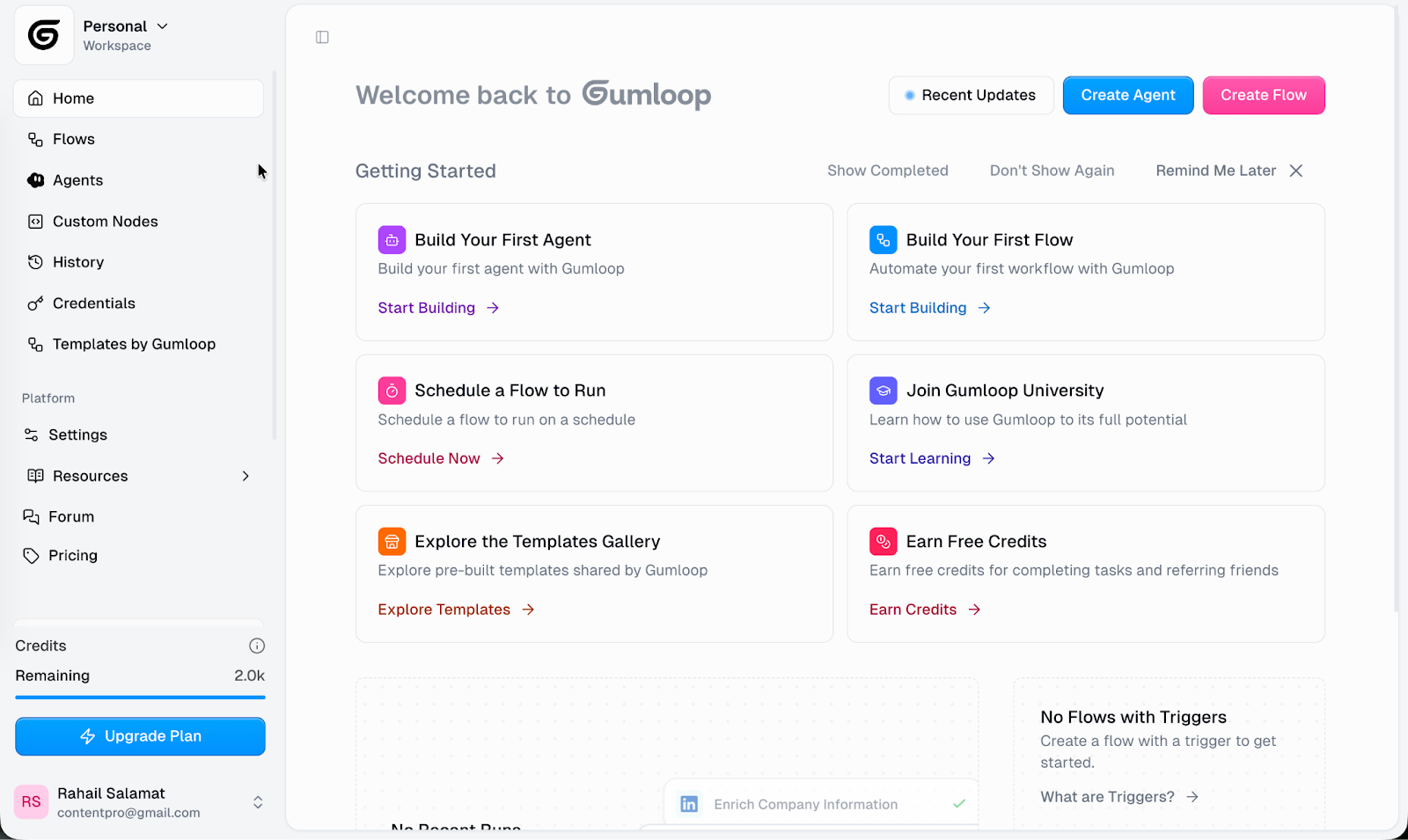
The Gumloop flow analyzes any Facebook Ad library and reverse engineers the prompt to recreate any ad creative.
Step 2 - Create a new flow and start analyzing ad creatives
Gumloop hands out free credits so liberally that you can build this entire flow without ever opening your wallet.
Let’s first create a new flow in Gumloop. As you’re already logged in, click the ‘create flow’ button.

Prompt:
Make a flow that takes a URL to a Facebook ad library account and scrapes all of its static (not video) ads and puts all of the data in a new row in a Google Sheet. It sends the static creative image to AI with a prompt telling it to reverse engineer a prompt you could put into an image generator to get the creative generated.
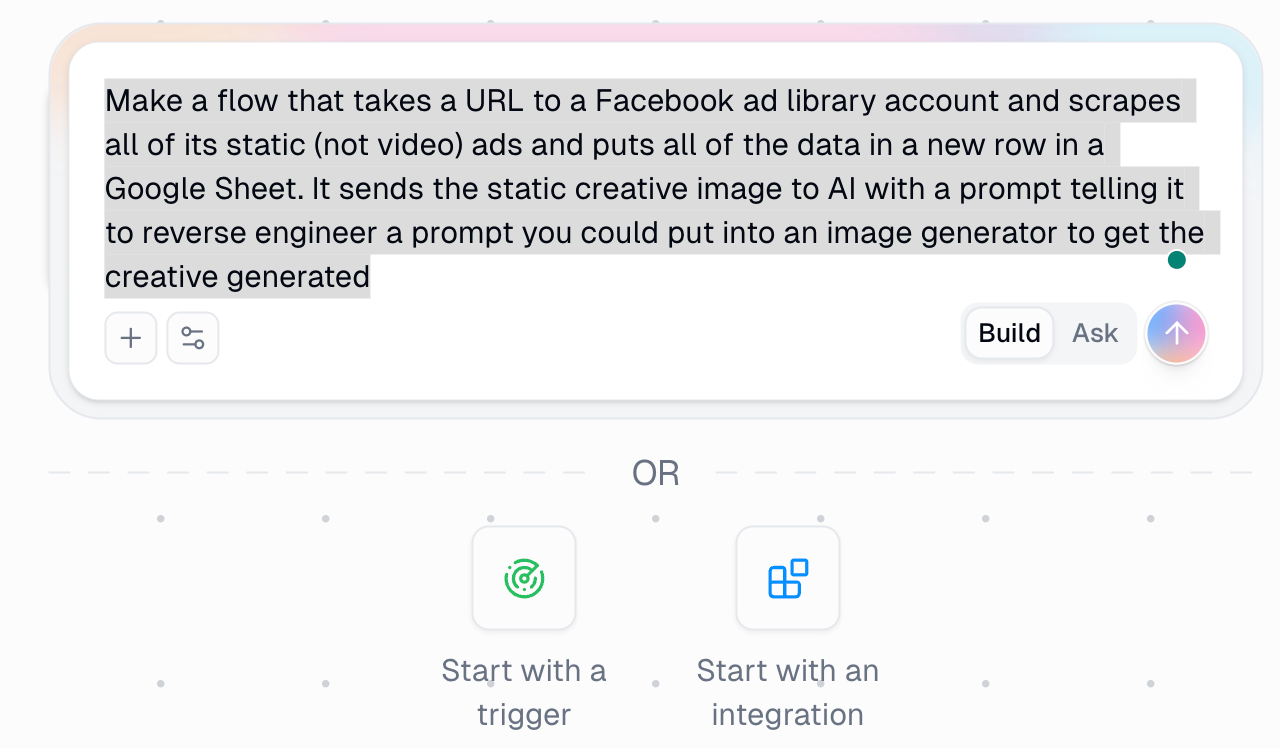
Note: You can let Gumloop’s agent assemble this for you, or you can build it yourself by choosing the trigger or integration options. In the tutorial, we put the flow together by hand, yet you can always call on the agent for guidance while working inside a flow.
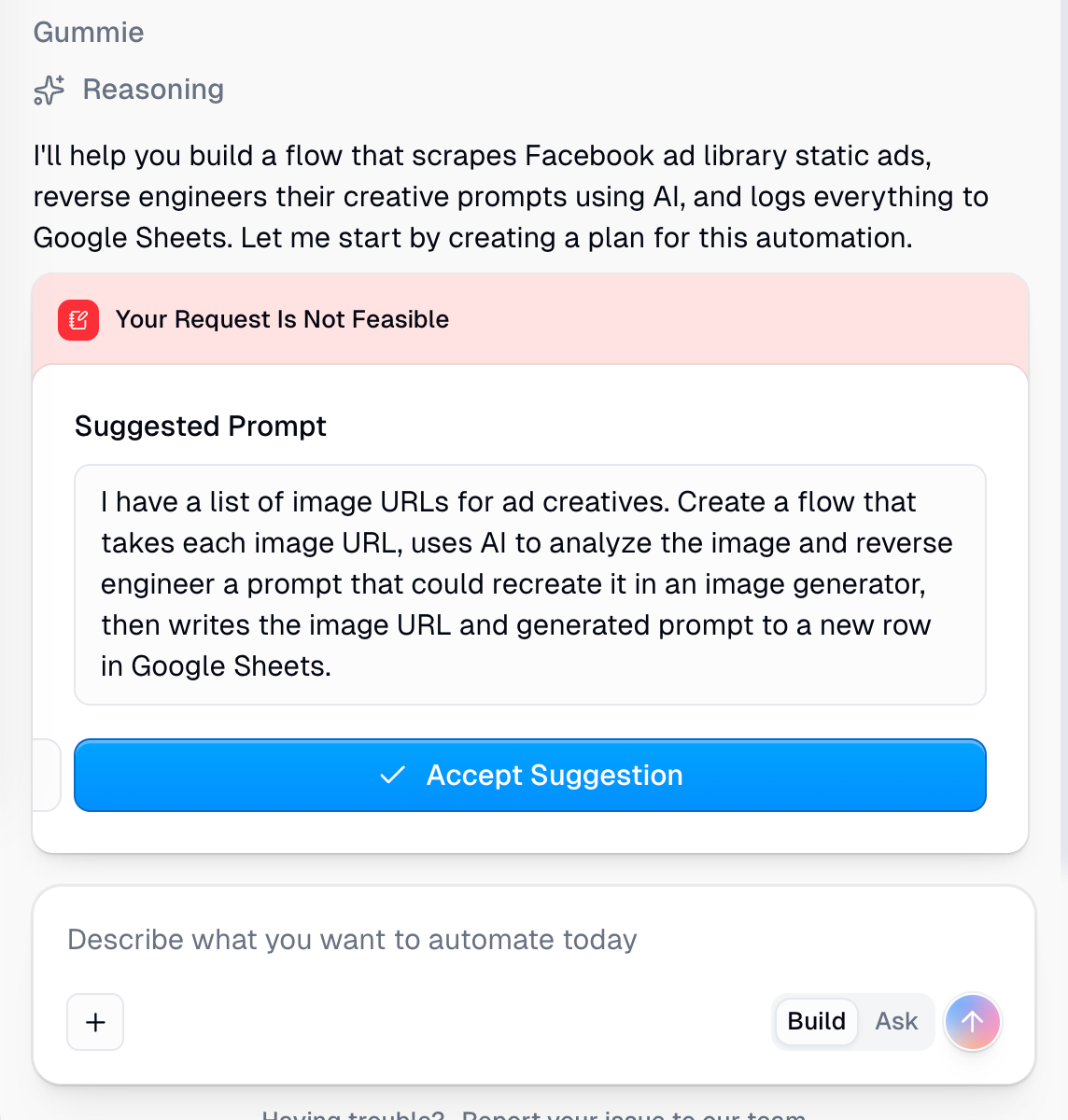
Gumloop might need your permission to move forward. Click ‘Accept Suggestion.’
Step 3 - Set up your Google Sheets account
It’s time to set up your Google Sheets account. Create a Google Sheet like this.
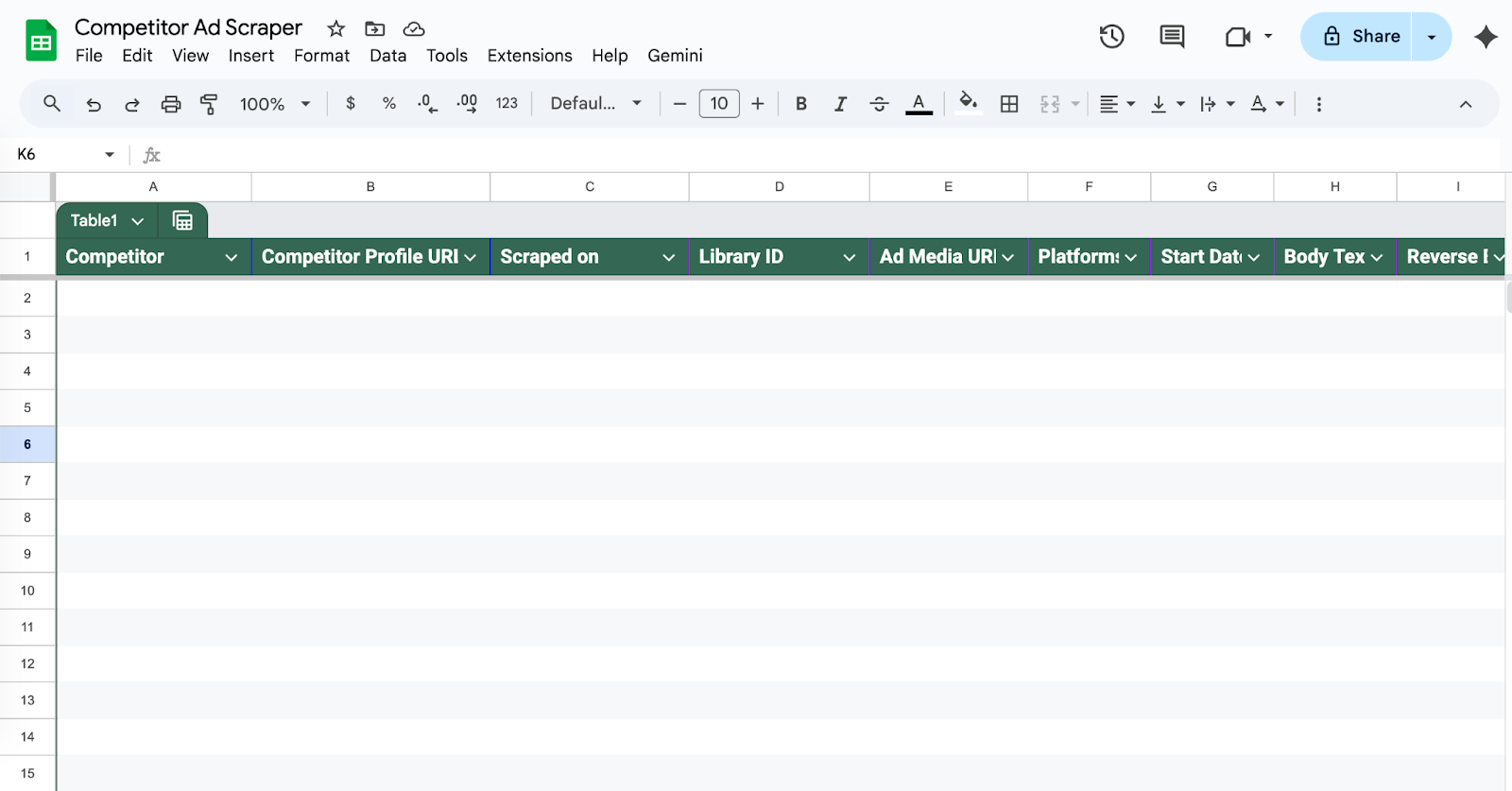
You can copy the Google Sheet here.
Note: The Gumloop agent should spell out the headers you need in your sheet. Even if you start with this template, once you connect it in the next step, the agent will adapt itself to whatever column names you use.
Connect your Google Sheet
After you add the Google Sheets module, click the Authenticate Credentials button and link your Google account. Once that is done, you will not have to enter any other credentials for the rest of the flow.
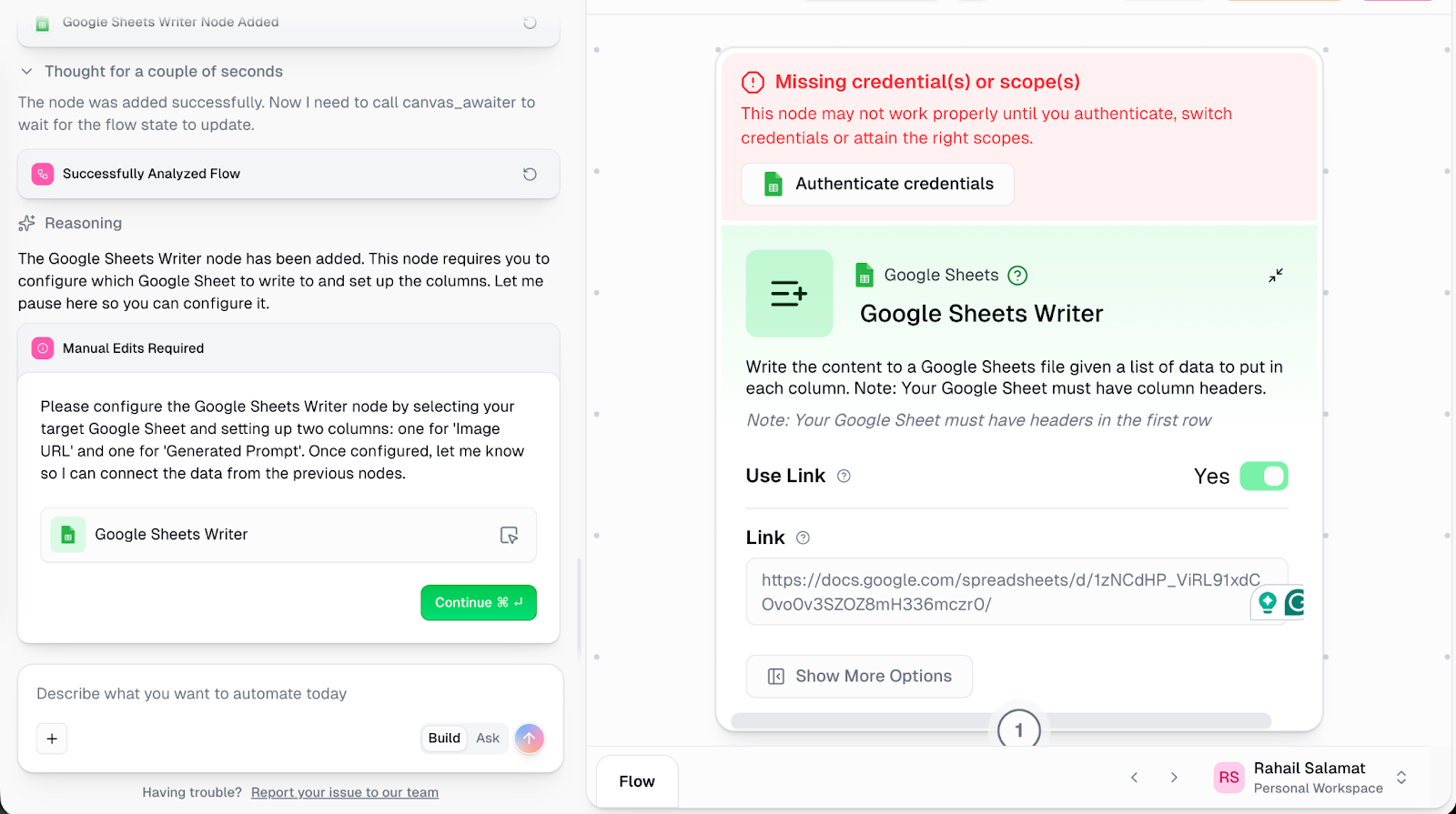
Click ‘Authenticate credentials’ and follow the prompt. Click ‘Link’ and allow Gumloop to access your Google Sheets. Once it’s done, the module will turn green.
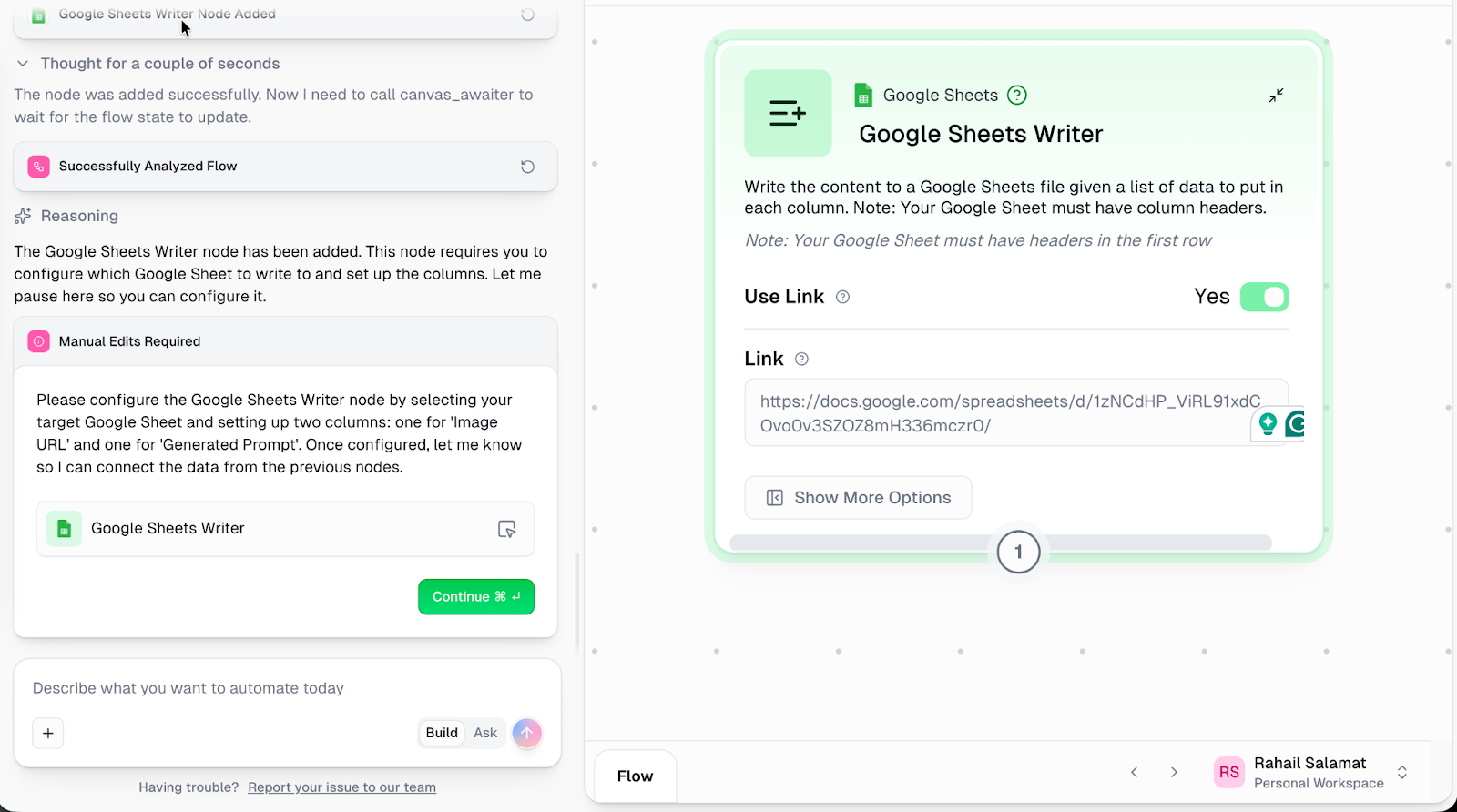
Now, copy the link of the Google Sheet you created. Make sure you have modified the access to ‘Anyone with a link.’ Copy the link and paste it in the Link box in Gumloop.
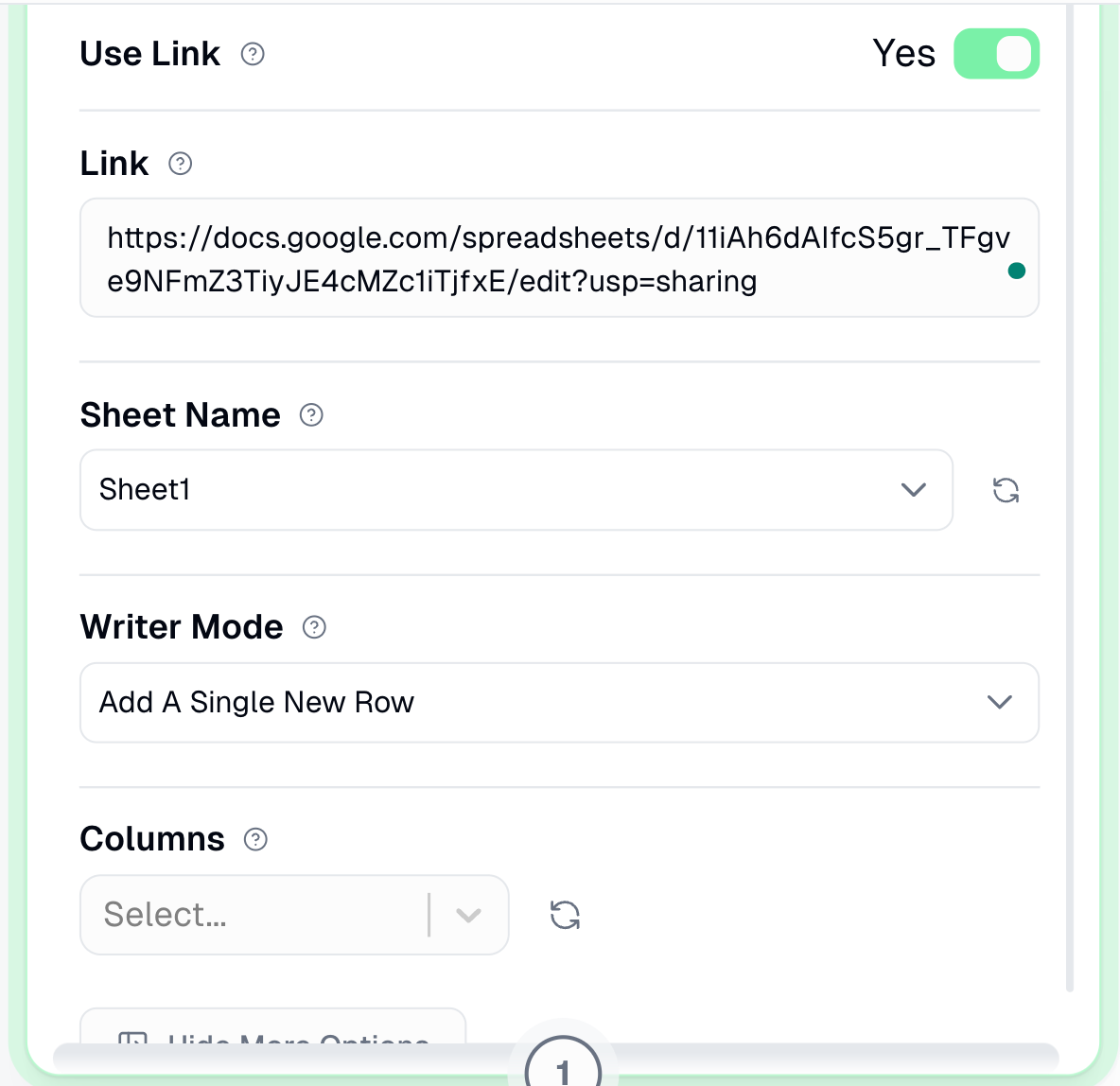
Click ‘Continue’ to proceed with the workflow.
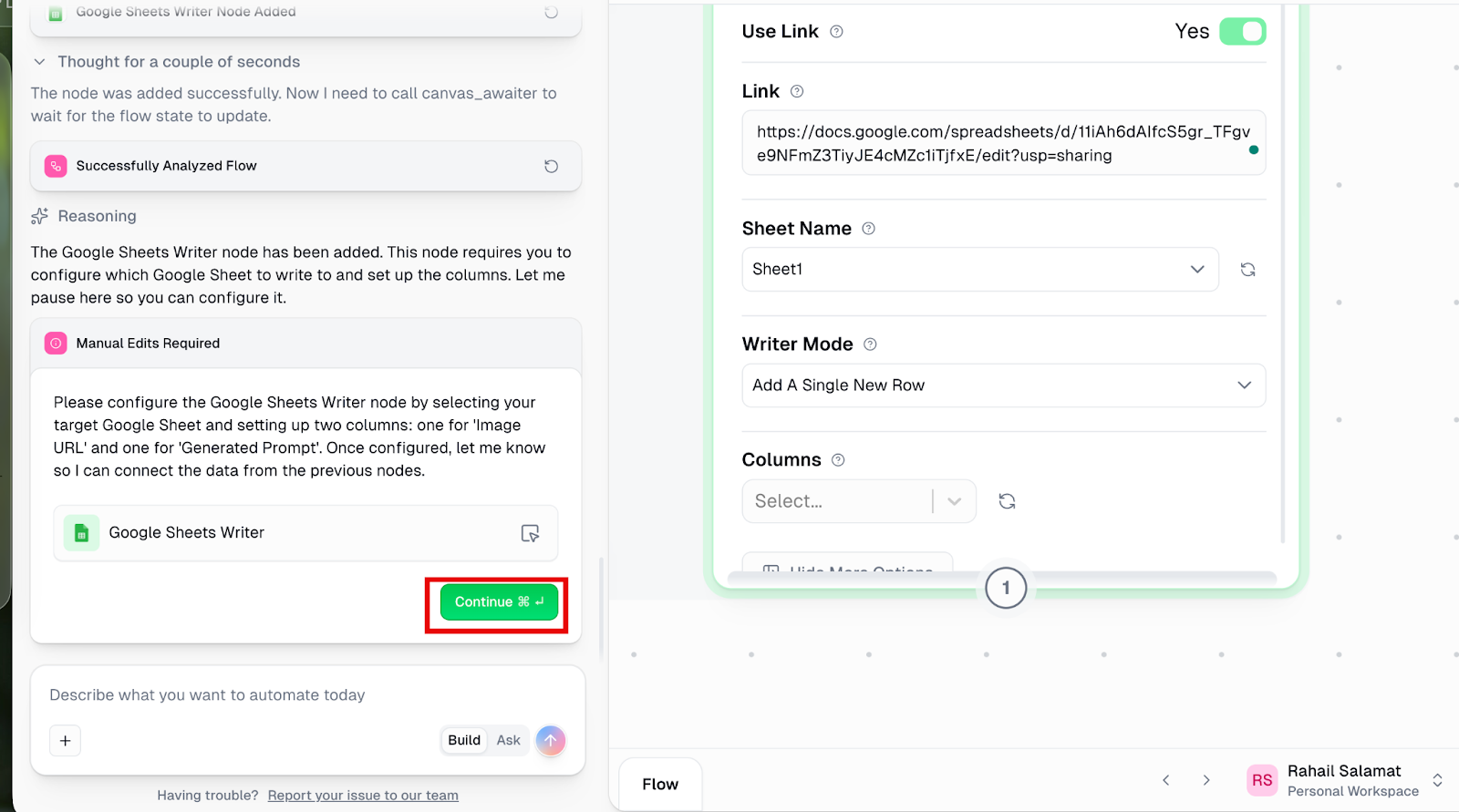
You have created a flow that allows Gumloop to analyze any Facebook Ad creative. All you need is to search for a competitor and put it in your Gumloop flow.
Step 4 - Test your new flow
Let’s test this workflow. Go to https://www.facebook.com/ads/library and search for a competitor.
Next, verify they have static image ads. Click on their name to go to their profile.
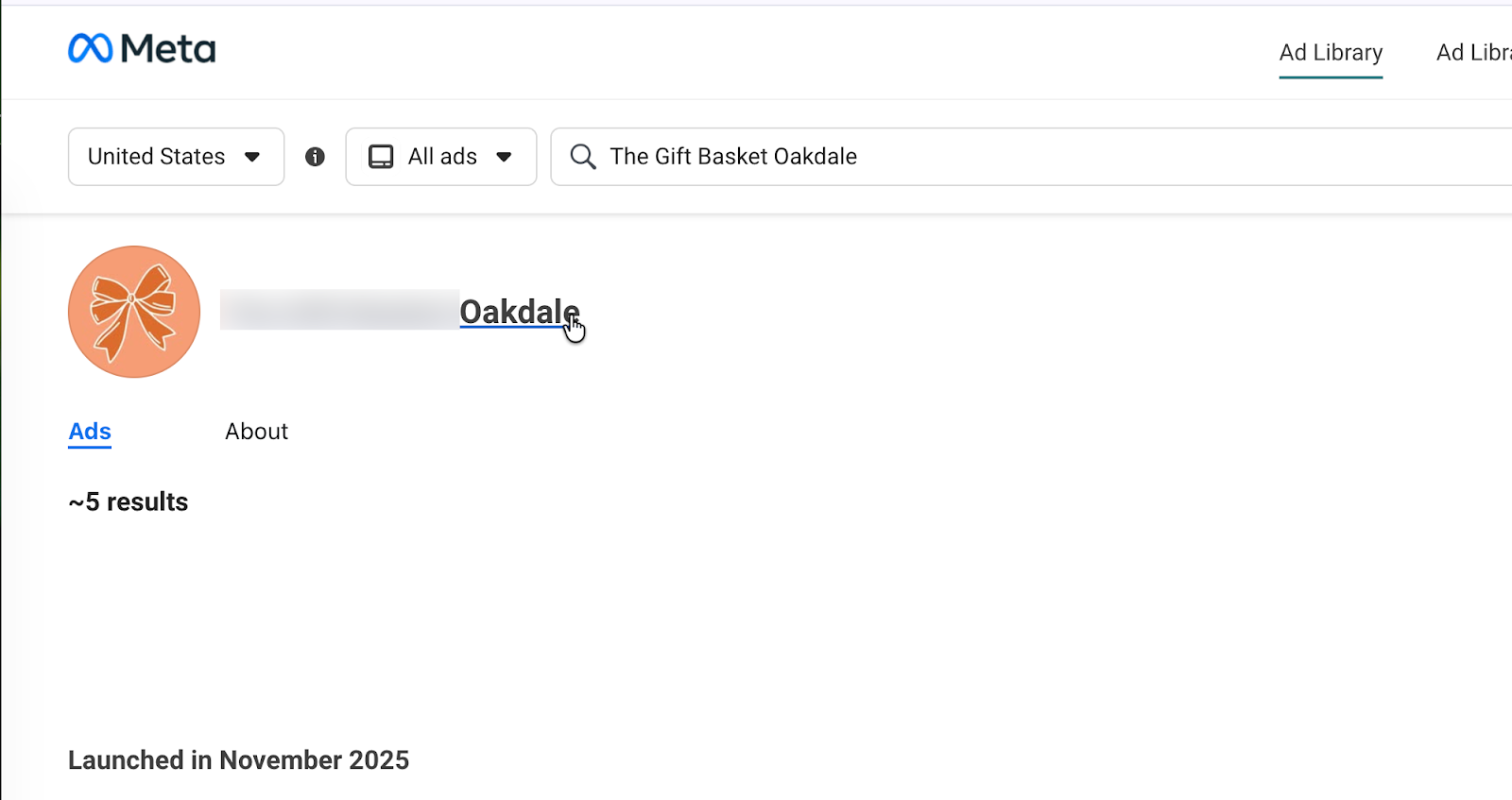
Copy the link to their profile and paste the link into your first module.
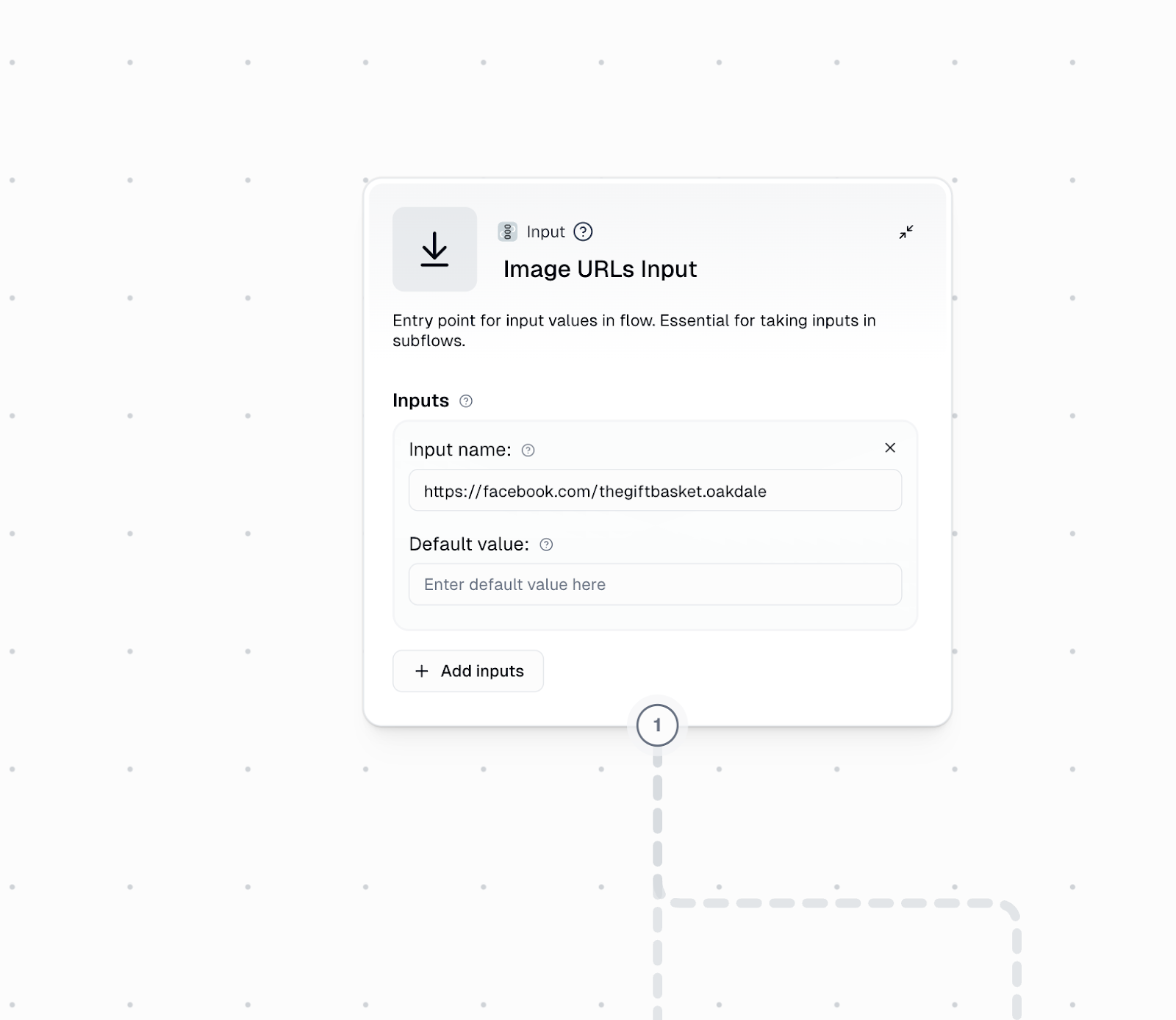
Make sure your flow matches this layout. Skip the two extra inputs if you do not plan to run it on a schedule, since they only log the run time.
Then hit the big green Run button.
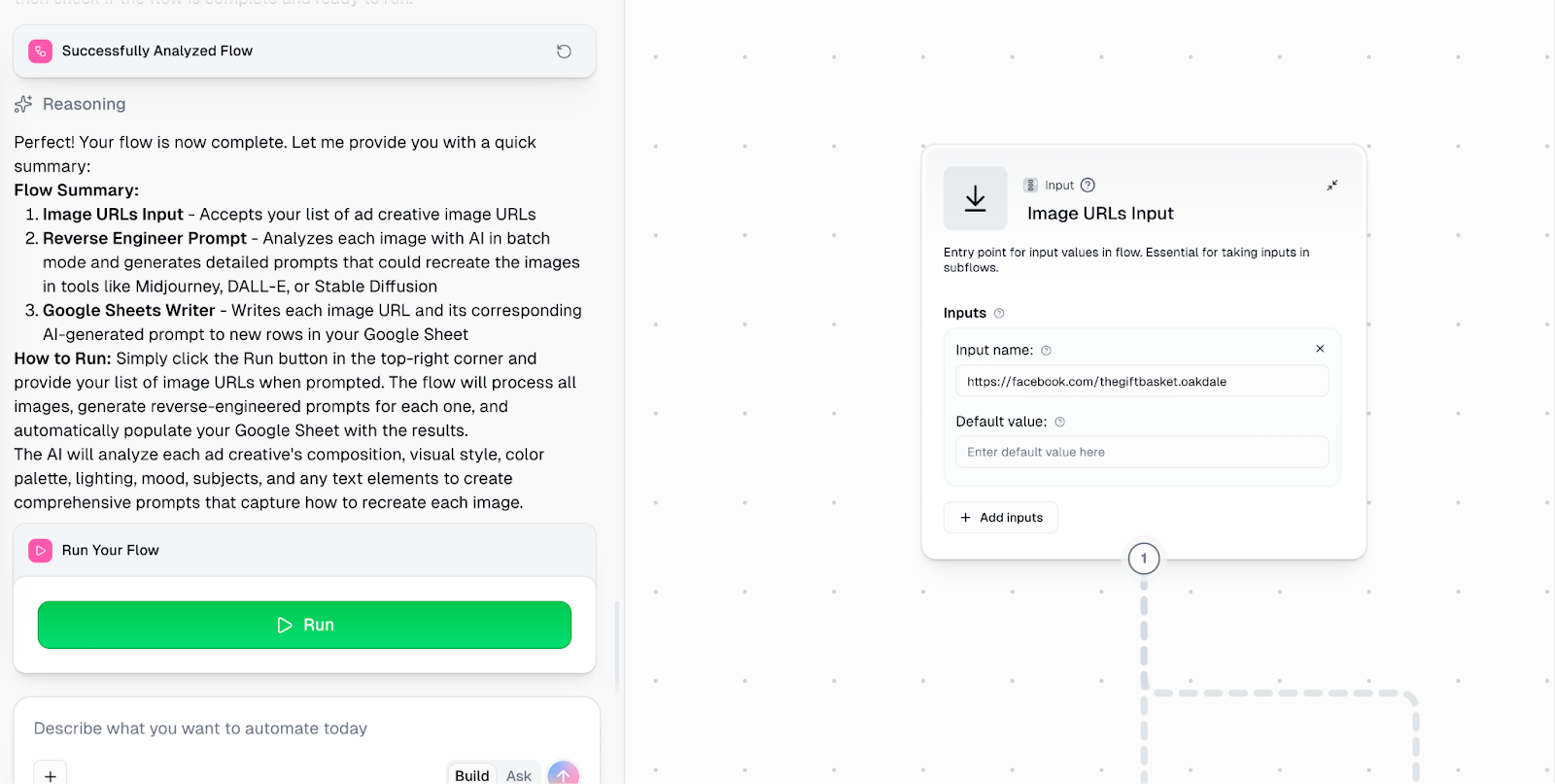
Step 5 - Test your Flow
Now we’ll set up a weekly automation that scans your competitor list and pulls ads for each one.
Create a new flow from scratch to handle the scraping. It should look like this.
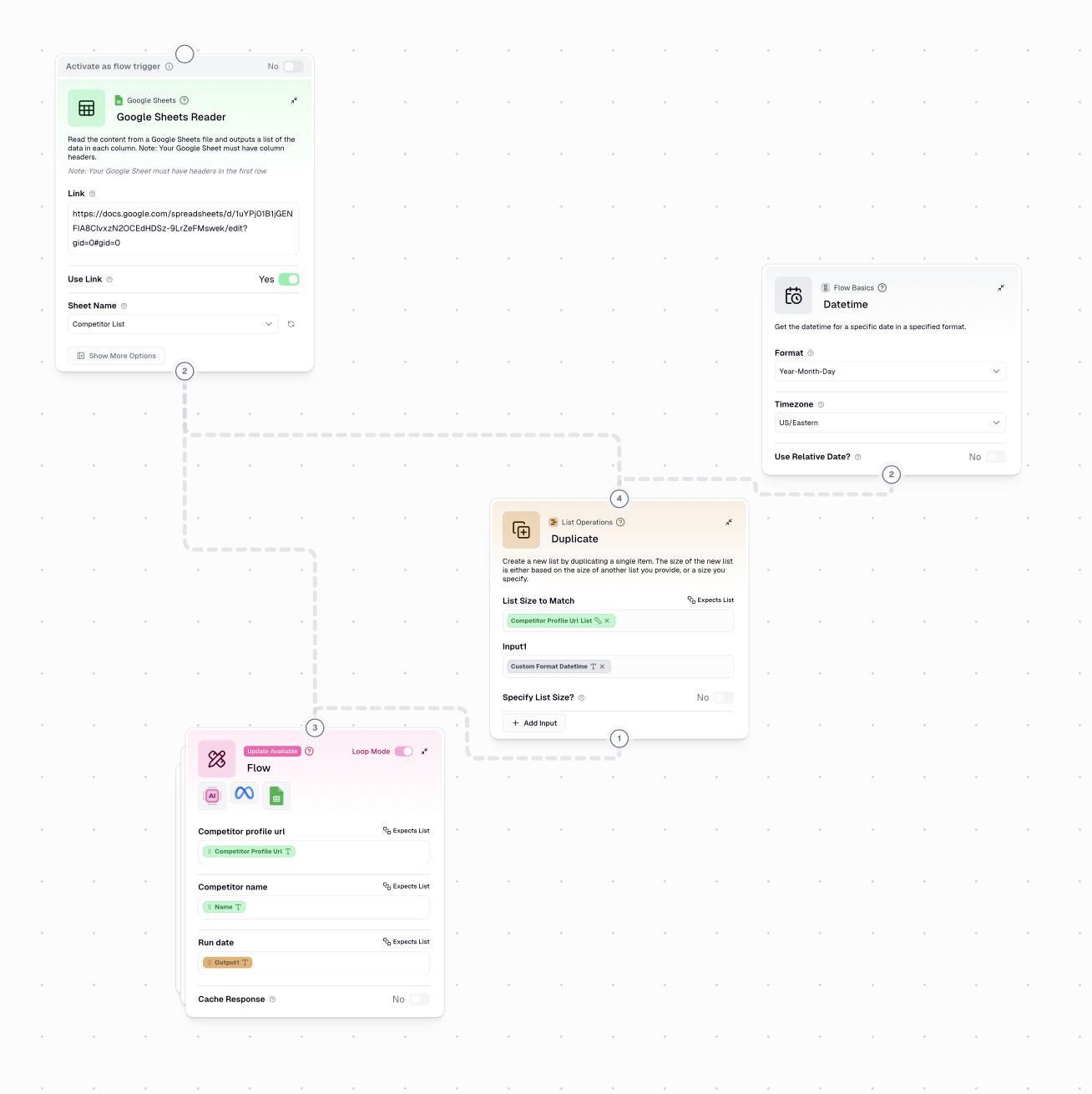
Add a new tab to your Google Sheet with two columns titled Competitor Name and Competitor Profile URL.
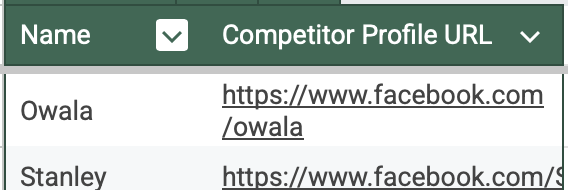
There you have it. Your sheet will be populated with the static ads your competitors are running.
That’s it for this tutorial, automation engineers! You can use the same flow setup to scrape and analyze video ads, and you can extend it further to capture Reddit threads, TikTok videos, Tweets and much more. You can also add a generate image module so the system can produce new images on the spot based on the ads you scraped.


.png)

.avif)
