-min.avif)
.avif)
.png)
The job market is broken. Jobs get posted, resumes get collected, screening is automated, and most candidates never hear back. It feels less like hiring and more like running people through a funnel that no one is actually watching. You apply, tick all the boxes, and then nothing: no feedback, no rejection, just silence.
The job boards are trying to solve this problem by using AI to match skills and experience to the jobs being searched for. It’s a nice way to save time, minus the frustration that comes when applying for jobs. LinkedIn introduced the skills-matching feature a while back. However, the full version is available on a subscription basis. Now, as we all know, a LinkedIn subscription is costly.
Frankly, the LinkedIn skills-matching feature is rudimentary and most likely inaccurate. Most of the time, it incorrectly matches jobs to skills. So, what if you could do the AI job matching using the Claude Chrome extension?
In this tutorial, we’ll show you how to use the Claude Chrome extension to find jobs that actually match your skills and experience. You’ll learn how to access LinkedIn inside Claude, run targeted job searches, and ask Claude to surface roles aligned with your resume. We’ll also walk through using Claude to write tailored cover letters and format your resume so it passes automated screening systems instead of disappearing into them.
By the end of this tutorial, you’ll be able to:
- Open LinkedIn inside the Claude Chrome tab group
- Search for jobs and use Claude to match your skills
- Write a cover letter for a particular job
- Format your CV to pass ATS screening
Let’s dive right into it!
Step 1 - Open LinkedIn inside the Claude Chrome tab group
The Claude Chrome browser extension lets Claude see what you see and actually do things in your browser, like clicking buttons, filling out forms, and navigating pages. Think of it as a capable assistant sitting in your side panel, ready to handle tedious browser tasks on command. And the killer feature is that you can record yourself doing something once, save it as a shortcut, and Claude will repeat that exact workflow whenever you need it.
The only downside is that it comes with the paid plan. You must subscribe to the Pro or Max plan to avail this fantastic feature.
Open a new tab and access LinkedIn. Log in to your account. Click the Claude Chrome extension to open the chatbox in a sidebar.
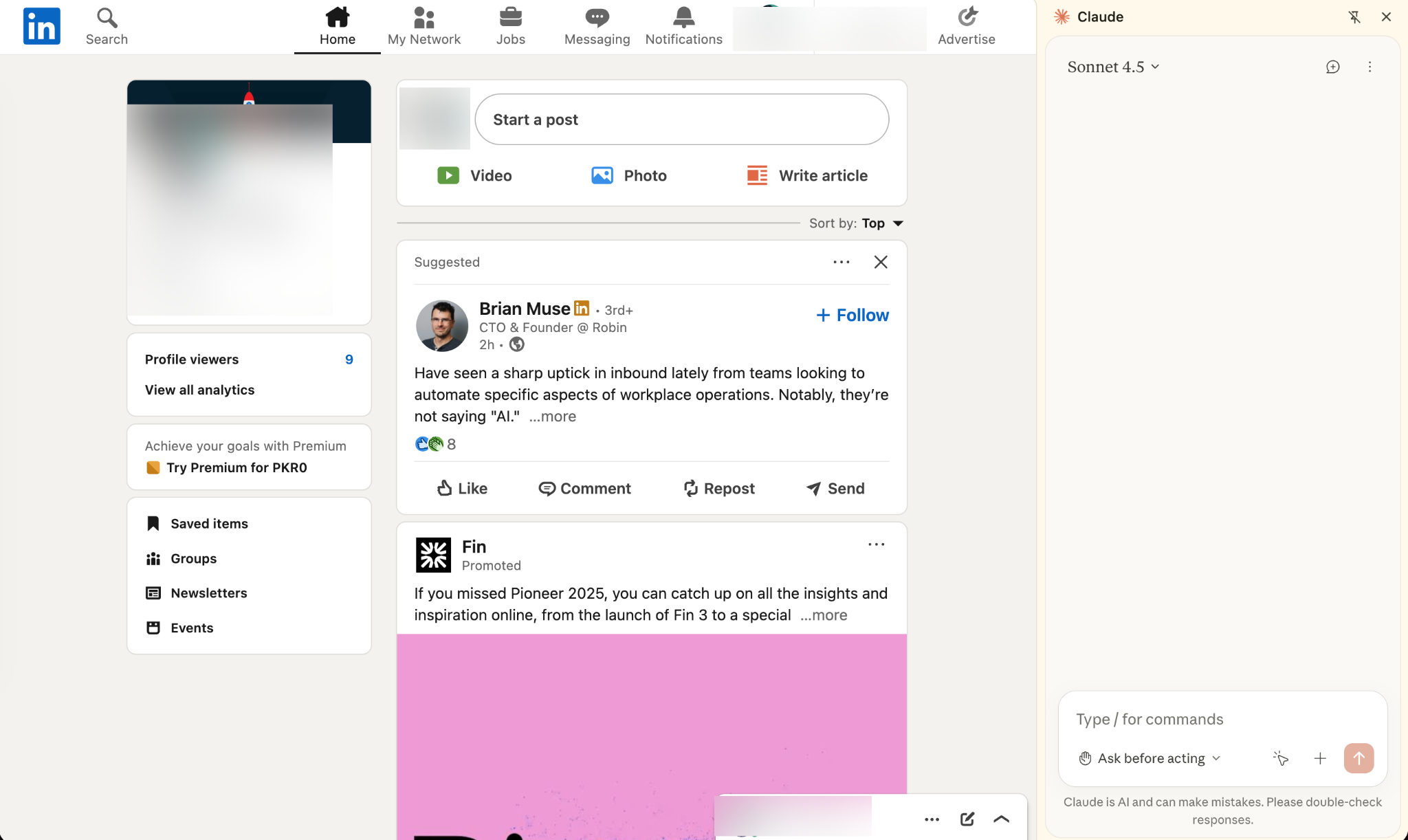
Click jobs in the top navigation bar on the LinkedIn site.

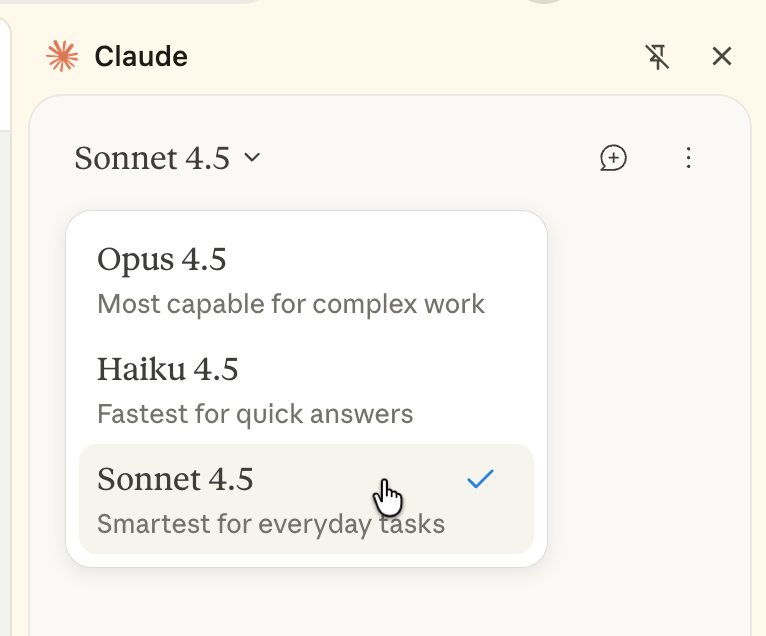
Choose ‘Sonnet 4.5’ in the model selection dropdown.
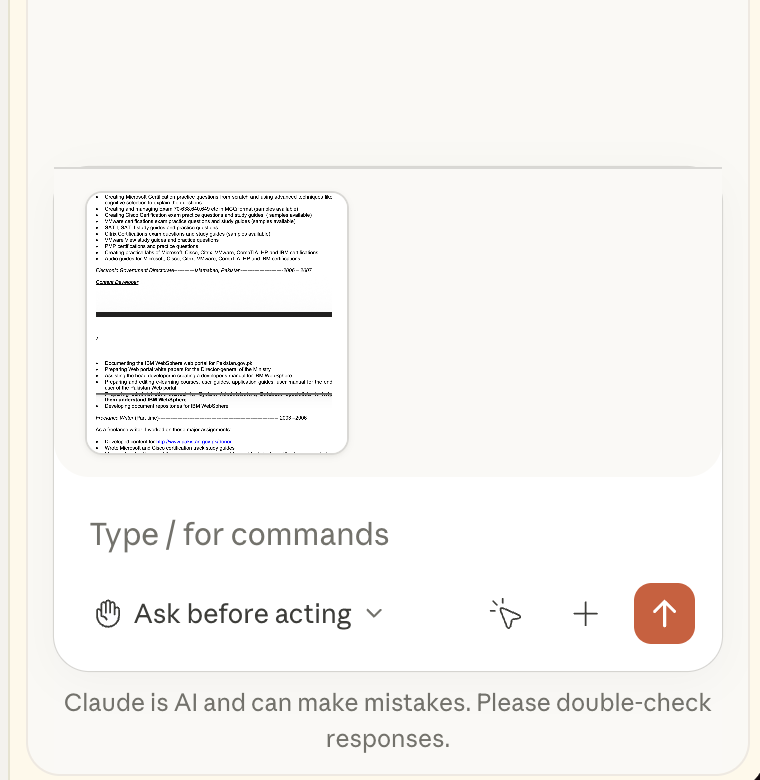
Now, open your CV/resume and take a screenshot of the entire resume. Attach the CV image to the chat session.
Step 2 - Search for jobs and use Claude to match your skills
The process is simple. You have attached the screenshot of your CV/resume. Now search for jobs that interest you using LinkedIn job search parameters.
Use the following prompt to match the jobs on the search results page to your skills and experience.
Prompt:
Find jobs that match my skills and experience as outlined in the attached image using LinkedIn's job search.
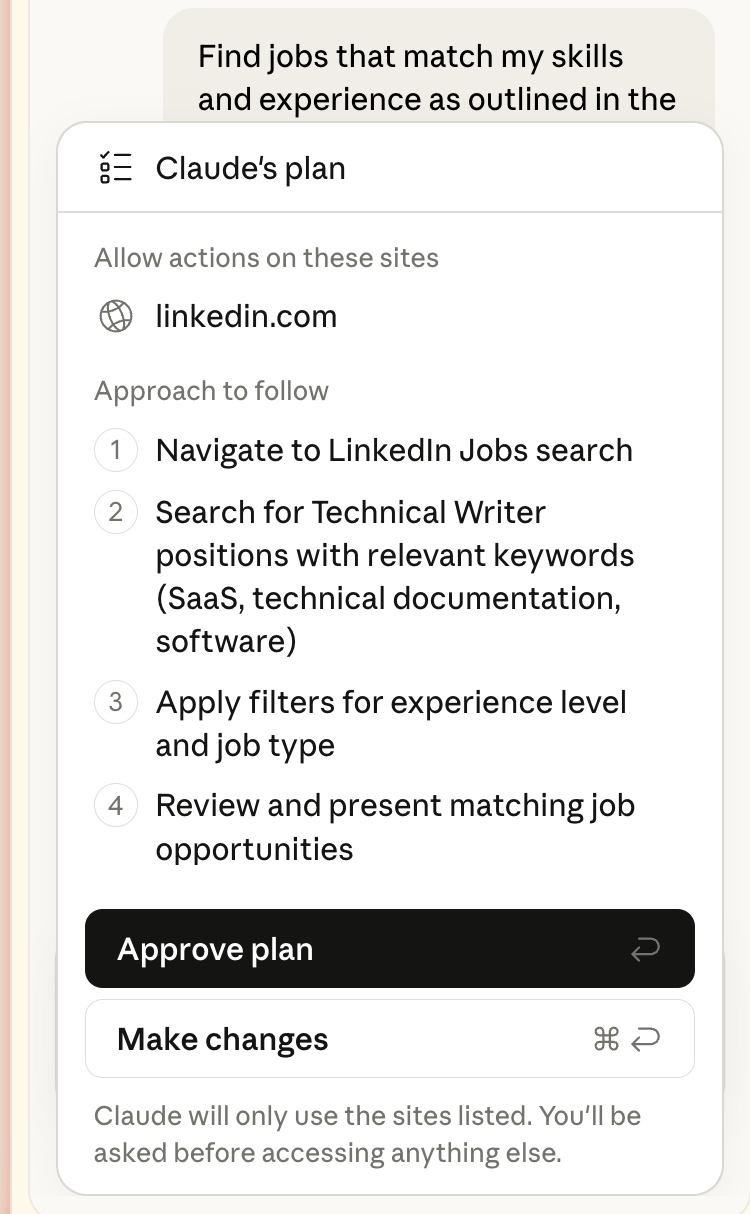
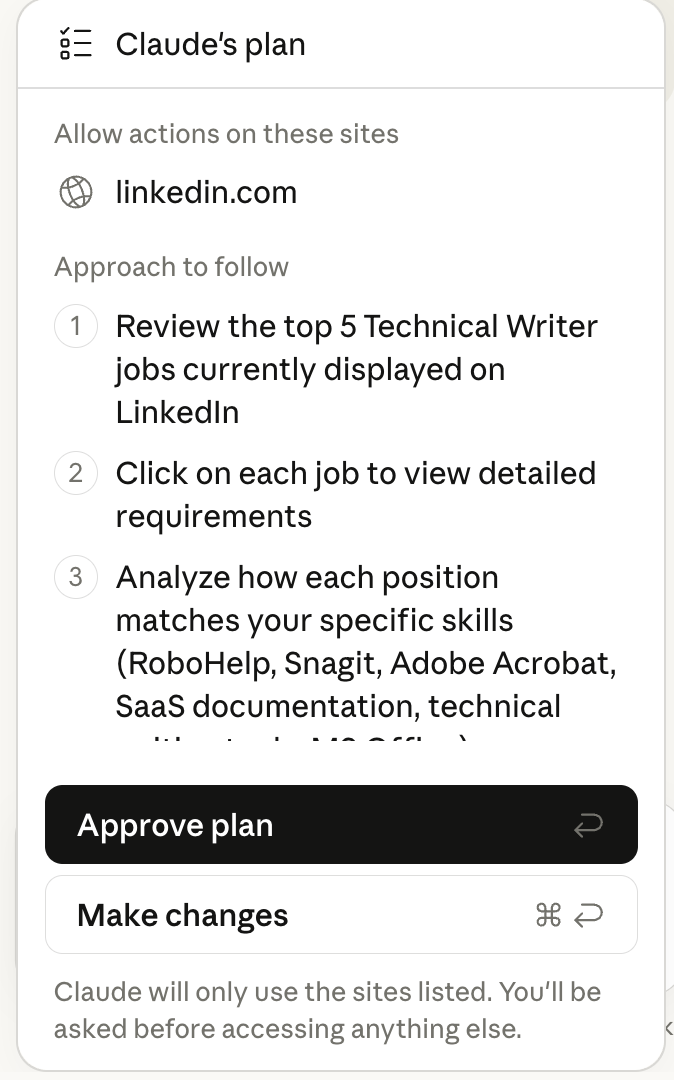
Review the suggested approach. Click ‘Approve plan’ if you are satisfied with it or make changes.
Claude will start searching for jobs that match your skills.
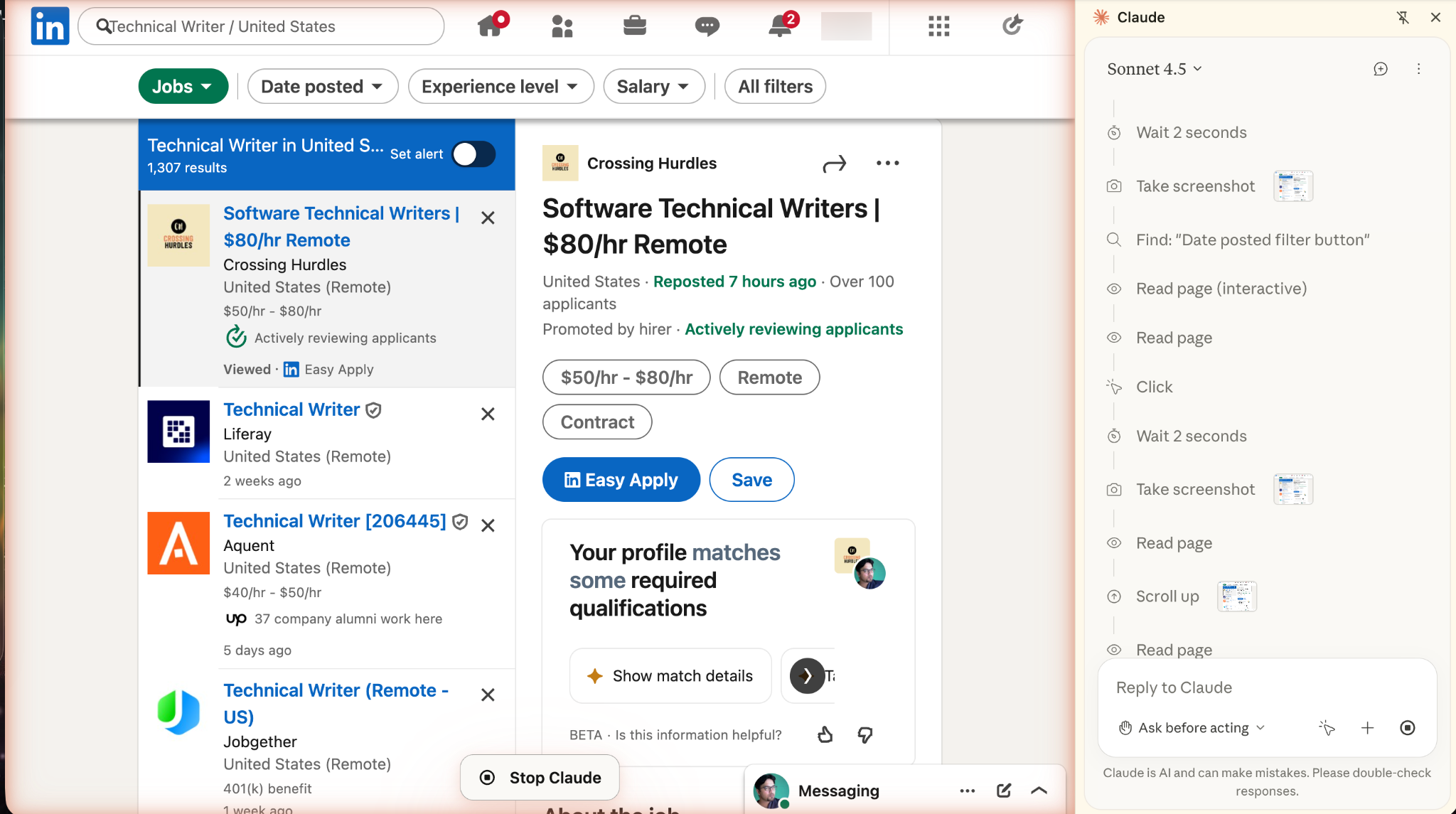
Claude lists all the jobs that match the search parameters we mentioned in the prompt.
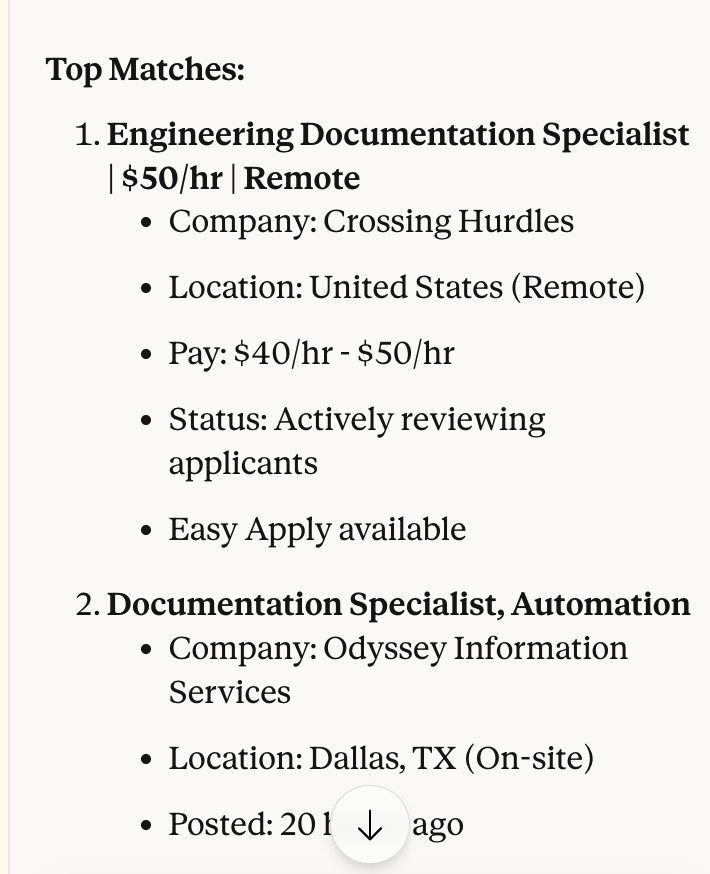
Now tell Claude to find jobs in the search results that match your skills and experience.
Prompt:
Find jobs in the top 5 displayed search results that closely match my skills and experience, as shown in the attached image.
Review and approve the suggested plan.
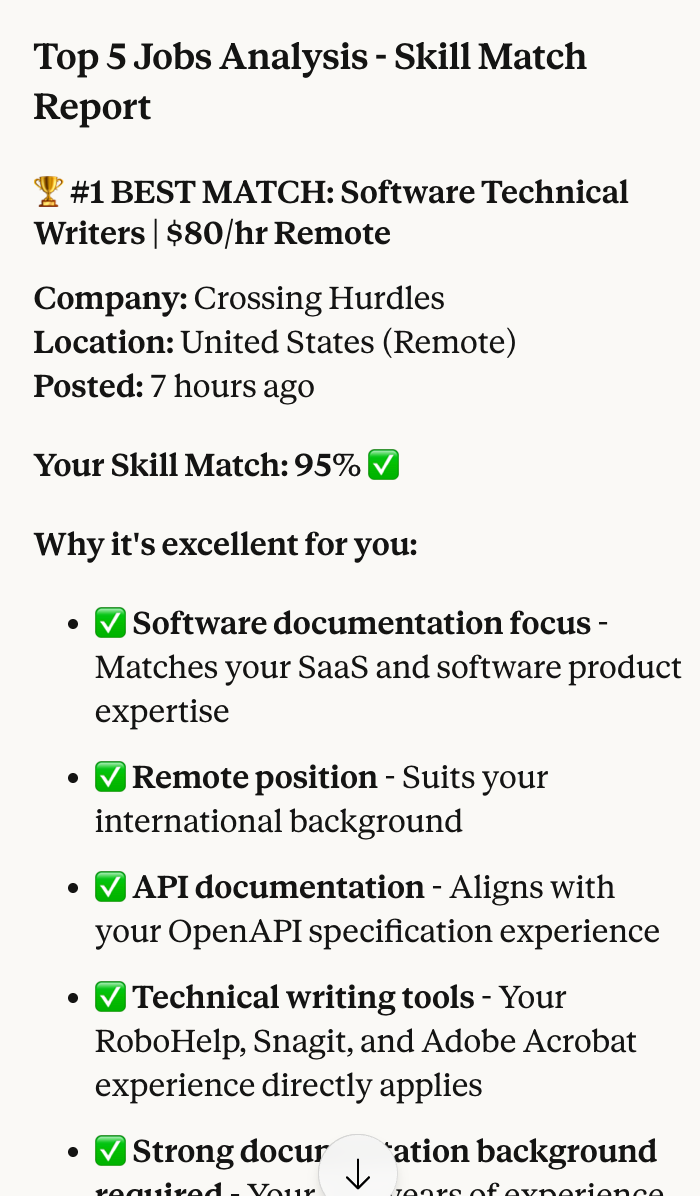
Claude will take time to review the top 5 job listings and match your skills and experience. Once it’s done, you can view the jobs that match your resume.
Select a job and copy the entire job posting into an online notepad. Copy the details, such as the company name and other details.
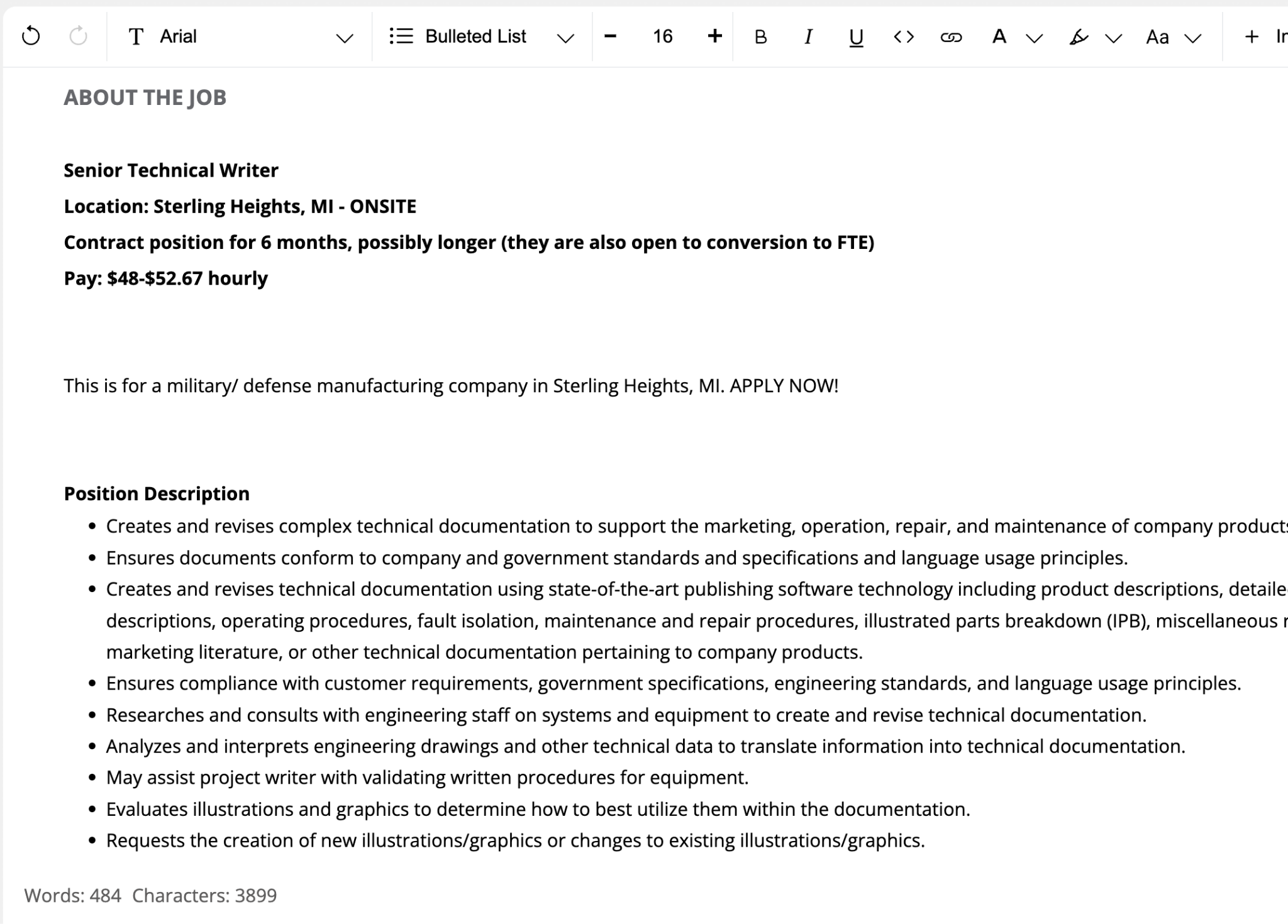
Step 3 - Write a cover letter for a particular job
Write a cover letter to quickly apply for the job that matches your skills and experience. In the notepad tab, open the Claude Chrome extension and use the following prompt to get a cover letter.
Prompt:
[Attach your CV/resume screenshot]
Write a convincing cover letter for the job outlined in the notepad. Address the points tactfully by explaining how I am the best fit for this job. Write in a professional tone. Ensure that the cover letter is concise and a quick read.
Review the plan and click ‘Approve plan.’
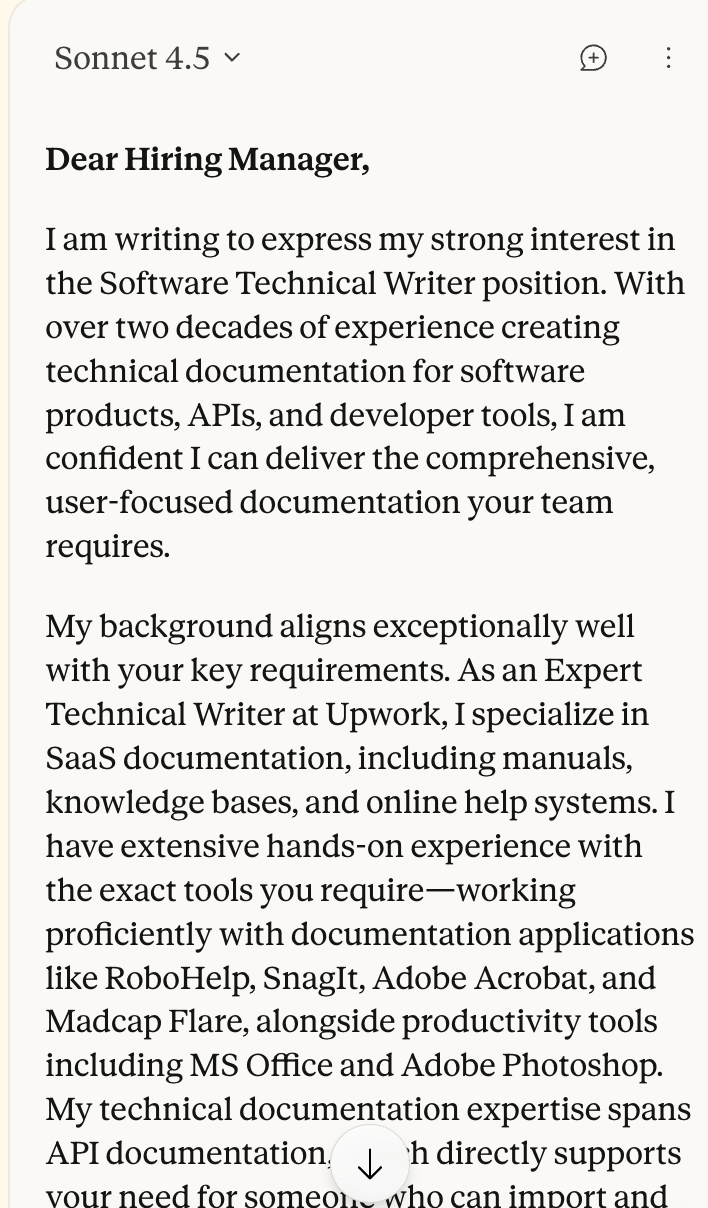
Review the cover letter and make changes. For example, you can tell it to remove em dashes from the letter and make it concise.
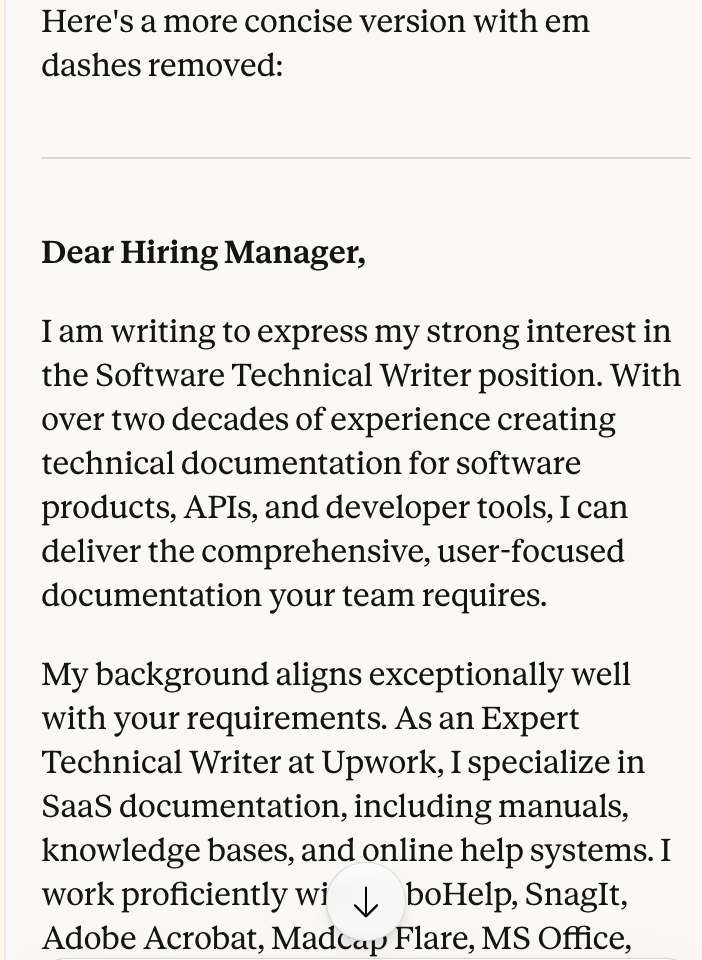
Step 4 - Format your CV to pass ATS screening
For this step, you might need to access the Claude chat service since Claude Chrome doesn’t support pdf or Word document attachments.
Access Claude and attach your CV/resume to a new chat.
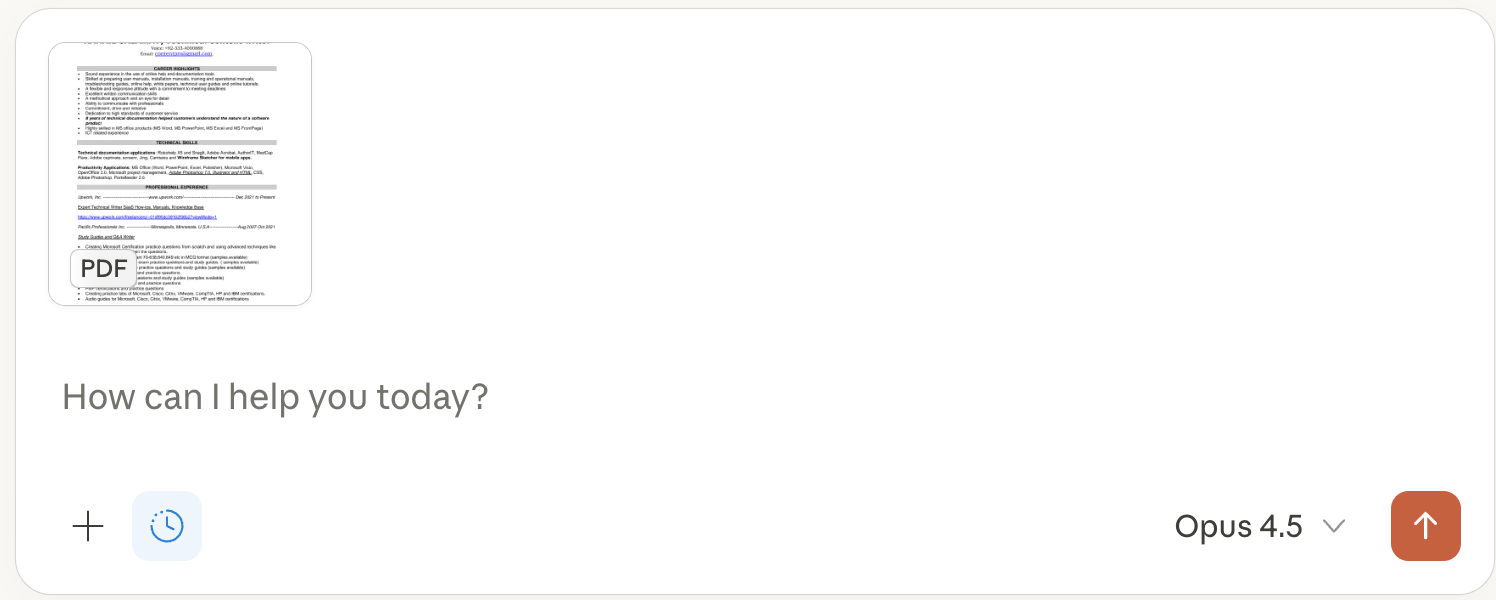
Prompt:
Convert my CV into an ATS-friendly format. Make sure it passes the ATS software currently used by companies.
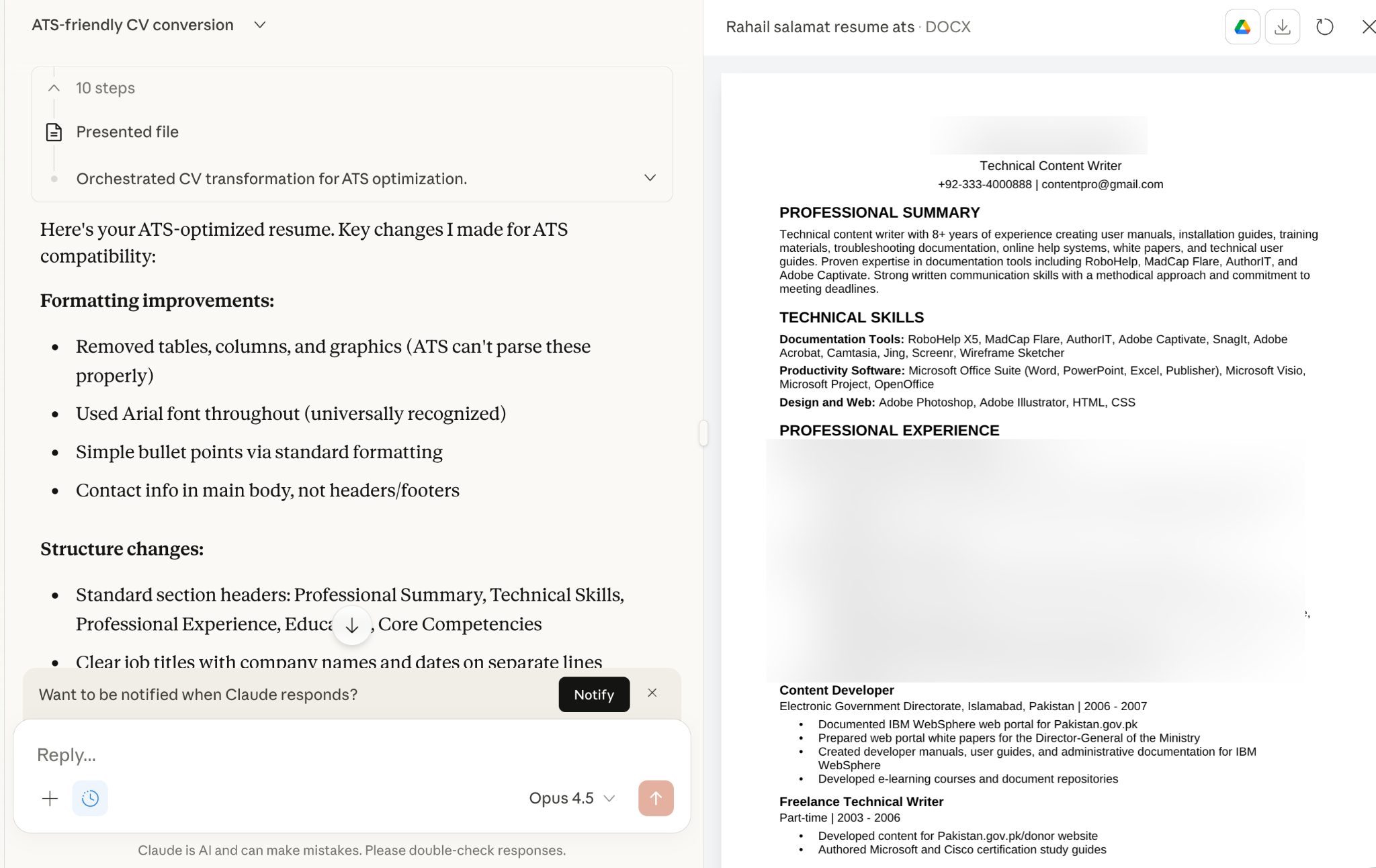
Review and edit the ATS-formatted resume. Once you’re done, tell Claude to convert it into a PDF.
Prompt:
Convert the ATS-formatted resume to a PDF and provide a downloadable link.
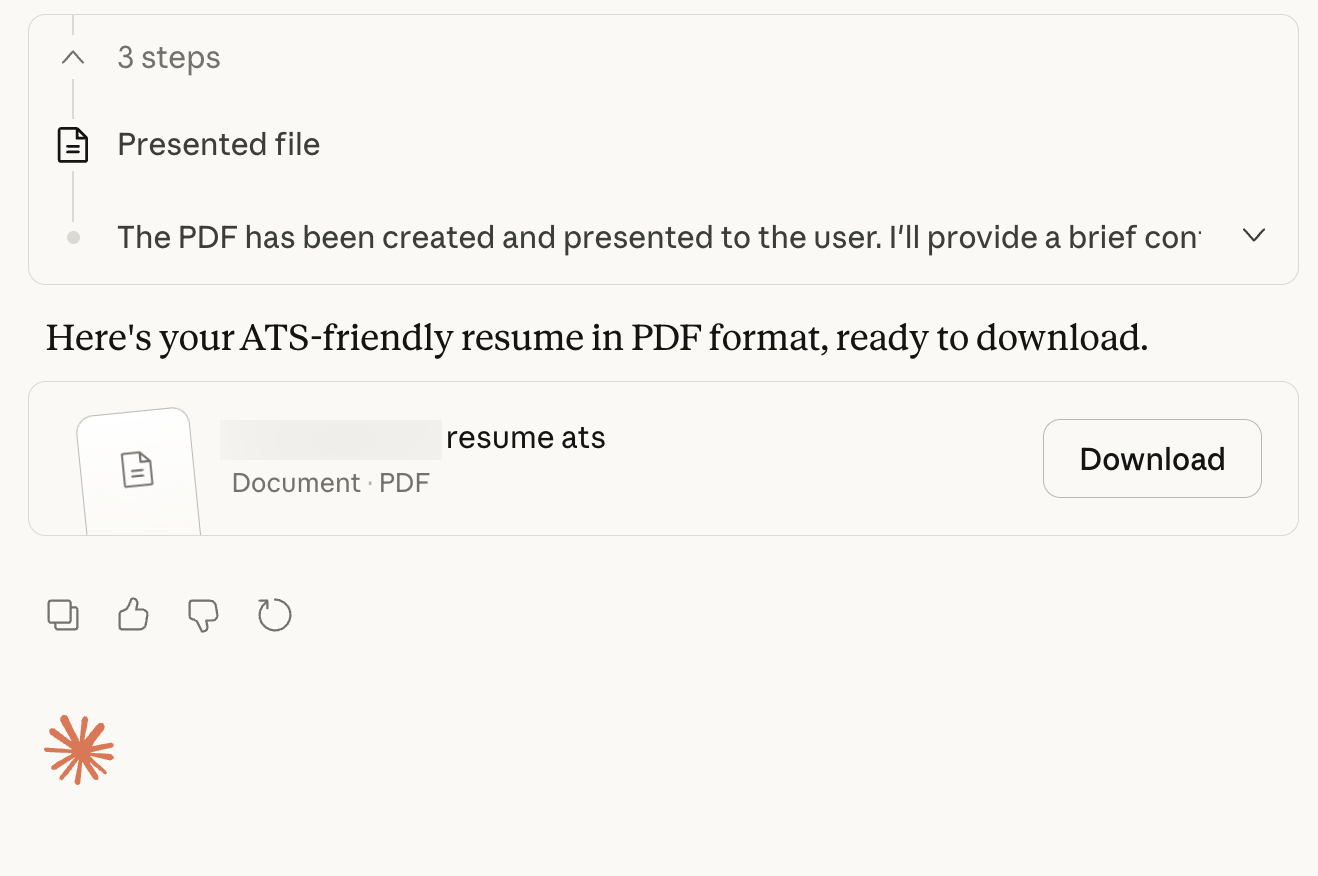
There you go! You can now apply for the jobs that match your skills. All you have to do now is to upload everything and click ‘Submit.’
That’s it for this tutorial, AI-augmented job seeker! With AI on your side, applying for jobs is now dead simple. All you need is a Claude Pro plan and about 10 minutes to generate a solid cover letter. Move faster, apply smarter, and you might land your next role sooner than you think.

.png)

