-min.avif)
.avif)
Claude for Chrome is becoming a handy automation tool for many professionals because it is easy to deploy and use. The level of automation it provides is superior to that of the ChatGPT Atlas browser and Perplexity Comet.
If you want a dead-simple way to stay on top of your expenses, this setup is hard to beat. In just a couple of minutes, you can use Claude for Chrome to scan your Gmail receipts, pull out key details like merchant, amount, date, and category, then drop everything neatly into Google Sheets. No scripts, no brittle automation chains, no third-party tools to babysit. It is a practical first step into using Claude as a real personal assistant that actually saves you time, keeps your finances organized, and scales naturally as you add more tasks later.
This tutorial shows you how to track your expenses using email receipts. We will show you how to install the Claude Chrome extension, access your Gmail account, instruct Claude to extract receipts from your email, and create a new Google Sheets listing of all expenses by category.
By the end of this tutorial, you’ll be able to:
- Install and access Claude for Chrome
- Extract receipts from Gmail
- Create a Google sheet
- Review and iterate
Let’s get right into it!
Step 1 - Install and access Claude for Chrome
The Claude Chrome browser extension lets Claude see what you see and actually do things in your browser, like clicking buttons, filling out forms, and navigating pages. Think of it as a capable assistant sitting in your side panel, ready to handle tedious browser tasks on command. And the killer feature is that you can record yourself doing something once, save it as a shortcut, and Claude will repeat that exact workflow whenever you need it.
The only downside is that it comes with the paid plan. You must subscribe to the Pro or Max plan to avail this fantastic feature.
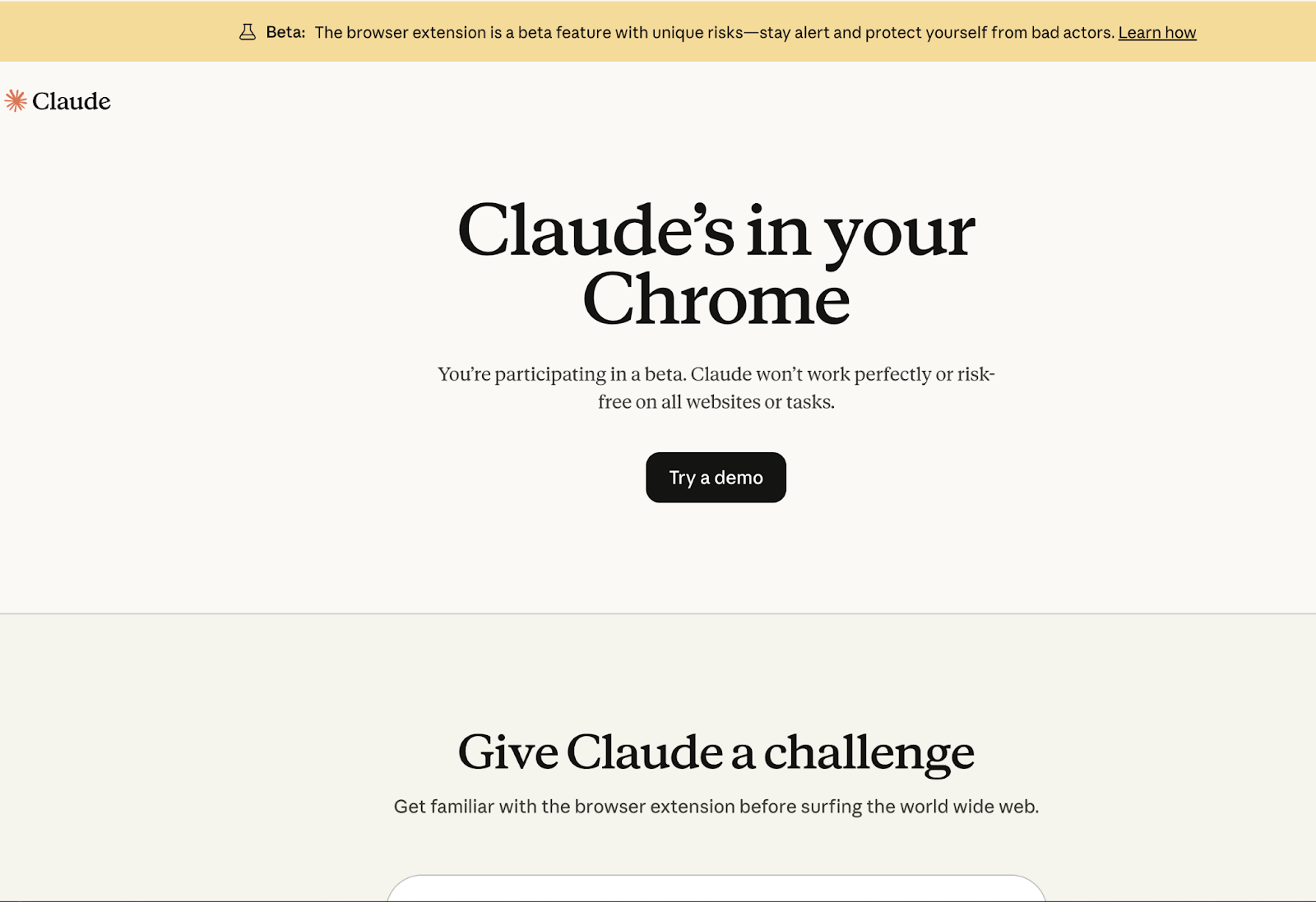
To install Claude Chrome, go to the Chrome Web Store and search for Claude (published by Anthropic).
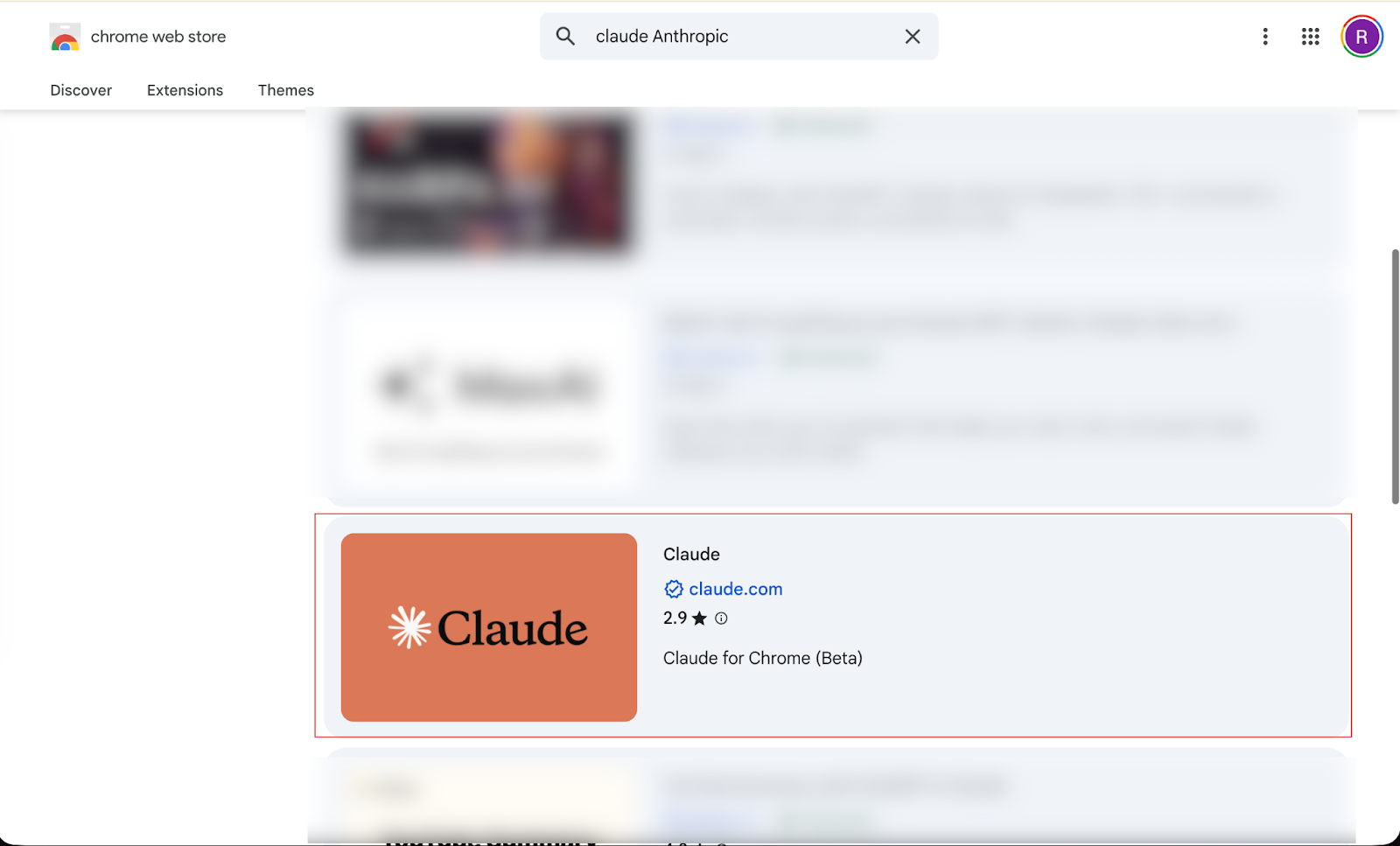
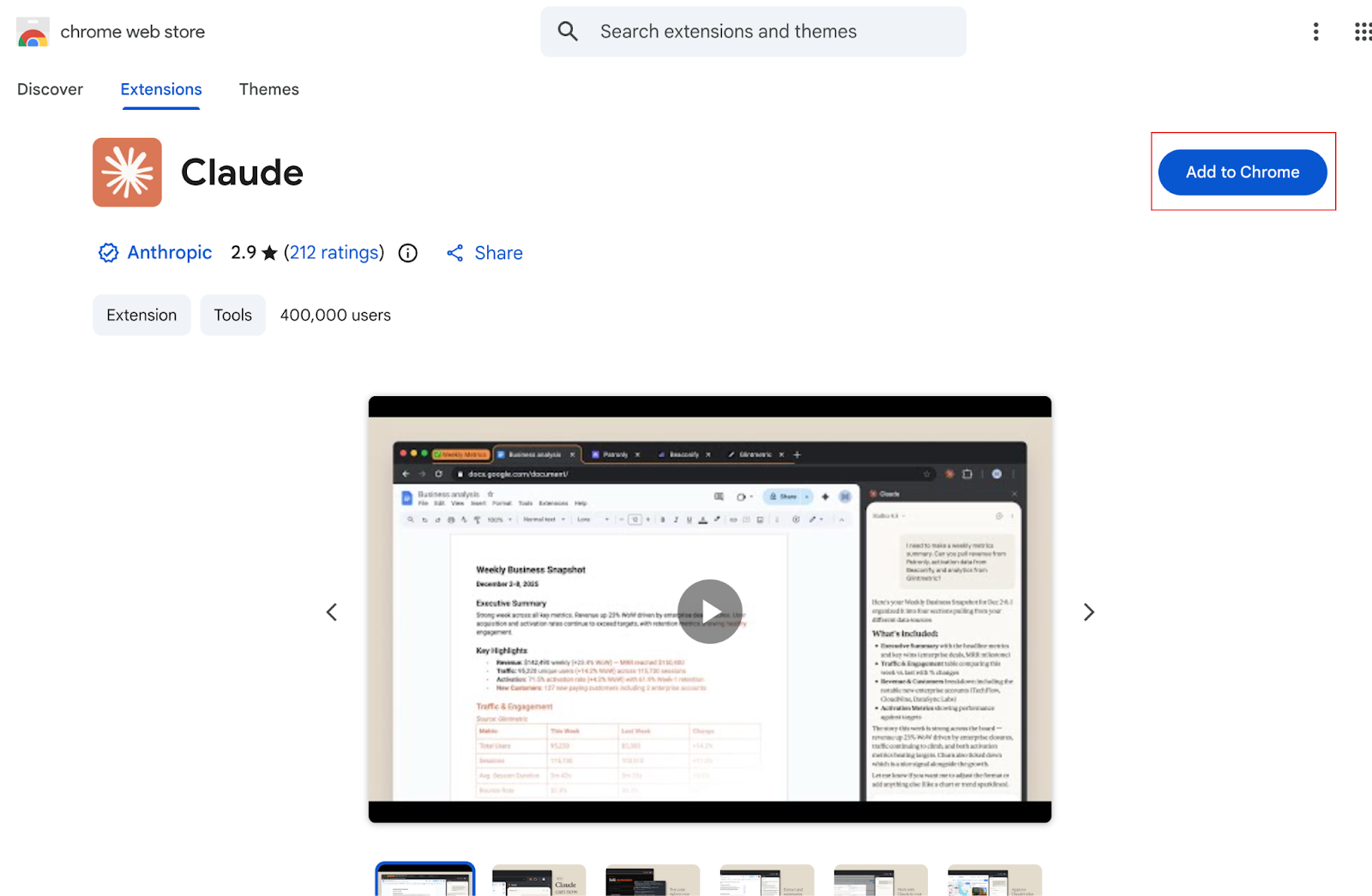
Click the Claude extension in the search results and click ‘Add to Chrome.’
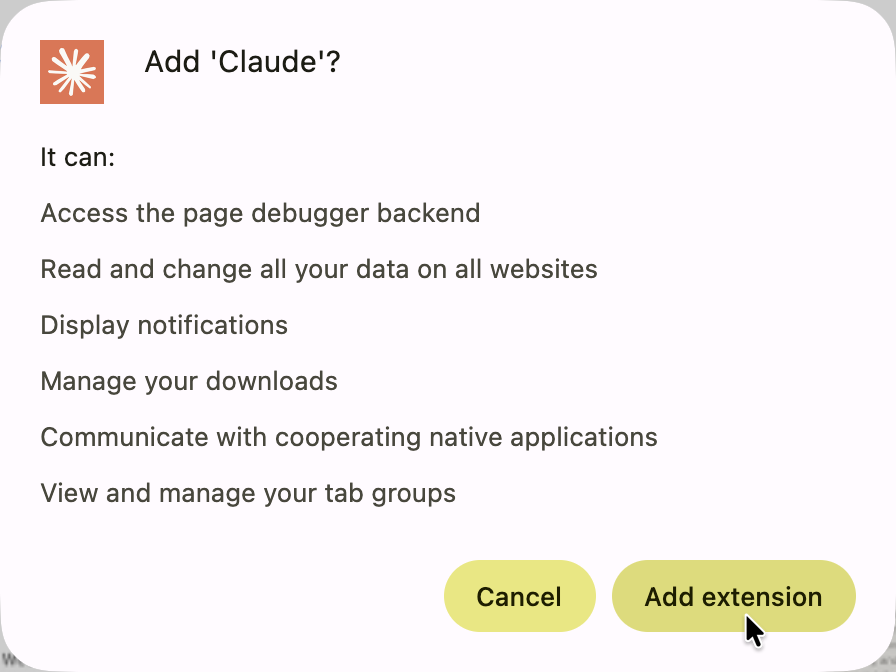
Click ‘Add Extension.’
Next, click ‘Authorize’ in the newly opened tab when the extension installation completes.
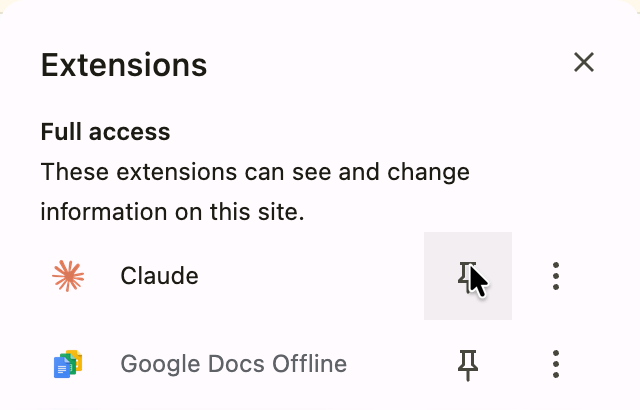
There you go. You’ve successfully installed the Claude Chrome extension. Click the puzzle icon in your Chrome browser and pin the ‘Claude.’
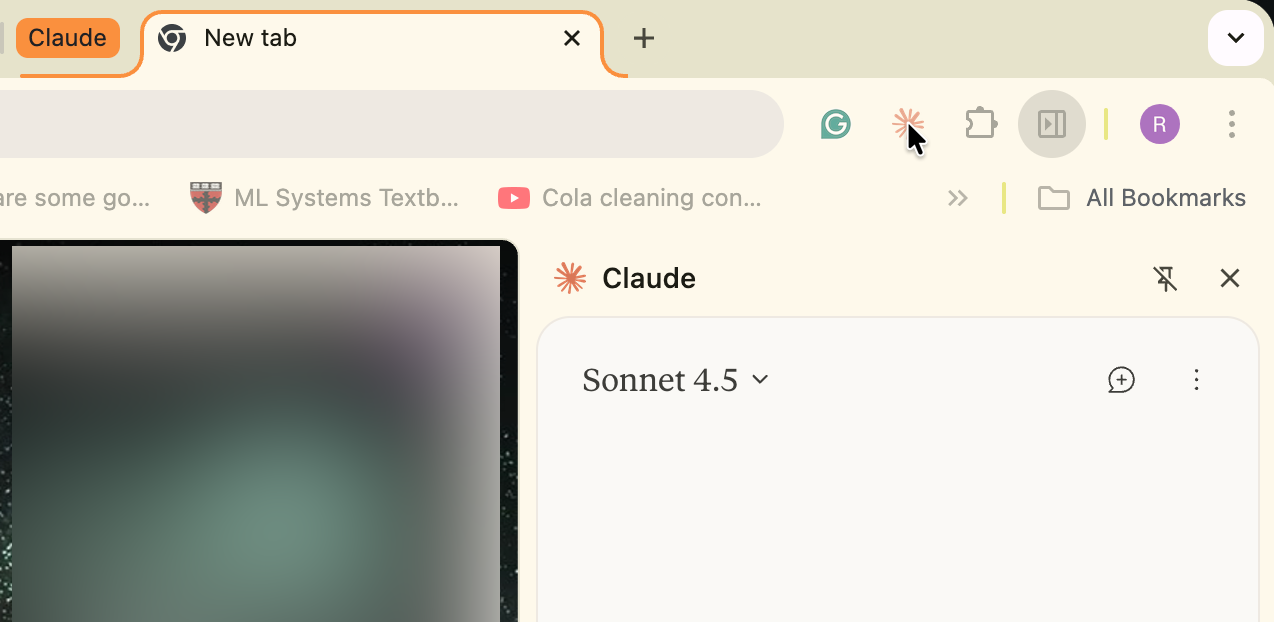
When you initiate the Claude extension, it can create a tab group in your Chrome browser.
Open your Gmail account in the Claude for Chrome tab.
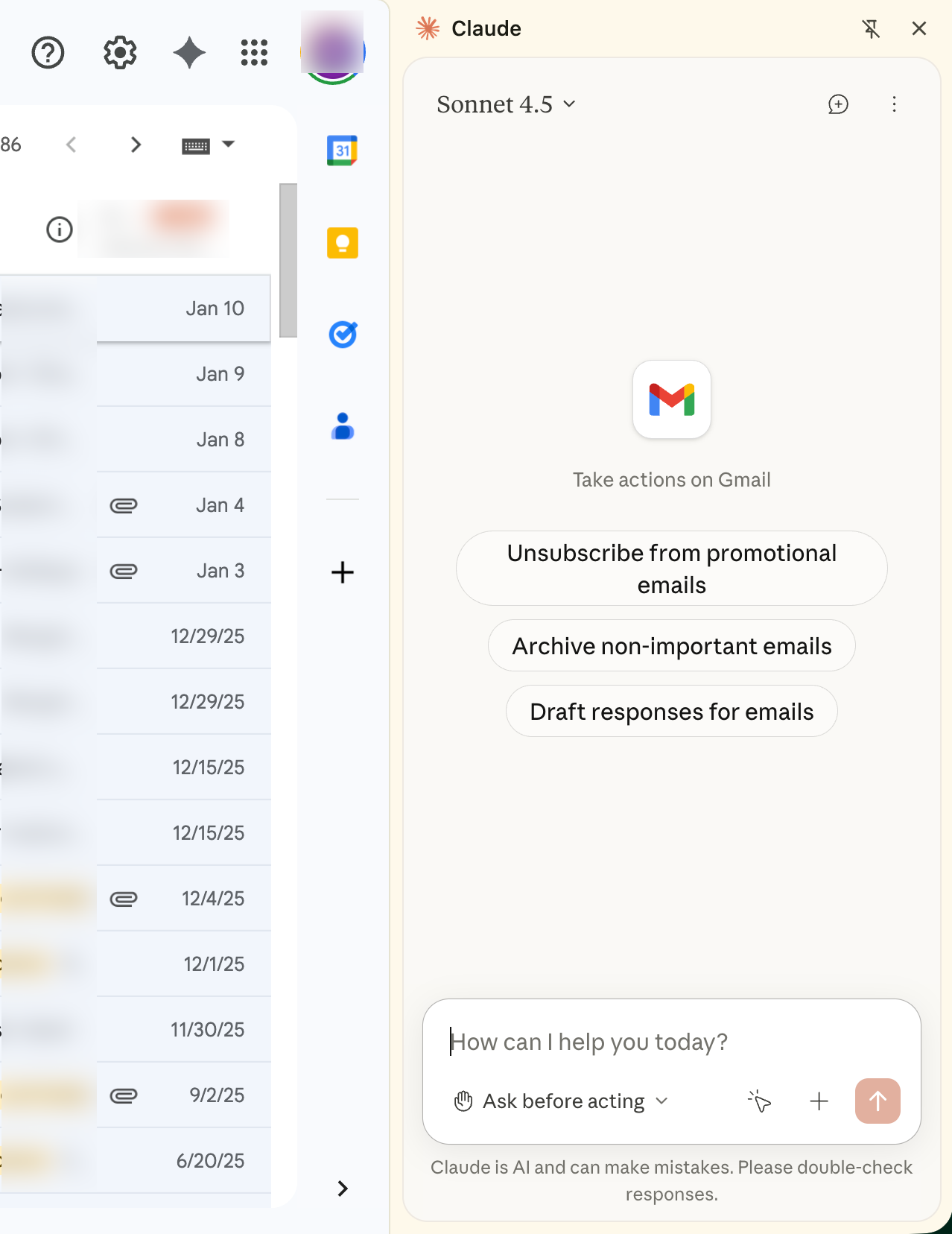
Step 2 - Extract receipts from Gmail.
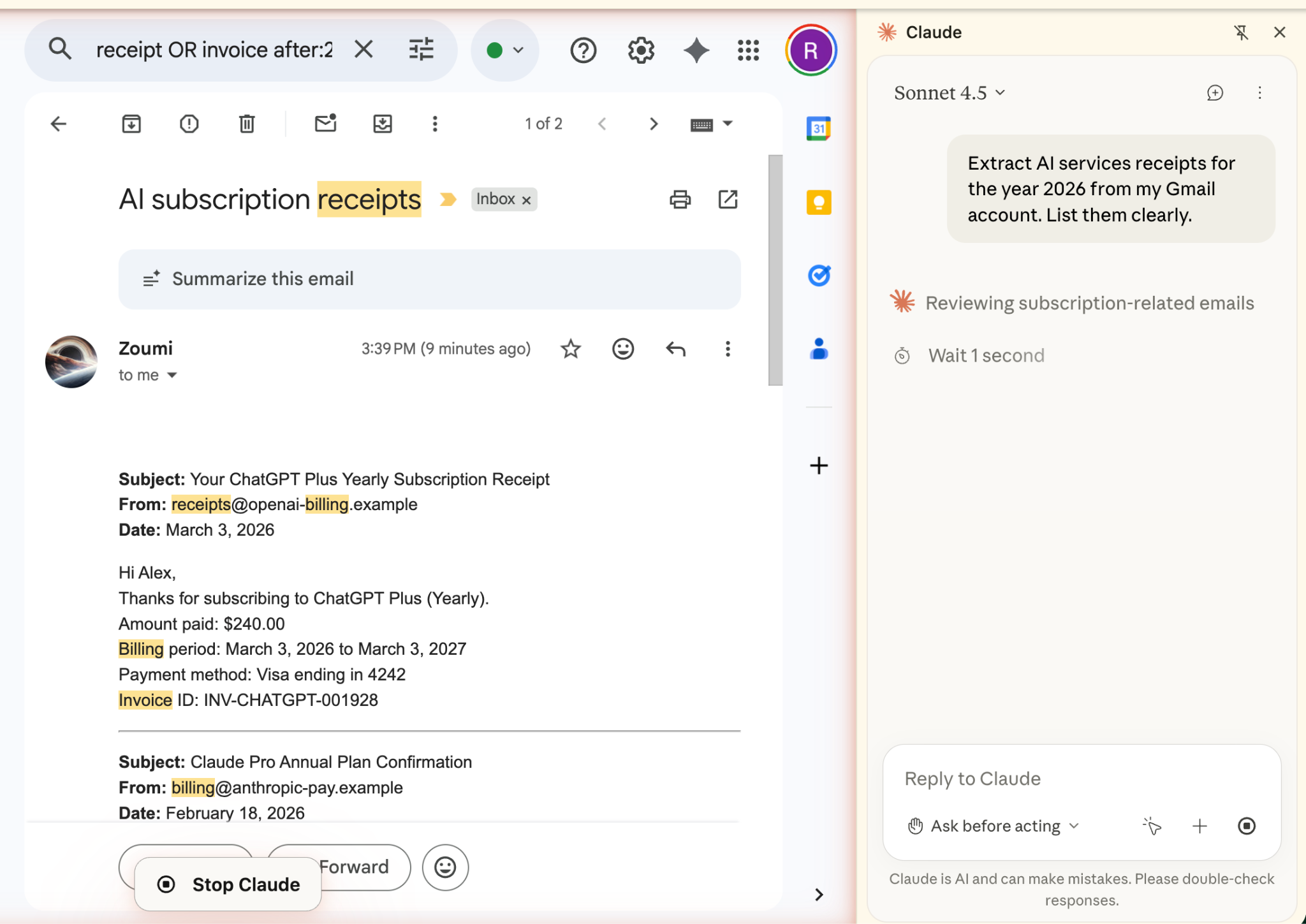
Claude for Chrome is quick in extracting receipts from your Gmail or Outlook accounts. Prompt Claude to extract the AI subscription receipts from your Gmail account.
The receipts can be in one email or multiple emails. Claude will read the emails and find the latest ones.
Prompt:
Extract AI services receipts for the year 2026 from my Gmail account. List them clearly.
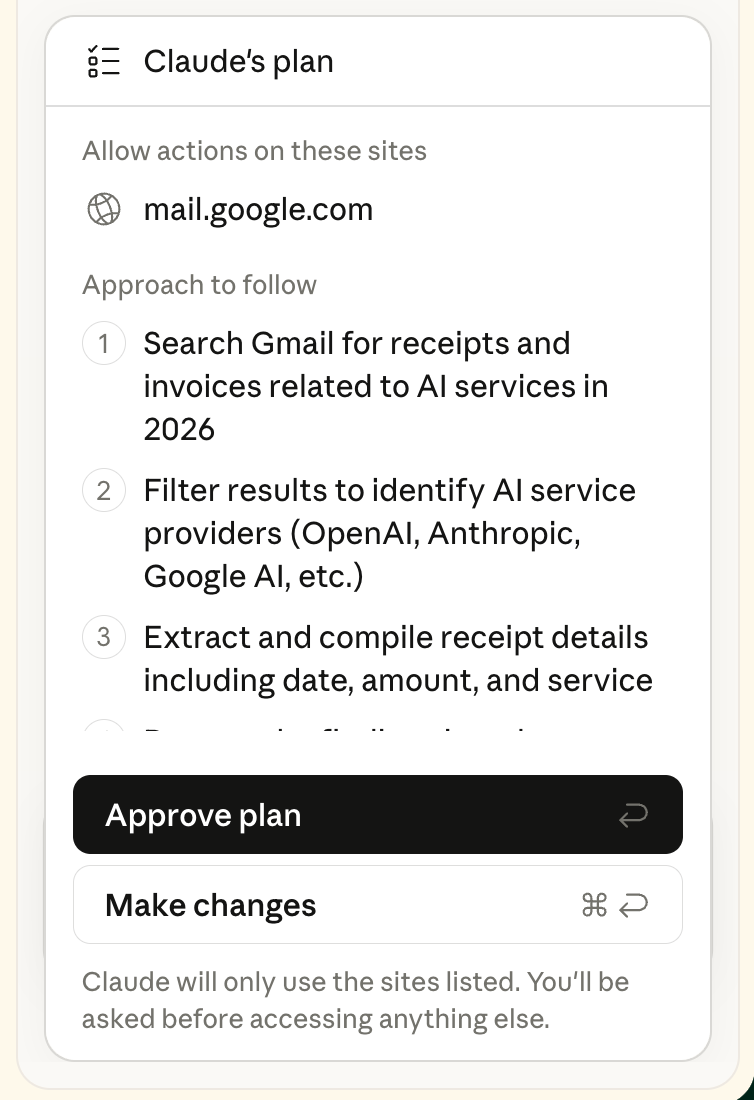
Review the plan and suggest changes or approve the plan. Claude will initiate the task instantly.
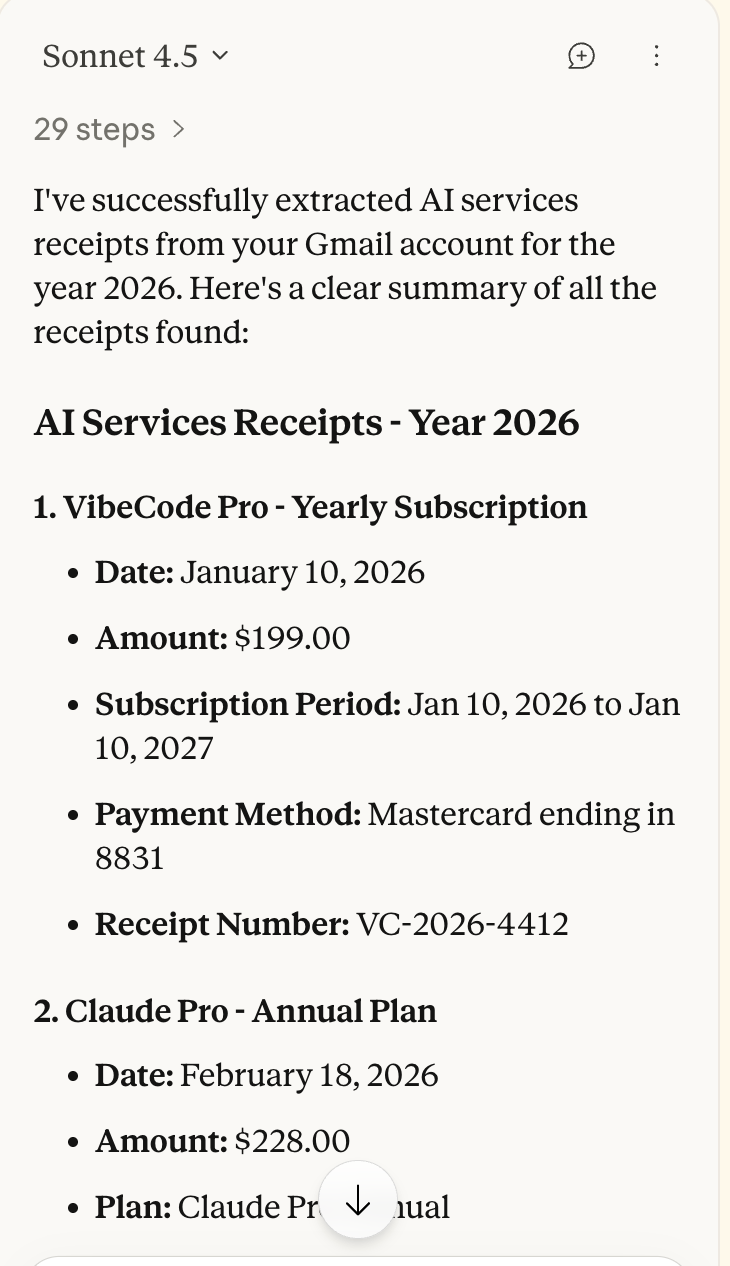
The receipts will be listed in the Claude sidebar.
Step 3 - Create a Google Sheet
Next, we want Claude to create a Google Sheet and populate it with all the receipts it found in the email. Most of the time, companies are looking to automate this step. You can use the Claude recording feature to automate the receipt collection. Check out our Claude Chrome recording tutorial here.
Now, prompt Claude to create a Google sheet, create columns and put all the receipts data into it.
Prompt:
Create a Google sheet for the receipts you pulled from the Gmail account. Create proper columns and format them with bold text for the column names and the total. Use colors.
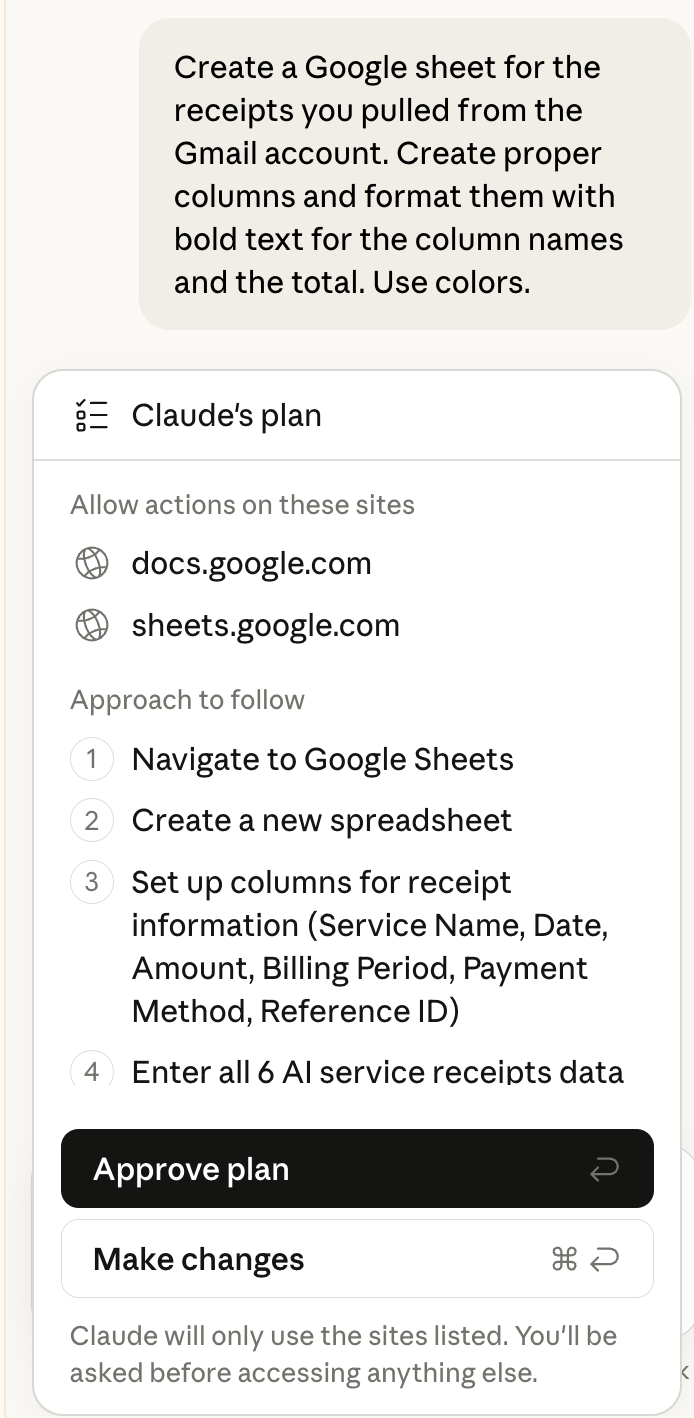
Approve the plan or make changes. To make changes, click Make changes, and adjust your prompt to include something like, using CSV format or a Google sheets template for the data.
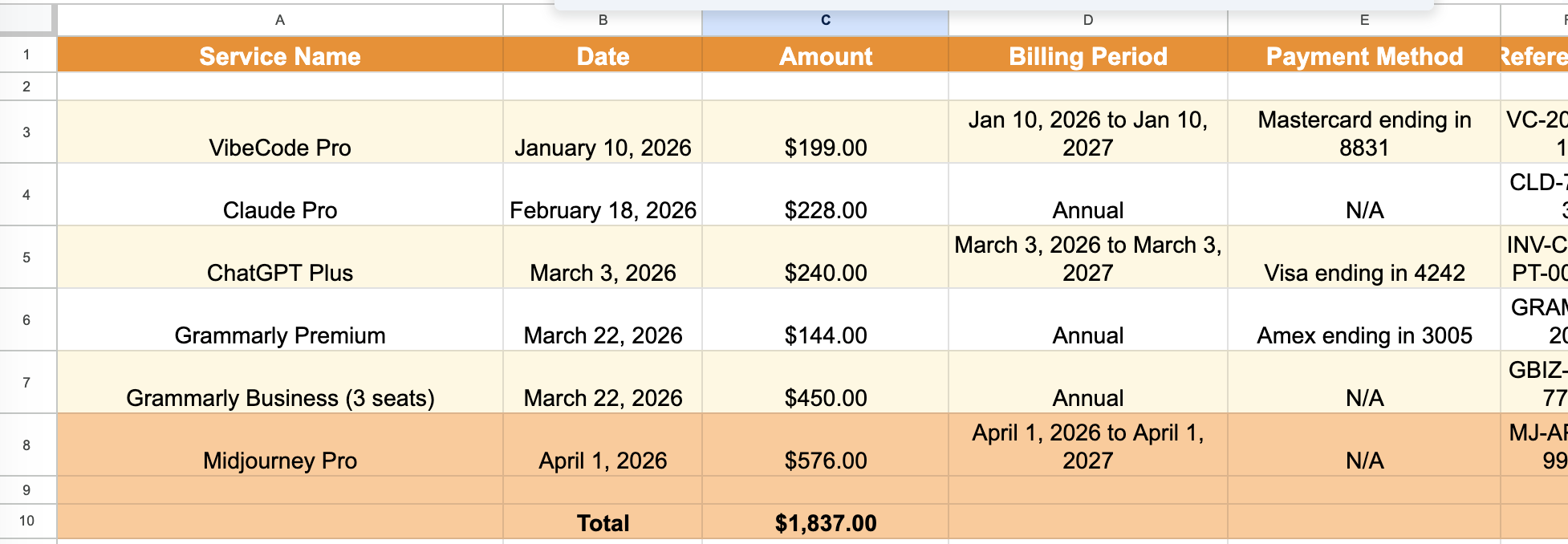
The spreadsheet came out pretty good. Claude did a wonderful job creating a sheet and formatting it accordingly.
Step 4 - Review and iterate
The last step is to review the Google sheets. Perform the steps above to populate the Google sheet with more receipts. You can also instruct Claude to email the Google sheets link to your manager. Again, you can automate the entire process with Claude Chrome recording.
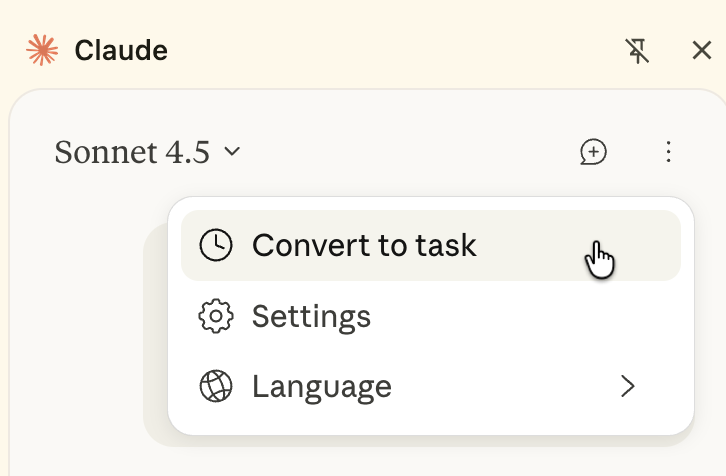
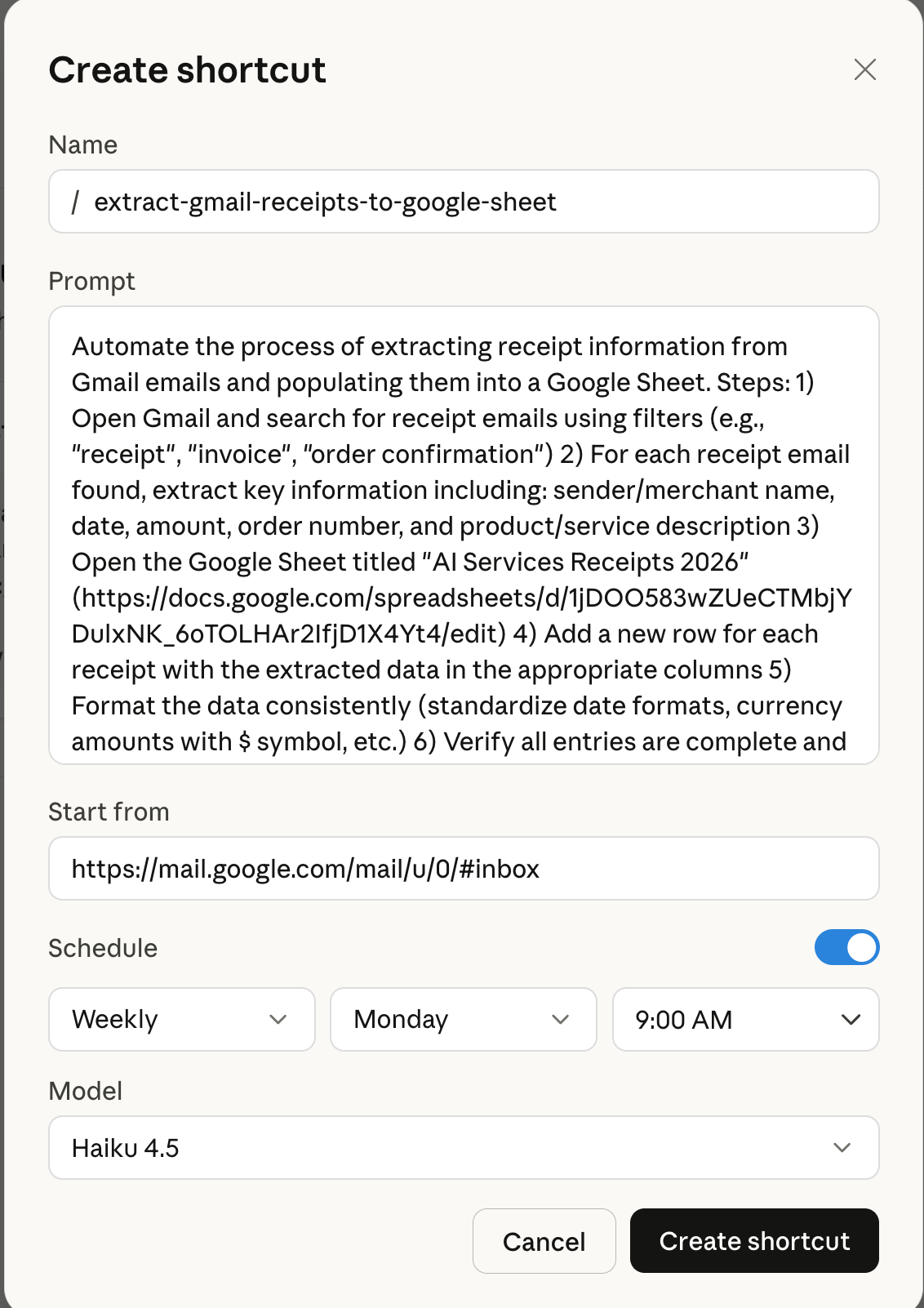
Review the prompt and change the model to Sonnet 4.5. Adjust the schedule and click ‘Create Shortcut.’
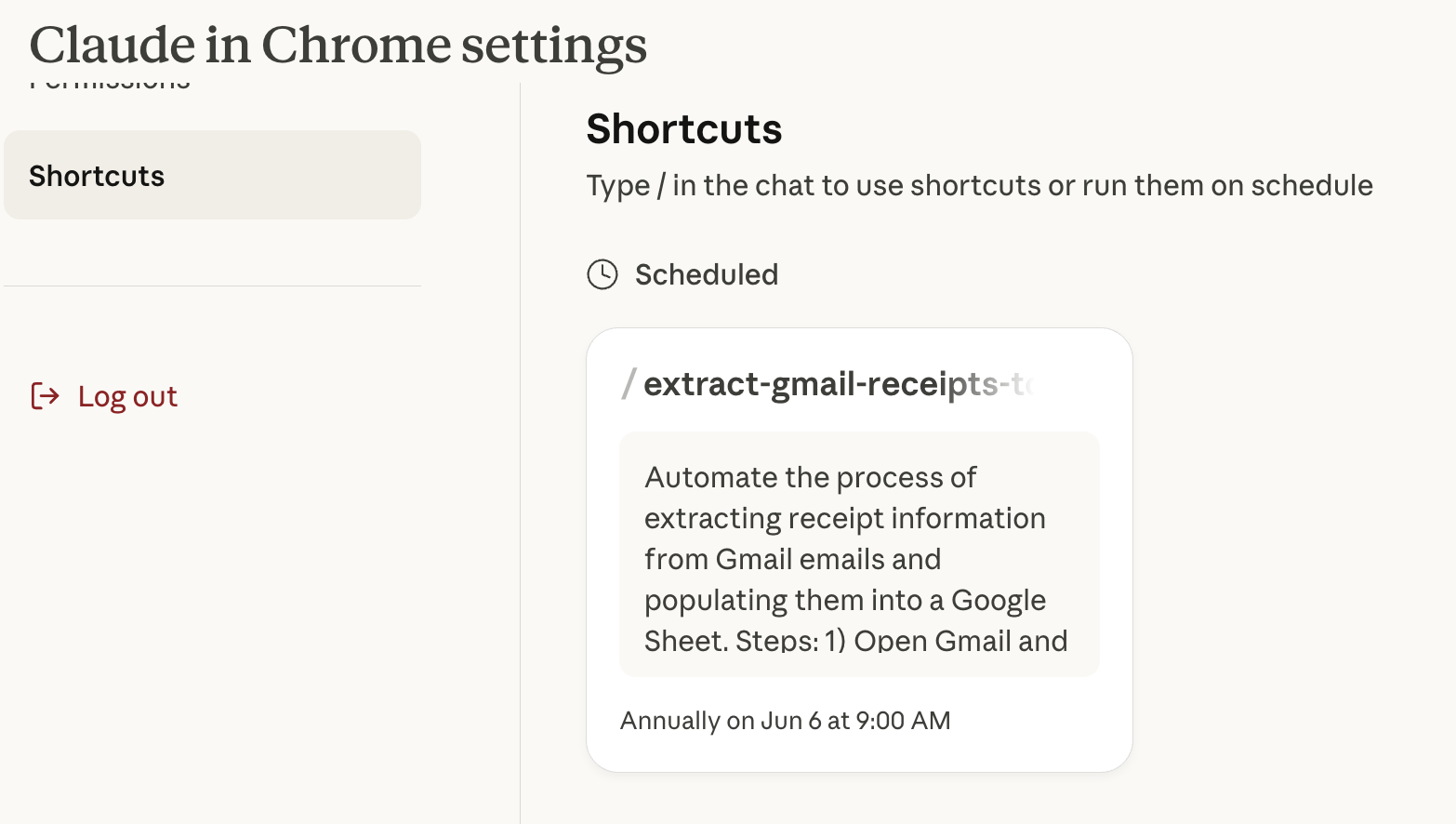
The shortcut will be added to Claude for Chrome. It will execute the workflow at the specified schedule.
That’s it for this tutorial, Claude Lovers! It’s a simple automation you can use to automate random tasks that consumes your time. Consider this tutorial a template to automate other tasks that you might find time consuming such as, writing and deleting emails, cancelling email subscriptions and labeling the emails using Gmail labels.